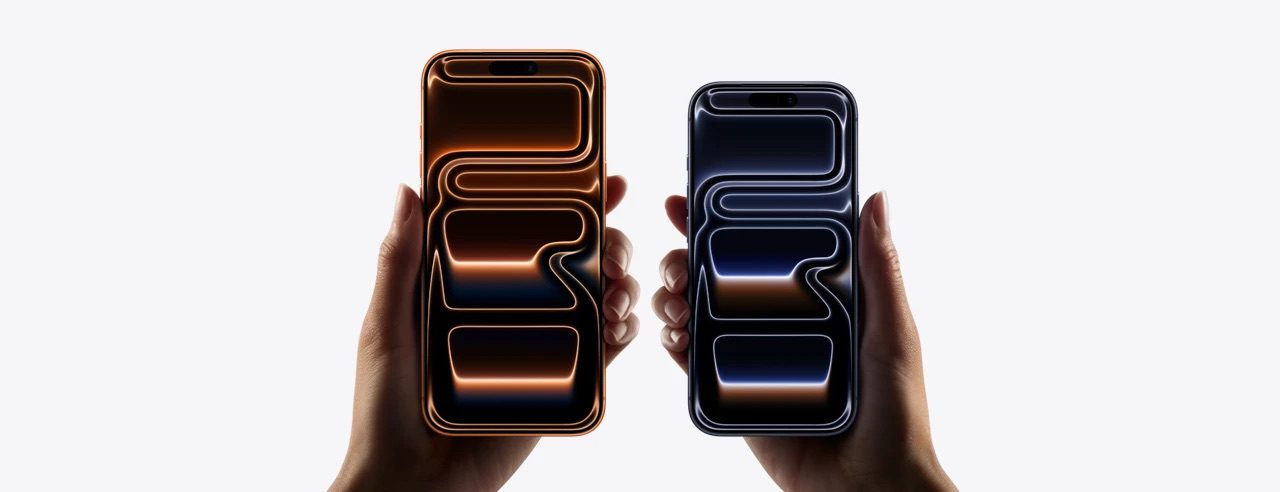
Auto-brightness ensures your iPhone’s screen brightness levels adapt automatically according to the light around you. For example, when you step out in the sun, the brightness increases. And inside a room, it decreases. When your iPhone 17 Pro or iPhone 17 Pro Max auto-brightness feature doesn’t work, it can spoil your user experience and even consume more battery.
If auto-brightness isn’t working on your iPhone 17 Pro or iPhone 17 Pro Max, you can use these solutions to fix it. Once that’s done, it should be more comfortable to use your iPhone during the day, night, and any other times.
1. Clean Your iPhone’s Front Screen Area
The ambient light sensor is at the top of your iPhone 17 Pro screen. Body oils, sweat, and other such gunk may stick to this sensor when holding the phone to your ear during long calls. Due to this, it may stop your iPhone’s ambient light sensor working, which is what’s responsible for adjusting the screen brightness according to your surroundings.
To fix this, use a clean, dry cloth to wipe the top portion of your iPhone screen. After this, auto-brightness should work fine. If not, move on to the next solution.
2. Restart Your iPhone 17 Pro
If you haven’t turned off your iPhone 17 Pro in a while, it can cause a few problems, like auto-brightness not working correctly. To fix this, simply restart your iPhone 17 Pro. After the device powers on, everything should work as well as it usually does.
3. Enable and Disable Auto-Brightness
Another quick solution to fix the auto-brightness problem on your iPhone 17 Pro is to turn this feature off and on. Here’s how to do that:
- Open the Settings app.
- Tap Accessibility.
- Tap Display & Text Size.
- Turn off Auto-Brightness.
- Restart your iPhone.
- Go to Settings > Accessibility > Display & Text Size and enable Auto-Brightness.
4. Update Your iPhone
Auto-Brightness is a native iOS feature, so it’s also important to make sure that the iPhone 17 Pro is running smoothly. The best way to do this is to install the latest iOS software.
To update your iPhone 17 Pro, go to Settings > General > Software Update. If an update is available, tap Update Now.
5. Try Turning Off Night Shift
We’ve heard from people who said they had success fixing iPhone 17 Pro Auto-Brightness problem by turning off Night Shift. Here’s how to turn off Night Shift on your iPhone 17 Pro:
- Open the Settings app.
- Tap Display & Brightness.
- Tap Night Shift.
- Turn off Manually Enable Until Tomorrow and Scheduled.
6. Remove Any Thick Screen Protectors
iPhone displays are very sensitive. If you are using an abnormally thick screen protector on your iPhone 17 Pro, it’s possible that it’s causing problems with the smooth working of the ambient light sensor. To address this, consider removing your screen protector. If you must use one, opt for a screen protector that’s thinner, or medium thickness, instead.
Similarly, if you have a case that covers the entire front of the device, or even partially blocks the top sensor area, remove that as well.
7. Reset All Settings
When you reset all settings, personal data like downloaded apps, music, photos, videos, and such won’t be deleted. However, all the settings you have customized to your liking will reset and return to the default options. This includes Wi-Fi, Bluetooth, VPN configurations, Home Screen layout, keyboard settings, and more.
After you reset all your settings, several problems such as auto-brightness not functioning should be fixed. Here’s how to do it:
- Open the Settings app.
- Tap General.
- Tap Transfer or Reset iPhone.
- Tap Reset.
- Tap Reset All Settings.
- Enter your device passcode to confirm.
Once it completes, your iPhone 17 Pro should adjust the screen brightness correctly based on the light around you.
Problems With Third-Party iPhone Displays
Did you break your iPhone 17 Pro screen and get it replaced at by an unauthorized service provider? If yes, it may cause multiple problems, like Face ID not working correctly, True Tone not functioning, and possible auto-brightness issues.
Reach out to Apple support for repair options. Apple offers mail, phone, online, and in-person help. Make sure to schedule an appointment if you plan on going into your local Apple Store!
Auto-Brightness Makes iPhone 17 Pro Easier on the Eyes
After following the above fixes, your iPhone 17 Pro display should automatically adjust the screen brightness to match your environment, ensuring that the screen is always comfortable to look at.
If auto-brightness still doesn’t work on your iPhone 17 Pro, you may want to turn off auto-brightness and adjust it manually until you get your device inspected at an Apple Store instead.