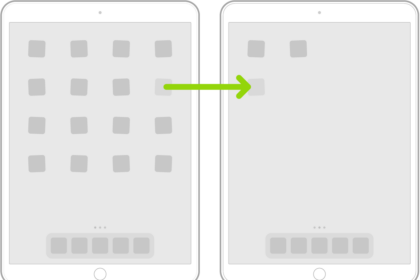
So you have a lot of apps because it is super easy to download and install new apps. You may want to delete the apps you do not need anymore. Or you may want to clear out some space. Deleting apps from your iPhone 18 Pro is also very simple.
You can even delete some of the built-in apps (pre-installed on your iPhone 18 Pro or iPhone 18 Pro Max). The following built-in Apple apps can be deleted:
Fitness, Apple Books, Apple TV, Calculator, Calendar, Clock, Compass, Contacts, FaceTime, Files, Find My, Freeform, Health, Home, iTunes Store, Mail, Maps, Measure, Music, News (where available), Notes, Podcasts, Reminders, Shortcuts, Stocks, Tips, Translate, TV (where available), Voice Memos, Wallet, Apple Watch app, Weather
How to delete iOS apps
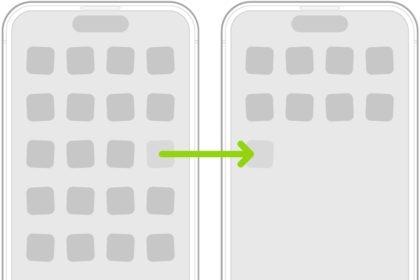
Touch and hold the app on the Home Screen or in App Library. Tap Remove App, then tap Delete App. Tap Delete to confirm.
You can always re-download the uninstalled apps if you change your mind later. So, it is a harmless process. But, you should know that deleting an app may cause you to lose its data and documents.
What if you do not see Delete App
If you do not see Delete App, there are three possibilities:
- Some pre-installed apps cannot be deleted. For instance, the Phone app on the iPhone 18 Pro can not be deleted. The following apps can not be deleted: Settings, Phone, Camera, Photos, Messages, Safari, and App Store.
- It is likely that you or somebody else prevented the deletion of apps by activating Screen Time or Restrictions. If this is the case, you will not be able to delete apps from your device. On your iPhone 18 Pro, go to Settings > Screen Time > Content & Privacy Restrictions > iTunes & App Store Purchases (enter your Screen Time password if you have one) > and then ensure that Deleting Apps is set to Allow.
- If your device is managed by a Mobile Device Management (MDM) solution, you may not be able to delete apps. Contact your device administrator for help.
- If nothing works, try this. Go to Settings > General > iPhone Storage. Now find the app you like to delete and tap the red Delete App button.
- You may also want to try restarting your device. Simultaneously press and hold the side button and either volume button until the sliders appear, then drag the Power Off slider. Wait a few seconds. Then restart again.

How to re-download the apps you deleted
You can easily download and install apps you removed. Here is how:
- Open the App Store app
- Tap your picture, tap Apps & Purchase History, then tap Your Apps.
- Find the app
- Tap the cloud icon to re-install the app.