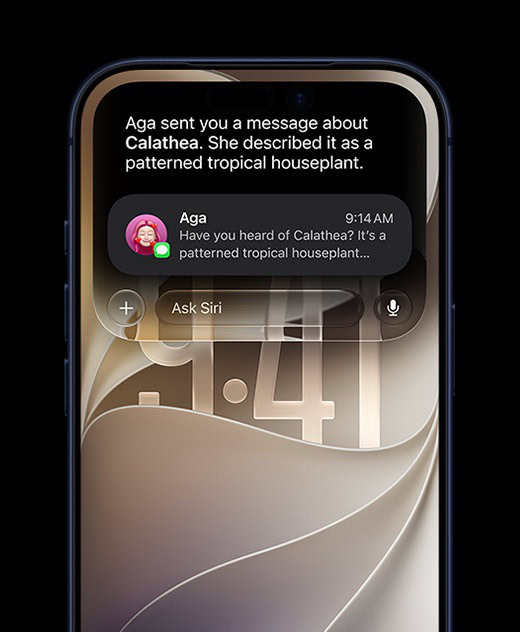
Visual Intelligence’s remit has grown substantially since it originally let your iPhone describe what it saw via the Camera in iOS 18.2. Generally, Visual Intelligence lets you query what it “sees” in a screenshot or through the camera, or take action on what appears. Swipe your finger around something to prompt a visual search that can explain what you’ve highlighted.
This can give you the answer to or produce a result based on these sorts of inner monologue statements: “What’s that plant?” “Turn the information on that poster into a calendar event.” “What sculpture is that?” “Read me the text in this screenshot.”
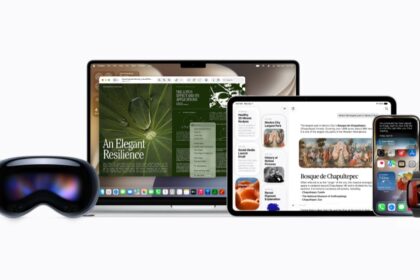
Starting with iOS 27, iPadOS 27, macOS 27, and visionOS 27, you have more options and can get more information.
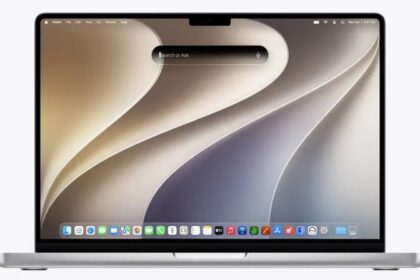
First, macOS and visionOS now support Visual Intelligence for the first time. On a Mac, you can have Visual Intelligence describe what’s on screen. With an Apple Vision Pro, you can have it describe things in your field of vision.
Second, on an iPhone or iPad, you can use Visual Intelligence directly through the Camera app with a new Siri button that sits alongside Video and Photo in the photo modes list below the shutter button.
Ask Siri about a screenshot
You can ask Siri about what it sees using Visual Intelligence in two different ways. On an iPhone or iPad, you use the screenshot shortcut to start the process; on a Mac, there’s a shortcut to capture part or the screen or a window that comes as part of macOS 27.
To take the screenshot on an iPhone, press and release the side button and the volume up button together. On an iPad, press and release the top button and either volume button; on an iPad with a Home button, press the top button and the Home button together.
You can also circle items with your finger or an Apple Pencil to highlight them.
Ask Siri about what’s on a Mac’s screen
Visual Intelligence can now see your screen. Ask Siri about anything on your screen, and it can analyze what it’s seeing and make sense of it. You can also focus Siri’s attention on just part of your screen:
- Press ⌘-Shift-6 to highlight a portion of your screen. You can then ask Siri about something in that area.
- Press ⌘-Shift-Space to ask Siri about the frontmost window.
If you’re using ⌘-Shift-6 for something else, make sure to reassign it either for Visual Intelligence or in another app using that combination to avoid a conflict.
Even if you don’t ask Siri anything, it may automatically identify plants, animals, and other elements found in screenshots. That behaviour is controlled by Automatic Visual Look Up, under Settings > General > Screen Capture.
macOS doesn’t yet apply Visual Intelligence to the FaceTime camera or Continuity camera.
Ask Siri about what Apple Vision Pro can see
If you use an Apple Vision Pro, visionOS 27 will be a delight, as it brings Visual Intelligence, as with an iPhone or iPad camera, to your augmented reality headgear. (All Apple Vision Pro models support Apple Intelligence.)
Here’s what you can do:
- Ask Siri general questions.
- Look at something and ask Siri about it. Visual Intelligence will know from context what you mean.
- Gain access to the Siri app, as on other platforms.
Apps available in visionOS, like Safari, gain the same improvements as on other platforms, more typically mirroring those in Golden Gate.