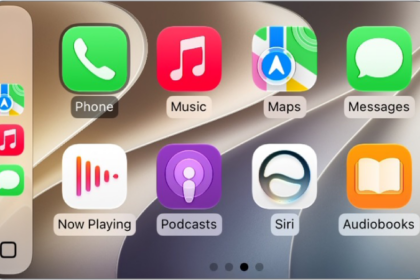
CarPlay is an extension of your iPhone to your car. It lets you make calls, send texts or play audio using Siri. A lot of iPhone users were excited to update iOS, and one of the reasons is that the update brought many new features to CarPlay.
Of course, you will be able to take advantage of these new features if you get CarPlay working with your iPhone. From the user reports, there seem to be two types of issues:
- Some iPhone 18 Pro users who updated iOS said that Apple CarPlay had stopped working after the update. Users are complaining that their car is not recognizing the iPhone when it is connected to the car’s USB port; CarPlay refuses to load the infotainment system. From the users’ reports, it appears that this is not a connection problem because it does not affect the ability to charge the iPhone via the car’s USB port.
- The other problem is that CarPlay is connected but not working properly. For example, notifications, Siri or GPS are not functioning as expected.
We are not sure yet if there is a common theme; that certain iPhone models or car makers are affected. If you are having this issue, here is what you can do:
1: Update
Let’s do this first. Apple may already be aware of and have addressed this problem if enough users have already reported the issue. Go to Settings > General > Software Update to check if there is an update. If there is an update, follow the onscreen instructions. After updating your device, check to see if CarPlay is working now. If the screen says that iOS is up to date, go to the next step. You can also turn on Automatic Updates so that your iPhone will be automatically updated in the future.
2: VPN
Some users have said that VPN was the culprit in this case. These users have said that once they disabled VPN, CarPlay started working. You may want to test this, too, if you are using VPN. Disable it, then go to your car. Does CarPlay load now? If it is working now, there are a few further steps you may want to try:
- You can contact the developers of your VPN. Let them know the issue. Maybe they can offer a fix.
- Also, periodically check for iOS updates. This issue may be fixed by a future update so that you can start using both VPN and CarPlay.
- If you do not want to give up VPN, you can try fixes 3 and 4 below to see if they help.
3: Force restart
Force restart your iPhone 18 Pro. This is simple and does not erase any data. Follow these steps in order:
- Press and release the Volume Up button.
- Press and release the Volume Down button.
- Press and hold the Side button until you see the Apple logo. Once the Apple logo appears, release the Side button.

Your iPhone will restart. Now try to use CarPlay again.
4: Forget and then re-add your car
If the issue persists, disconnect CarPlay and re-connect again. Here is how:
- On your iPhone 18 Pro, go to Settings > General > CarPlay.
- Select your Car.
- Then tap Forget This Car.
- To add your car back, start your car, then connect your iPhone. Make sure that your USB cable is plugged into the CarPlay or smartphone port on your car rather than just a charging port. Also, make sure that you’re using a decent cable that works for data transfer, not just charging.
5: Reset network settings
Reset your network settings on your iPhone. You should know that doing this will restore your network-related settings to their factory state. For example, your Wi-Fi passwords and VPN configurations will be gone after doing this. Here is how you can do this:
- Tap Settings, then select General.
- Tap Transfer or Reset iPhone.
- Tap Reset, then Reset Network Settings.
- Now, restart your iPhone 18 Pro. Then re-pair it again via the USB port, or if your car supports it, connect wirelessly.