Are you unable to edit your photos or videos on your iPhone 18 Pro or iPhone 18 Pro Max? It appears that some users run into problems using the built-in Photos app. It further seems that the option to edit photos or videos is grayed out when attempting to use the Photos app to adjust photos or videos.
By grayed out, I mean that the edit button is disabled and cannot be selected. Thus it is impossible to edit the selected photo or video.
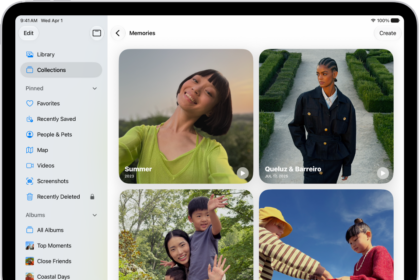
You can take beautiful photos and videos with your iPhone 18 Pro. Your device’s Photos app also includes powerful built-in editing tools. There are several editing options that allow you to edit the size, angle, light, and more. Of course, you can use these editing tools only if the edit button is working.
Grayed-out edit button fix
Please first, answer these questions: Are the photos you take with the built-in Camera app on your iPhone 18 Pro not behaving as expected? Or does this issue affect all of your photos and happen randomly? If your answer is yes, then please see number 2 below.
Or you are having this problem only with your imported photos? If your answer is yes, then see number 1 below.
1. Are you having this problem with the photos or videos that were transferred from your computer or that were downloaded from an external source? It is likely that some of your important photos may have these inactive edit buttons, but not all. And this is probably because of compatibility issues.
This means that some of the photos or videos you have are not fully supported by the Photos app on the iPhone.
There are a lot of video and photo formats. The most common image types are TIFF, JPEG, PNG, GIF, and RAW. And the most common video formats are MP4, MOV, AVI, and FLV.
There are certain types of photo and video extensions that cannot be edited with the Photos app. For example, if your photos are in GIF formats, your edit button will be grayed out. What you can do is to convert the images or videos if possible. For example, since GIF images are not editable, you may want to convert them to JPG or PNG. You can use a third-party app to do so. Simply go to the App Store and download an image converter app. Or you can import the photo to your Mac and then you can convert with Preview or you can use QuickTime Player if it is a video. Here is how:
- Preview: File > Export, then choose a format such as JPEG or PNG.
- QuickTime Player: File > Export As, then save to H.264.
2. Are you having this issue with the photos you take with the Camera app on your iPhone? Please try these steps below in order until you have fixed your problem.
- Update your iPhone 18 Pro. Go to Settings > General and Software Update. If there is an update available, tap Update Now and then follow the onscreen instructions.
- Restart your iPhone 18 Pro.
- Make sure that Use Cellular Data is on for Photos and Camera. Go to Settings and tap Cellular or tap Mobile Data, then turn on Photos and Camera.
- Change the default Camera setting to see if this helps. This will change the capturing HEIF and HEVC format to JPG format.
- Tap Settings.
- Tap Camera.
- Tap Formats.
- Tap Most Compatible. This will set the default photo format to JPG.
- Reset Network Settings. Tap Settings > General > Transfer or Reset iPhone > Reset > Reset Network Settings. Please note that resetting your network settings will erase your network settings such as your saved Wi-Fi passwords, VPN settings, etc.
A workaround
This is not a fix but a workaround. You can follow the steps below so that you can edit your photos again. Here is how:
- Open the photo or video that you cannot edit.
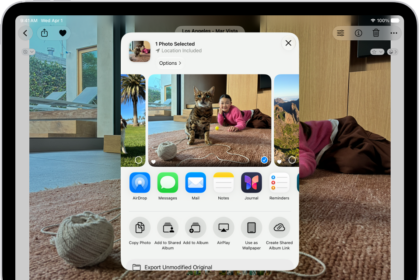
- Then tap the share icon.
- Select Mail. And email it to yourself. I sent it to my Gmail account.
- Then go to your Gmail account and open the email and save the file to your photos.
- Then open the photo or video in Photos and try to edit now.
If the steps above do not work, try this, this is a little bit different:
- Open Mail on your iPhone.
- Compose a new mail message. I used my iCloud account.
- Tap in the message where you want to insert the attachment, tap the Insert Attachment Actions button above the keyboard, then tap Photo Library.
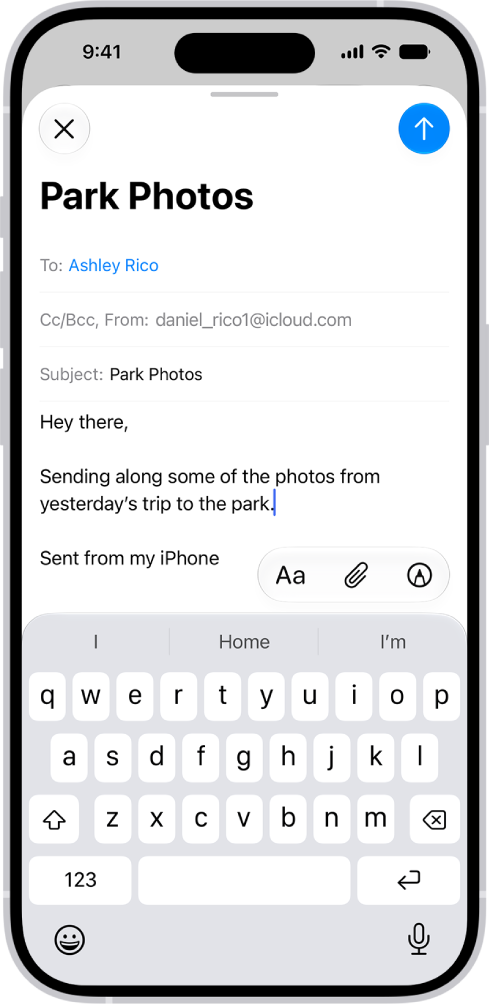
- Select the photo that you are unable to edit.
- And then send it to yourself.
- Now refresh Mail.
- Open this new mail. And save the image.
Now open the Photos app to see if you can now edit.