





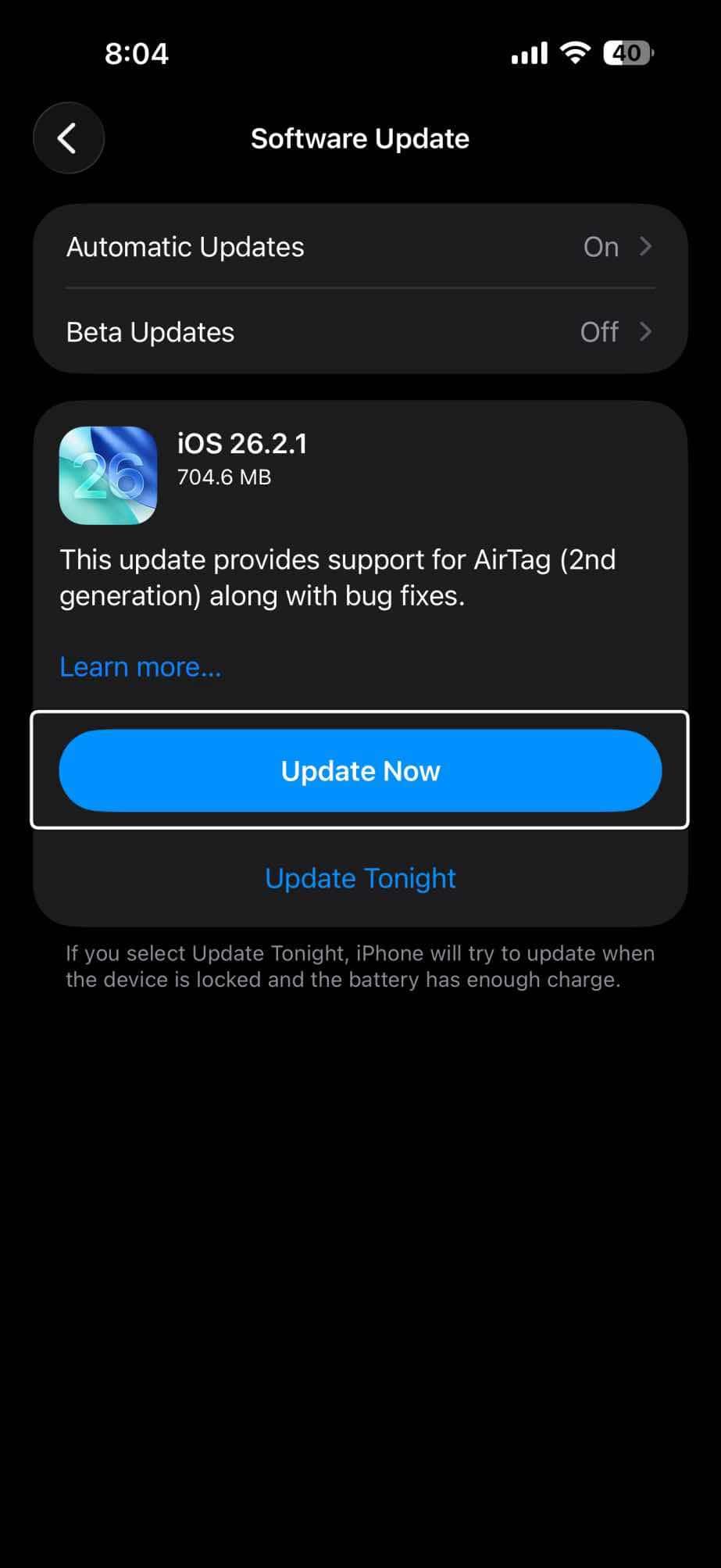
This article explains how you can successfully update your iPhone or iPad if the iOS or iPadOS update is stuck on the “estimating time remaining” screen for a very long time (several hours, more than a day), not just a few minutes, even hours.
Usually, wireless iPadOS and iOS updates go smoothly. And furthermore, downloading and installing iOS updates are designed to be very easy. However, rarely you may experience some problems when you want to download and install the updates. And one of the common problems that people are having is that the iPadOS or iOS device is stuck on “Estimating Time Remaining” when downloading the update.
If your iOS or iPadOS update appears stuck on estimating time remaining screen, then this article is for you. Before you do anything, having patience may resolve this issue. Wait some more to see if it resolves on its own. If your issue does not resolve after several hours, then continue.
Many factors can cause this problem. Below you will find how you can address them:
Slow Wi-Fi
You may have a slow internet connection. Since the update requires an active internet connection, you may have a slow download speed or you may be having Wi-Fi related problems if you are experiencing this problem. You may want to check a few things:
- Are you also downloading other stuff simultaneously? This may include downloading other apps from the App Store. This may also include YouTube videos or watching Netflix. Stop those other downloads as doing so will improve your download speed and wait to see if your issue is fixed.
- You may want to restart your modem and router.
- Restart your device.
- Reset network settings by going to Settings > General > Transfer or Reset iPhone > Reset > Reset Network Settings. (Note that this will remove your network settings such as your Wi-Fi passwords, VPN, and APN settings.)
- Enable Airplane Mode and wait about a minute and then disable it by going to Settings > Airplane Mode.
Not enough space
A common cause of this is inadequate available free space. Your device requires enough free space to download and install the upgrade. You may need to make room to speed up the installation. If you need help freeing up space, you may try the following:
- Go to Settings > General > iPhone Storage (or iPad Storage) and see how much available space you have on your device. Scroll down and you will see that there are Recommendations. They will help you save space.
- You may want to delete unwanted apps, videos or photos.
Server outage
Are you trying to install an update that Apple just released? Apple’s update servers may be very busy since a lot of users are trying to update at the same time. People can’t wait because new updates bring a lot of new exciting features. If this is the case, Apple’s server might be slow to respond because they are overloaded because of this high demand. Maybe you can wait one day and try again when Apple’s servers are less busy.
Another related issue is that Apple’s servers may be down. Apple provides a System Status page where you can check whether or not there is a problem. If Apple’s servers are not available, do not worry, it is temporary. And Apple will fix it.
Delete update and try again
Please follow the steps below:
- On your iPhone or iPad, go to Settings > General > iPhone Storage (or iPad Storage).
- Locate the iPadOS or iOS version that you are trying to install, and tap that.
- Tap Delete Update.
- Now restart your device. In fact restart everything, including your modem and router.
- Now go to Settings > General > Software Update and try again.
Use your computer
You may want to connect your iPhone or iPad to your computer and try again. Here is how:
- On your computer, open Finder (on a Mac running macOS Catalina or later) or iTunes (on a Windows PC or a Mac running macOS Mojave or earlier).
- Connect your iPhone or iPad to your computer.
- Click your device in Finder or iTunes.
- Click General or Settings, then click Check for Update and then click Update.






, not just a few minutes, even hours)