






Many people have gotten internet results for the wrong location. Sometimes, it can be Google search results for a different location. Sometimes you will be directed to webpages designed for another country, or you may experience websites that constantly get your location wrong.
In this article, we will explain the various settings that control how Google and other websites see your location on iPhone 18 Pro.
Google search or website location is wrong
Google uses several sources to decide what region it uses to give you search results. If your internet location is wrong in Safari, you may need to check each of these settings.
Are you using a VPN?
If you are using a VPN, your real IP address is not being used. A VPN will replace your IP address with a different one which makes it appear as though you are in another location. If you use a VPN and are having trouble with searches giving you wrong results or if you are getting webpages for another country, you can turn off the VPN or possibly change some of the settings. Consult your VPN software’s website for more information on your options.
Change your Google Region Setting
Normally, Google will provide you with results based on your current location. This is so you can get what should be the most relevant results for your searches. However, if you are getting results for the wrong location, or if you want to change your search region because you are traveling and don’t really want the local results (in the local language), you can change your Region Setting.
- Open the Google page for the country you want to use. This will look like google followed by the country domain. For example, google.us for the U.S., google.de for Germany, google.tr for Turkey, etc.
- Click on Settings in the bottom-right corner of the page, then select Search settings.
- Scroll down to the Region Settings section. Select your region, then click on Save.
- If you are signed in to Google, your settings will be saved.
- If you aren’t signed in, the settings will be saved in browser cookies for that browser unless you are using private or incognito browsing, then the settings will not be saved for the future.
- The changes may only work if you are searching from the Google website.
That may not be enough to do it. There is another Google setting you need to check. If you have Web and App Activity turned on for your Google account, Google will guess your location based on previous searches and activity. And if your internet location has been wrong, it will use those wrong results.
Turn off Search Services History
Google is replacing Web & App Activity for Google Search with a new setting called Search Services History. To turn it off:
- Go to Search Services History settings at myactivity.google.com/search-services/settings. You may be asked to sign in to your Google Account.
- Turn Search Services History off.
- Select Turn off, then choose Turn off or Turn off and delete activity. If you choose “Turn off and delete activity,” follow the steps to select and confirm what activity you want to delete.
Google notes that if these settings do not match what you see, history and personalized recommendations for Search services “are still controlled by Web & App Activity.” In that case, you can view and control your Web & App Activity at myactivity.google.com.
Now, if you are still getting local results and don’t want results based on your current location, you should check if your iPhone 18 Pro is sharing your location with Google or the browser you are using.
Check Safari location sharing
If you want the results to reflect your current location for Google searches and other internet results, you can make sure your device is sharing your location.
On iPhone 18 Pro
- Open the Settings app and tap on Privacy & Security.
- Tap on Location Services. If Location Services is on, scroll down and find Safari Websites.
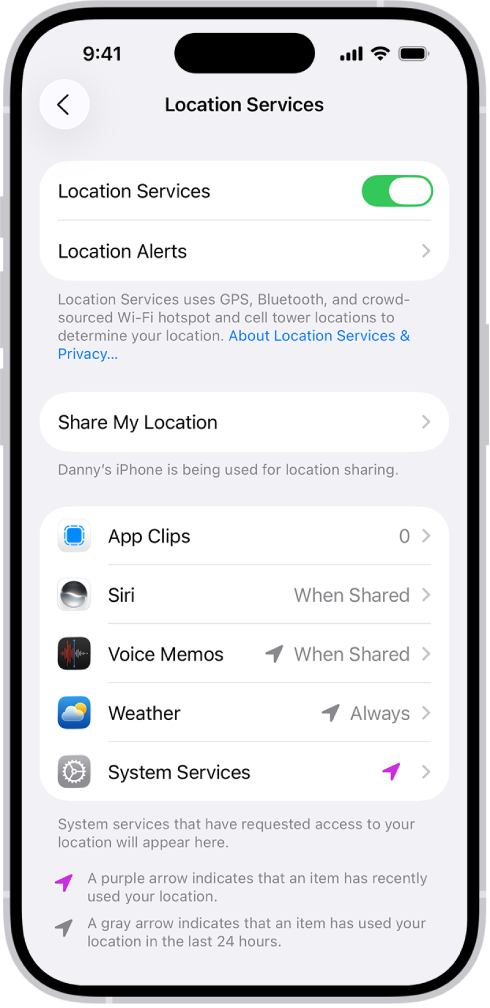
- Choose While Using the App to let the sites use your location. Choose Never if you don’t want your location shared with websites.
Now, is that it? Almost. Google will also use your IP address to determine your location. Apple offers a feature called iCloud Private Relay for its iCloud+ subscribers. This feature hides your IP address. So if you enable Private Relay, Google won’t know your location, right? Not necessarily. With Private Relay, your IP address is hidden from Google, but a new, generic one is created that contains information about your general location.
The good news is that you can change the Private Relay settings to use a broader location if you don’t want your approximate location to be used. If you do want local results based on your location, you can use the narrower region.
Change Private Relay settings
On iPhone 18 Pro
- Open Settings and tap on your Apple Account name at the top.
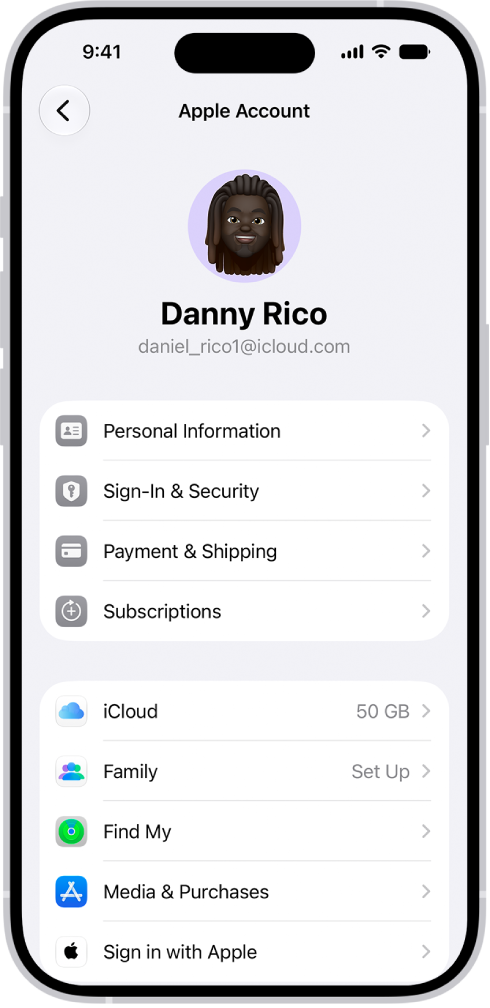
- Tap on iCloud, then tap on Private Relay.
- Tap on IP Address Location.
- Select Maintain General Location to let websites (and Google) know your approximate location. Select Use Country and Time Zone if you don’t want local results.
Conclusion
There are many different settings you can change to control how your location is determined when you use Google search or visit websites in Safari. If your internet results show a wrong location or you want to use a different location, you can change these settings.




 results for the wrong location on your iPhone 18 Pro or if you want to get different location results, here is how to fix it.)