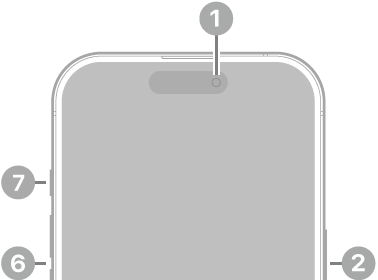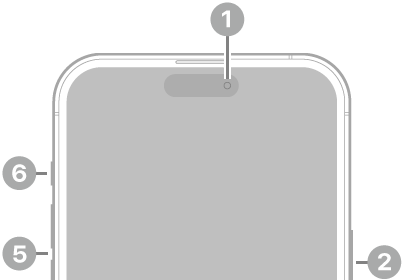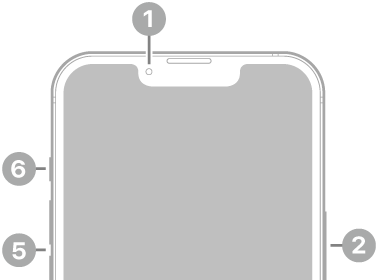
The Side button is the quickest way to activate Siri AI on an iPhone. Personal Context is a Siri capability that distinguishes Siri AI from other chatbots like Claude and OpenAI. Siri can see what’s on your screen thanks to the onscreen awareness feature, and answer questions about what you’re looking at. Siri AI can take action in and across apps, getting detailed maps directions with multiple stops, editing and sharing photos, or writing an email from scratch in your own writing style. Here’s how to activate Siri AI with the Side button, and what you can ask once it’s listening.
How to Activate Siri AI With the Side Button
Here’s how to activate Siri AI on an iPhone using the Side button:
- Press the Side button, then make your request.

- To make a longer request, press and hold the Side until you’re finished with your request.
Turn Side button activation for Siri on or off: open Settings, tap Siri, then tap Talk & Type to Siri (or Talk to Siri).
What You Can Ask Siri AI
Ask About Your Personal Data
Siri has access to the data on your iPhone, from emails and messages to photos and files. Siri can find anything you’re looking for. Apple overhauled its search index, and Siri has access to emails, text messages, files, photos, notes, and more. Siri can find content from across your apps, but it also understands that content. You can ask Siri to surface photos, bring up information from emails or texts, or find files, and the Apple Intelligence semantic index behind the scenes finds what you need. Activate Siri AI with the Side button and say any of the following:
- What was that movie my brother told me to watch last week?
- Can you get me the directions to that place I was supposed to meet Eric tomorrow?
- What video games did John recommend to me last year?
- Find images with pancakes from 2024
- What was the name of that restaurant I ate at in February?
- What’s the confirmation number for my upcoming flight?
- What do I need to do tomorrow?
- Show me my photos from the music festival last weekend
- What’s the door code Sarah texted me?
- Find the lease my landlord emailed me last month
- Who did I have lunch with two Tuesdays ago?
Ask General Knowledge Questions
Apple can search the web for up-to-date information to answer questions about anything, similar to other chatbots. Siri can analyze documents and get information from the web for additional context, help come up with recipes, do party prep, help with homework, give gardening tips, assist with DIY projects, and much more. It can evaluate documents, solve math problems, craft recipes, walk you through DIY tasks, help you plan a party, and more. Invoke Siri AI with the Side button and say any of the following:
- When is the Suki Waterhouse show in SF?
- How can I get tickets?
- I’m planning a birthday party, can you find me some good cake recipes?
- What’s the difference between pine warblers and goldfinches?
- What’s the Hurricanes score?
- What are the hours for the closest Ace Hardware?
- What’s a good substitute for buttermilk?
- What’s a 15% tip on $84?
- Help me plan a 5-day trip to Lisbon
Ask About What’s on Your Screen
If there’s an image on Instagram and you want to know where it was taken, you can just ask Siri where it was taken and get a response. Visual Intelligence is now part of the Camera app, and Siri can answer questions about anything you take a picture of. Siri can tell you where a photo was taken if there’s something recognizable in it, and you can ask questions about any app you’re in without having to provide specifics. Activate Siri AI with the Side button and say any of the following:
- Where was this photo taken?
- Summarize this
- Can you give me directions here?
- What are the best native plant options for a shady spot near my house?
- Does this document look correct?
- What is this?
- Translate this menu
- Explain what this chart is showing
Ask Siri to Take Action in Apps
App Actions allow Siri to use tools in apps to complete requests. Siri can use some apps on your behalf, including apps from Apple and third-party apps that have implemented App Actions support. It can do multiple tasks that are included in the same request.
- Write a quick response to this email
- Send all the photos from today to Eric
- Add a 3pm Tuesday meeting with the neighbor to my calendar
- Add these photos to the cat album
- Get me directions to the post office, but add a stop at the coffee shop first
- Move my 2pm meeting to Thursday
Ask Siri to Help With Writing
Siri can give you feedback on your writing if you select your text and ask Siri how it sounds, and as you type in apps, there’s automatic proofreading for misspellings and grammar. Siri can also edit, and you just need to describe the change that you want to make to something you’ve written, such as changing the tone to be more professional. Summon Siri AI with the Side button and say any of the following:
- Make this email sound more formal
- Turn these bullet points into a paragraph
- Shorten this to three sentences
- Draft a thank you note for a gift
- Rewrite this to be friendlier
- What do you think of this presentation?
- How can I improve this email?
Other Ways to Activate Siri AI
In addition to saying "Hey Siri" near your iPhone, or holding the side button, Siri AI can also be invoked by swiping down from the Dynamic Island. There’s a glassy new Siri bubble with bright colors that pops up when Siri is activated. Responses show up in that same area, and if you swipe on a response, you can get more information and ask follow-up questions.
See also: How to Open Siri AI by Swiping Down From the Dynamic Island
Apple also created a full Siri app where you can revisit past conversations and start a new conversation. The Siri app syncs across devices, so you can start a conversation on your iPhone and wrap it up on your Mac.
Siri AI Device and Software Requirements
Siri AI is available in iOS 27, iPadOS 27, macOS Golden Gate, watchOS 27, and visionOS 27, plus it works on AirPods and CarPlay. Siri AI has the same device requirements as Apple Intelligence, so you’ll need an iPhone 15 Pro or later to use it.