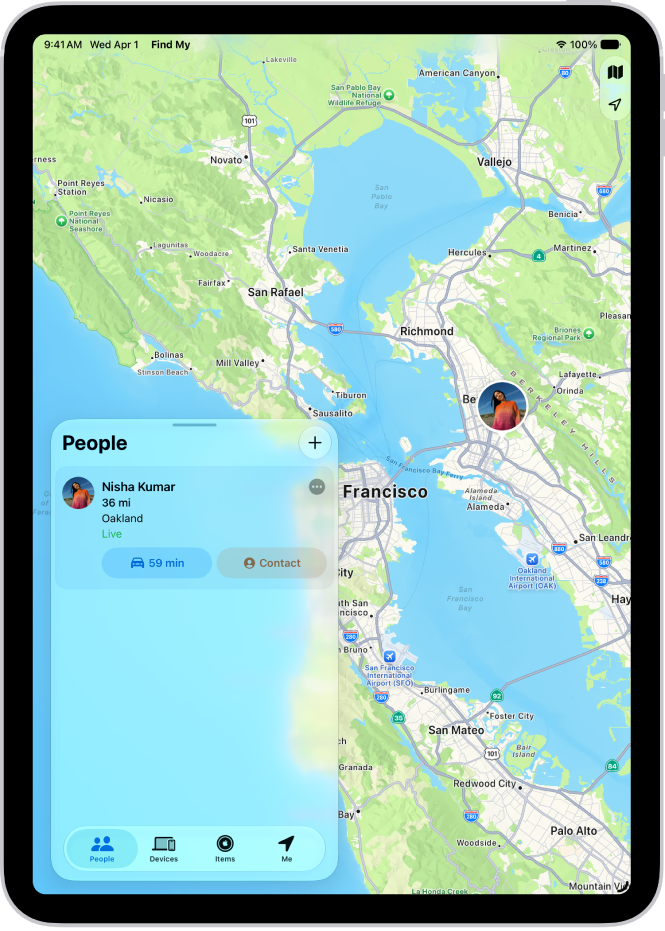
On iPad, in the Find My app, once you share your location with a friend, you can ask to see their location on a map. After your friend accepts your request, you can see where they are. When you remove a friend, they come off your People list, and you come off theirs.
Ask to see a friend’s location
- Open the Find My app on your iPad.
- Tap People at the bottom-left side of the screen. Tap the name of the person whose location you want to see.
If you don’t see a person in the list, make sure you’re sharing your location with them.
- Tap Ask To Follow Location.
As soon as your friend receives and accepts your request, their location appears for you. Check out our guide, Respond to a location sharing request.
Note: If your friend shows up in the People list but their location doesn’t appear on the map, ask them to confirm they’re sharing their location and that Location Services is turned on in Settings > Privacy & Security > Location Services > Find My.
Remove a friend
If you remove a friend, they disappear from your People list, and you disappear from theirs.
- Open the Find My app on your iPad.
- Tap People at the bottom-left side of the screen and tap the name of the person you want to remove. Then tap the More button.
- Tap Remove.
See also