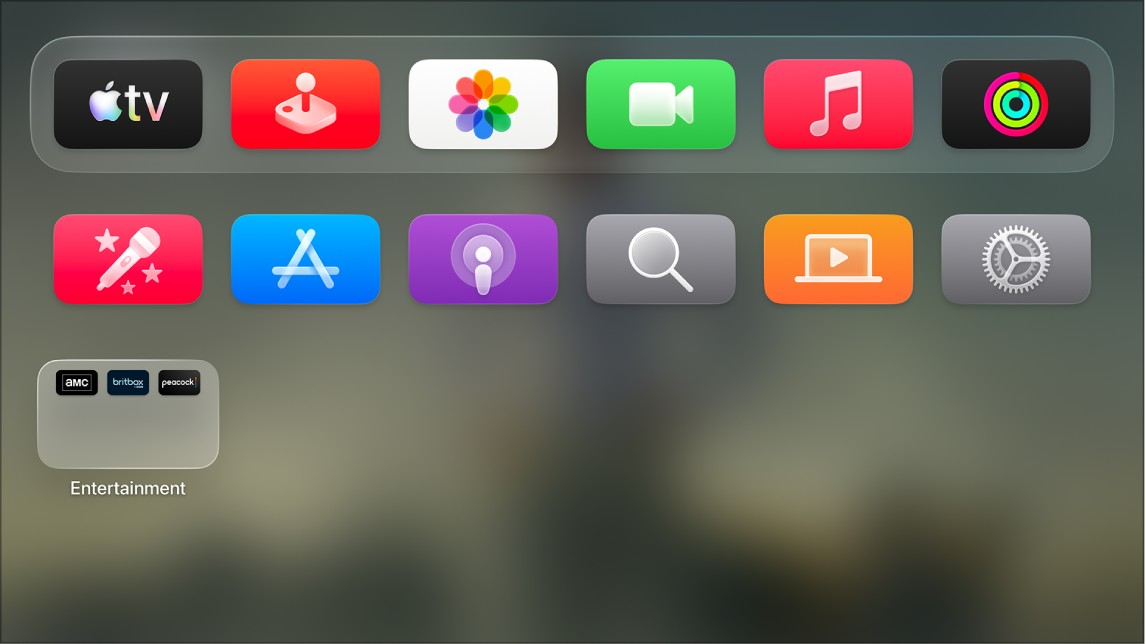
You can change appearance settings on Apple TV 4K to set backgrounds and menus to Light, Dark, or Automatic. When it’s set to Automatic, the appearance shifts from Light during daytime hours to Dark at night. You can also increase the size of onscreen items, so the top row of your Home Screen shows five icons instead of six.
- Go to Settings on Apple TV 4K.
- Go to General > Appearance, then do any of the following:
- Change the appearance of backgrounds and menus: Select Light, Dark, or Automatic.
- Increase the size of onscreen items: Select Default or Large.
When Large is selected, the top row of the Home Screen shows five icons instead of six.
Not all features and content are available in all countries or regions or on all Apple TV hardware models.