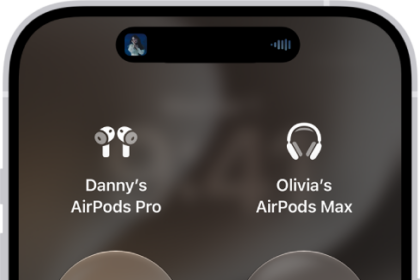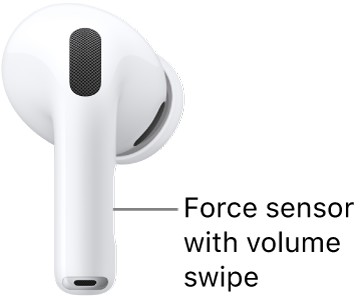
You can change how the controls on your AirPods respond to suit your motor needs. On your iPhone, iPad, Mac, Apple TV, or Apple Watch, you can adjust the button, force sensor, or force sensor with volume swipe settings for AirPods 3, 4, or 5, AirPods Pro, or AirPods Max.
When an action requires multiple presses, you can adjust how quickly you must press. You can also adjust how long you need to hold before an action occurs. And on models with the force sensor with volume swipe, like AirPods Pro 3, Volume Swipe can be adjusted or turned off.
Change force sensor or button settings using iPhone or iPad
- Open the Settings app on your iPhone or iPad.
- Tap Accessibility, then tap AirPods.
- Set any of the following options:
- Press Speed: When an action requires multiple presses of the buttons, force sensor, or force sensor with volume swipe, adjust how quickly you must press before the action occurs.
- Press and Hold Duration: Adjust how long you must press and hold the buttons, force sensor, or force sensor with volume swipe before an action occurs.
- Volume Control for AirPods 5 with Wireless Charging Case, AirPods Pro 2, and AirPods Pro 3: If you don’t want to control the volume by swiping up or down on the stem, turn off Volume Swipe.
You can also adjust the length of the swipe by tapping an option below Volume Swipe.
Change force sensor or button settings using Mac
- Open the System Settings app on your Mac.
- Click Accessibility in the sidebar. Click Audio (you may need to scroll down).
- Set any of the following options:
- Press speed: When an action requires pressing the buttons or force sensor multiple times, adjust how quickly you must press before the action occurs.
- Press and hold duration: Adjust the duration required to press and hold the buttons or force sensor on your AirPods before an action occurs.
- Volume Control for AirPods 5 with Wireless Charging Case, AirPods Pro 2, and AirPods Pro 3: If you don’t want to control the volume by swiping up or down on the stem, turn off Volume Control.
Change force sensor or button settings using Apple Watch
- Wear your AirPods, and make sure they’re connected to your Apple Watch.
- Open the Settings app on your Apple Watch.
- Tap Accessibility, tap AirPods, and then choose settings.
Change force sensor or button settings using your Apple TV device
- Wear your AirPods, and make sure they’re connected to your Apple TV 4K or Apple TV HD.
- Open the Settings app on your Apple TV 4K or Apple TV HD.
- Select Accessibility, select AirPods, and select your AirPods from the list. Adjust any of the following:
- Press Speed: When an action requires multiple presses of the buttons, force sensor, or force sensor with volume swipe, adjust how quickly you must press before the action occurs.
- Press and Hold Duration: Adjust how long you must press and hold the buttons, force sensor, or force sensor with volume swipe before an action occurs.
You can also change the accessibility settings for your AirPods so they suit your hearing needs. Check out our article, Set headphone accommodations for AirPods, for the steps.
See also