Facebook-f Twitter
GeeksChalk Logo GeeksChalk Logo
Notification
  • Home
  • iPhone
  • iPad
  • Mac
  • Apple Watch
  • Pages
    • About Us
    • Contact Us
    • Advertise With Us
  • 🤩 Trending:
  • 100 new iOS 26 features for iPhone
  • 10 Best iOS 26 Tips & Tricks
  • iPhone 16: Everything We Know
  • iPhone 16 Pro: Everything We Know

GeeksChalk is the leading source for all things iPhone, Mac, iPad, Apple Watch, Vision Pro, and more

GeeksChalkGeeksChalk
  • Home
  • iPhone
  • iPad
  • Mac
  • Apple Watch
Search

Popular Post

iPhone 15 Pro in black titanium, white titanium, blue titanium, and natural titanium finishes.
iPhone

Apple CarPlay GPS Not Working, Showing Wrong Location: Fix

iPhone 14 Pro and iPhone 14 Pro Max are shown in gold.
iPhone

How to Fix iPhone not sending text messages to Android

Connect an iPhone to car Bluetooth
Troubleshooting

How to fix Bluetooth not working on iPhone after iOS 26 update

iPhone outline with an Apple logo
iPhone

Need to restore an iPhone backup? Here’s how

Follow US
Copyright © 2026 www.GeeksChalk.com
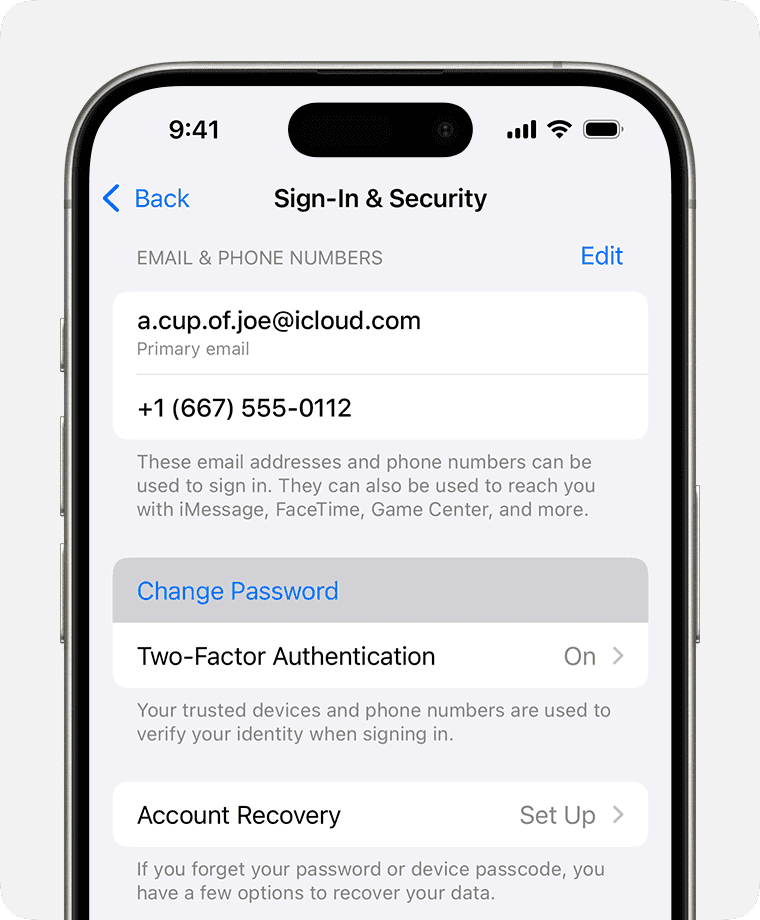
iPhone showing the Sign In & Security settings and option to Change Password
GeeksChalk > How To > How to Change your Apple Account Password

How to Change your Apple Account Password

Learn How to Change your Apple Account Password on an iPhone, iPad, Mac and on the web

Last updated: November 12, 2024 1:01 am
By Dave Johnson - Senior Staff Writer
Share
2 Min Read

Apple ID is now Apple Account. You can change many things associated with your Apple account. This includes changing your Apple Account email, changing your Apple account password and also deleting your Apple Account altogether. There are different reasons why you may want to change your Apple Account password. Maybe you know that someone else is using your Apple Account, or maybe you just worry that your password could have been or will be compromised — especially if you have been reusing your passwords. In this article we will tell you how you can change your Apple account password, and what you should do after you change it.

How to Change your Apple Account Password

Change your Apple Account password on your iPhone or iPad

  1. Go to Settings > [your name] > Sign-In & Security.
  2. Tap Change Password.
  3. Enter your current password or device passcode, then enter a new password and confirm the new password.
  4. Tap Continue.

Change your Apple Account password on your Mac

  1. Choose Apple menu  > System Settings, then click [your name].
  2. Click Sign-In & Security.
  3. Click Change Password. Before you can change your Apple Account password, you’ll be required to enter the password used to unlock your Mac.

Change your Apple Account password on the web

  1. Sign in on account.apple.com.
  2. In the Sign-In and Security section, choose Password.
  3. Enter your current password, then enter a new password and confirm the new password.
  4. After you complete the required information, choose Change Password.

After you Change your Apple Account Password

Your Apple Account is used for any of the Apple services you are using. If you selected to sign out of the devices that were signed in with your Apple Account, you will have to sign back in with your new password. You will also need to use your new password when you sign in to web services that use your Apple Account such as iCloud.com. It might not be important to immediately sign in again on all your devices. For example, you can just sign back in to your Apple TV the next time you want to use it. However, if you are using an Apple service for communication (email, iMessages, FaceTime, etc), you won’t want to miss anything.

Sign Back In

You will need to be signed in with your Apple Account to listen to Apple Music, make purchases and update apps on the App Store, use iCloud to backup or view your files and to use Find My. You will need to be signed in to access email, iMessages and FaceTime.

For help signing in with your Apple Account, see Sign in with your Apple Account.

TAGGED:Apple Account
ByDave Johnson
Senior Staff Writer
Follow:
Dave Johnson is a staff writer for GeeksChalk based in New Jersey. He covers news, how-tos, and user guides for iPhone, iPad, Mac, and Apple Watch.
Leave a Comment Leave a Comment

Leave a Reply Cancel reply

Your email address will not be published. Required fields are marked *

Recent News Flash

iOS 27

How to Fix Apple Books app not working in iOS 27

apple weather app icon

How to Fix Apple Weather app Not Working in iOS 27

iOS 27

How to Fix Apple Shortcuts not working in iOS 27

iOS 27

How to Fix Apple Home App Not Working After iOS 27 Update Issue

Trending Now

macOS 27 next to MacBook Pro Running macOS 27  

15 new Apple products are launching later this year, here’s what’s coming

14-inch MacBook Pro, right side exterior, open, silver color, thin profile, 16-inch MacBook Pro, left side exterior, open, space black color, thin profile

How to finance a MacBook

The Battery Health screen with Maximum Capacity highlighted.  

How to Calibrate iPhone Battery: a Step-by-Step Guide

Explore More

Recommended For You

iOS 27

How to uninstall iOS 27 developer beta from your iPhone

iOS 27

Download iOS 27 beta on Your iPhone. How to Get It Right Now

How to Change Default Apps on Mac

An iPhone showing the Wi-Fi screen. There's a blue a checkmark next to the Wi-Fi network's name.  

How to Check Wi-Fi Networks Signal Strength on iPhone or iPad

GeeksChalk Logo GeeksChalk Logo
  • Home
  • Contact Us
  • Advertise
  • Our Staff
  • Editorial Guidelines
  • Terms
  • Privacy
  • Accessibility
  • Copyright
  • About Us
  • Fact Checking Policy
  • Correction Policy
  • Ethics Policy
  • Ownership Policy
Copyright © 2026 www.GeeksChalk.com
Welcome Back!

Sign in to your account

Username or Email Address
Password

Lost your password?