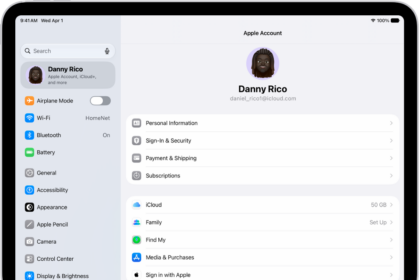
Apple ID is now Apple Account. This article explains how you can permanently delete your Apple Account.
What is Apple Account?
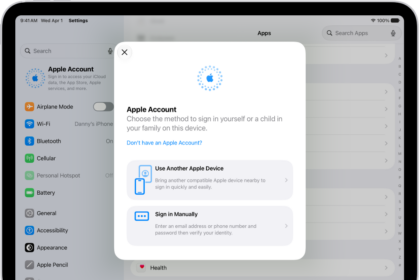
An Apple Account is the personal account you use to access Apple services like the App Store, iCloud, Messages, the Apple Online Store, FaceTime, and more. It includes the information you use to sign in, as well as all the contact, payment, and security details that you’ll use across Apple services.
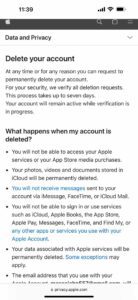
At any time or for any reason you can request to permanently delete your Apple account. For your security, Apple verify all deletion requests. This process takes up to seven days.
Your account will remain active while verification is in progress.
If you want to delete your Apple Account, think very carefully. Because it is permanent and you cannot undo this.
What happens when my Apple account is deleted?
Once your Apple Account is deleted:
- You will not be able to access your Apple services or your App Store media purchases.
- Your photos, videos and documents stored in iCloud will be permanently deleted.
- [You will not receive messages sent to your account via iMessage, FaceTime, or iCloud Mail.
- You will not be able to sign in or use services such as iCloud, Apple Books, the App Store, Apple Pay, Messages, FaceTime, and Find My, or any other apps or services you use with your Apple Account.
- Your data associated with Apple services will be permanently deleted.
- The email address that you use with your Apple Account will no longer be available for use with any new or existing Apple Account. To ensure that it can’t be used again, a record of this email address will remain on file with Apple.
- If you are enrolled in the iPhone upgrade program you must continue making payments for your device.
- Deletion does not cancel any repairs or Apple Store orders. However, any appointments you have scheduled at the Apple Store will be canceled and any open Apple Care cases will be permanently closed and unavailable once your account is deleted
Before deleting your Apple account:
- You may want to copy your data (you can also get a copy of your data during the steps, see below)
- Review your active subscriptions. They will be canceled when your account is deleted.
Steps to delete your Apple Account
Here is how you can delete your Apple Account:
- On your device (Mac, PC or iPhone or iPad), visit https://privacy.apple.com/. This is your Data and Privacy page. And sign in with your Apple Account email and password. Make sure this Apple Account is the one you want to delete.
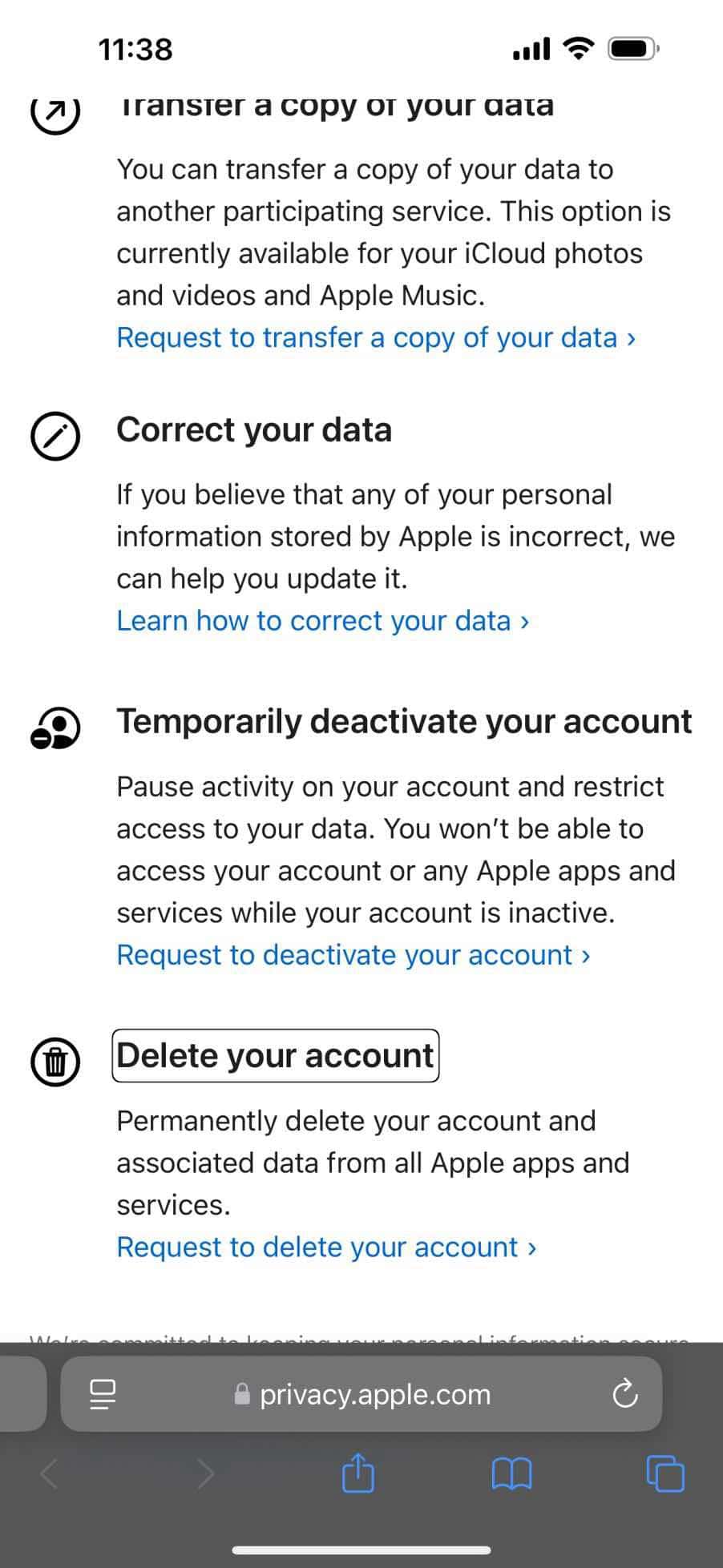
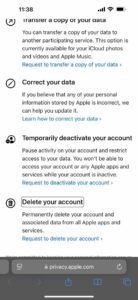
- This new page has many option. One is “Get a copy of your data” you may want to do this before deleting your account. There is also another option called “Temporarily deactivate your account”. This will simply pause your account. And then you can resume again, as this is not permanent.
- If you are still want to get rid of your Apple account, scroll down and find the Delete your account section and then select “Request to delete your account.
 ”
” - The next page will explain what will happen once your account is deleted. Read them.
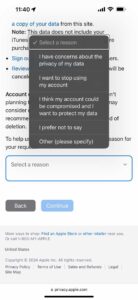
- Apple will ask you to select a reason for your request. Select a reason. And then click Continue. There are four reasons:
- I have concerns about the privacy of my data
- I want to stop using my account
- I think my account could be compromised and I want to protect my account
- I prefer not to say
- Other, you can specify your own reason.
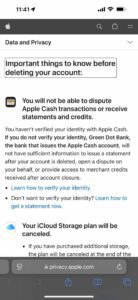
- The next page will explain important things to know before deleting your account. Read them and if you are still want to continue, click Continue.
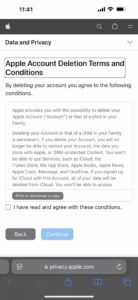
- Now you will need to agree to the “Deletion Terms & Conditions”. Read them if you want. Then check the “I have read and agree with these conditions” box and click Continue.
- The next page will ask you to enter contact information that Apple will used if they need to send you important messages about your account. You can enter a phone number or an email account. And click Continue.
- You will receive a code. make sure you save this code. If there is any issue with the deletion, you can simply contact Apple support with this code. You may also be able to undo your request while your request is being processed. Once your request is processed, it is then permanent. Click Continue.
- The last page will review important details. Read them and then click the red Delete button.
And you are done. The deletion process may take up to 7 days.