On iPad, you can invite people to collaborate in Freeform boards and folders in iCloud, and everyone sees the latest changes when they’re online and signed in to their Apple Account. To make sure the board is accessible to all, you can add descriptions for visual items.
Boards are stored only in the owner’s iCloud, so participants’ iCloud storage isn’t affected. You can also see others in a board as they edit.
Invite others to collaborate on a board
When you’re working on a shared Freeform board, you see edits as others make them. Because changes are saved in iCloud, anyone with access to the board sees the latest version each time they open it.
Note: Items in a board don’t affect participants’ iCloud storage, since boards are stored only in the owner’s iCloud.
- Go to the Freeform app on your iPad.
- Do one of the following:
- While browsing All Boards: Touch and hold the board you want to share and tap Share.
- From inside a board: Open the board you want to share (or tap the New Board button to start a new one). Tap the Share Board button.
- The current sharing setting is described below the name of the board, such as People you choose can edit. Tap the setting to change it. See Change access and permissions for boards and folders.
- Choose how you want to share the board—such as in Messages or Mail—or tap the icon of anyone you communicated with recently to share with them.
You can add people after you start sharing a board. Tap the Collaborate button, tap Manage Shared Board, then tap Share With More People. When you share with others in Messages, the Collaborate button tap may change to reflect who shares the board with you.
Note: Everyone you share the board with has to be signed in to their Apple Account on iOS 16.2, iPadOS 16.2, macOS 13.1, or later before they can edit or view it. For collaborating in Messages, you and anyone you invite must also turn on iMessage.
Share a folder
Share a folder of Freeform boards so you can work with others on them.
Note: You can only share a top-level folder.
- Open the Freeform app on your iPad.
- Create a folder.
- Touch and hold the folder, then tap Share.
- In the share sheet, choose how to send the invitation, set permissions and then send. Anyone you invite gets access to all the boards and subfolders in the folder, including ones added later.
- To set permissions, do any of the following:
- Let others add and edit boards in the folder: Choose Can Make Changes.
- Let others open boards without editing or adding new ones: Choose View Only.
- To add participants, touch and hold the shared folder, tap Manage Shared Folder, and then tap Add People.
If you’re not the owner of the folder, you won’t see Manage Shared Folder.
View others in a board
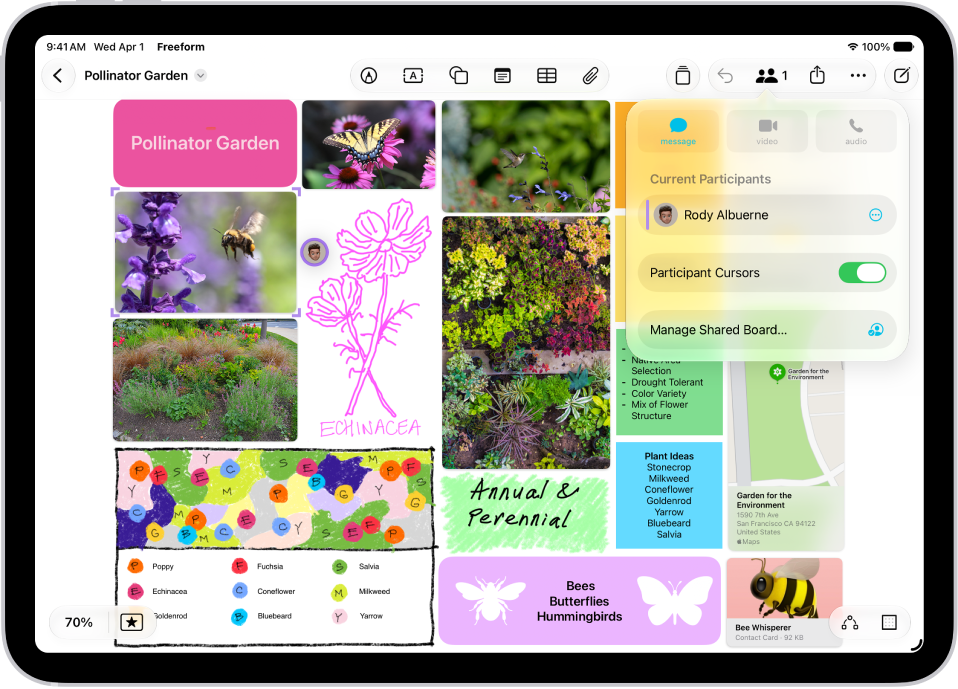
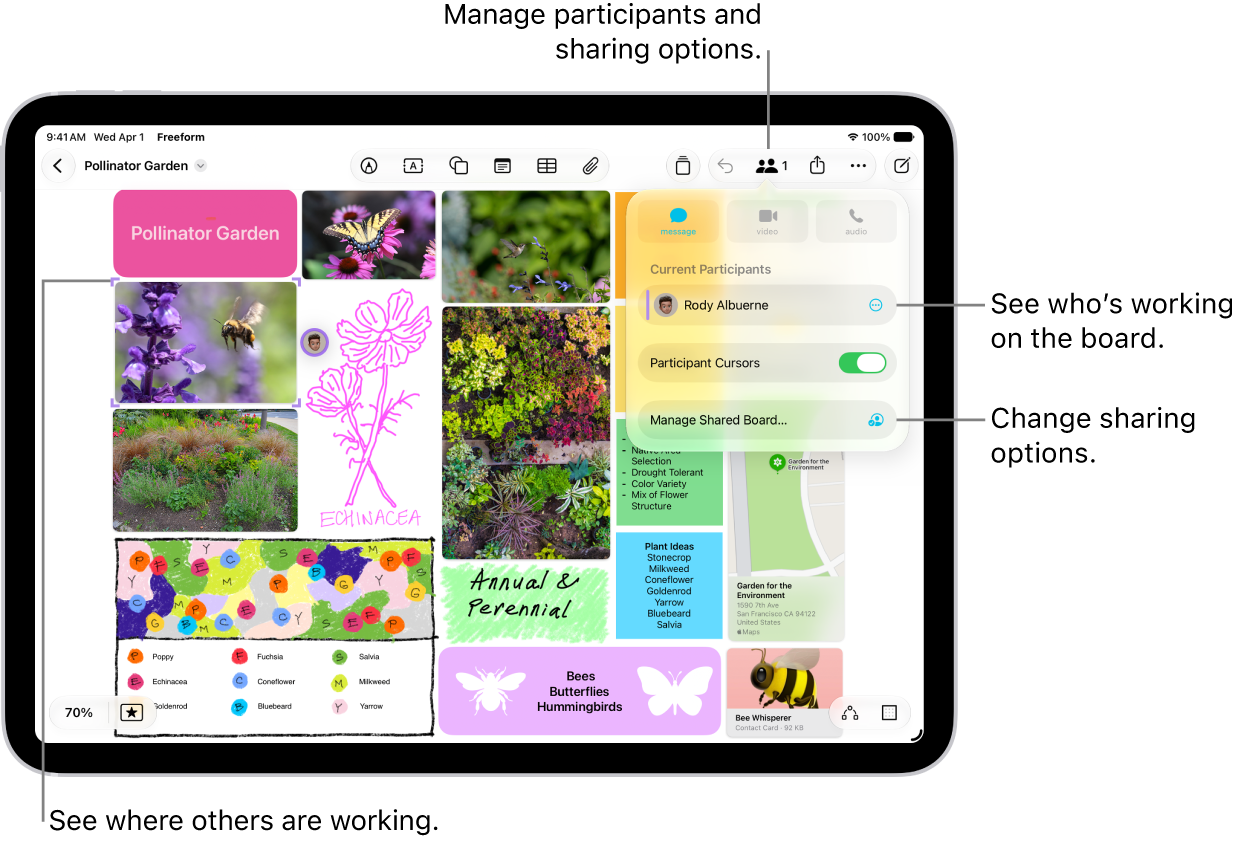
You can see in real time where others are working on your board, or follow a participant as they move around it. If someone is presenting a design proposal on a Freeform board, for example, following them shows you where they are on the board and what they see.
- Open the Freeform app on your iPad.
- Open the shared board where you want to see others at work. Tap the Collaborate button.
- Turn on Participant Cursors if the setting is off.
- Do any of the following:
- Jump to where they’re working: Tap the name of a participant.
The color next to the participant’s name matches the color marking their place on the board.
- Follow their board view as they work or present: Tap the More button next to the name of a participant. Tap Follow Along. Or you can just tap the person’s avatar wherever they are on the board. Tap Follow.
Anything you’d selected before entering the mode is deselected. A border (with a color matching the cursor of the person you’re following) frames what they see on the board.
Both you and the presenter you’re following need to be online.
- Jump to where they’re working: Tap the name of a participant.
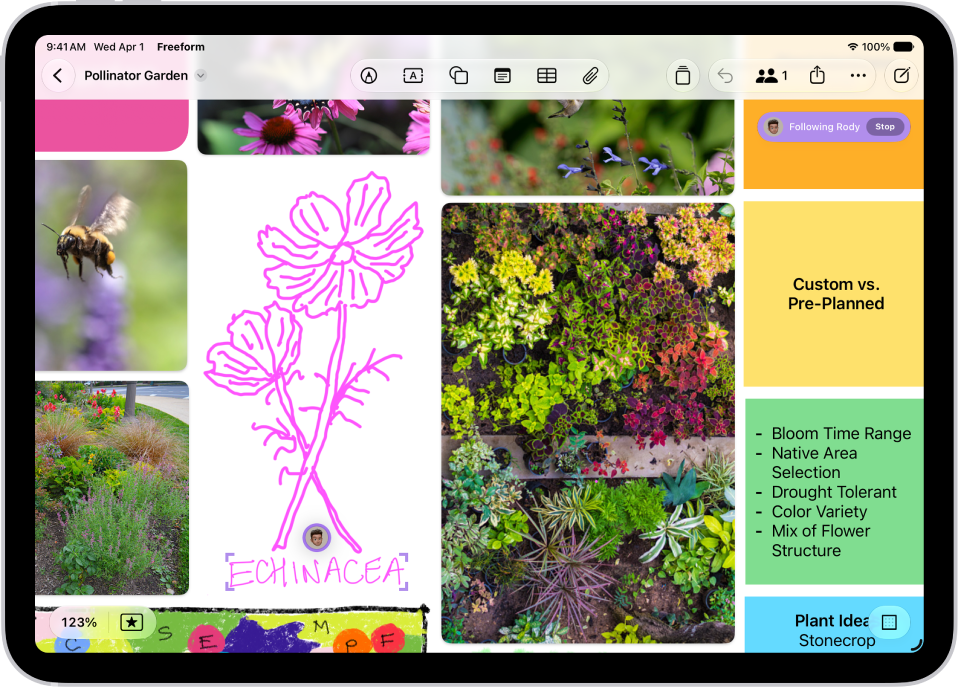
As you follow along, the zoom level is based on the other person’s view, and you can’t select anything on the board.
To stop following along, tap Stop in the top-right corner—or just scroll, zoom, or edit.
Note: While the board is open, others working with you on it can only undo and redo their own changes. The Undo button moves through the changes you made on your own iPad, and to redo a change you’ve undone, touch and hold the Undo button and tap Redo.
Add accessibility descriptions
You can add a description of your visual content to any item on your board. That way, people who use assistive technology such as VoiceOver can hear the visual content described aloud. (Descriptions aren’t visible on the board itself.)
- Open the Freeform app on your iPad.
- Open the board where you want to add accessibility descriptions.
- Tap to select the item you want to describe and tap the More button in the formatting tools. Then tap Description.
- Enter a description of the visual content. Tap the Done button.
- To hear the description, turn on VoiceOver and then tap the item.
Stop sharing or collaborating
- Open the Freeform app on your iPad.
- Touch and hold the shared board or folder. Then tap Manage Shared Folder.
If you’re already in a board, tap the Collaborate button, then tap Manage Shared Board.
- Do any of the following:
- Remove individuals: Tap the name of the participant you want to remove. Then tap Remove Access.
- Remove yourself from someone else’s board or folder: Tap your name, then tap Remove Me.
- Stop sharing with everyone: Tap Stop Sharing and then tap Stop Sharing.
When you choose this option, the board no longer appears on the devices of the other participants, even though you still have access to it.
When you stop sharing a folder, the people you shared with lose access to all the boards and subfolders inside it.
You can change access and permissions for individuals or for everyone after you start sharing a board.
To use the collaboration features fully, all participants must be online, signed in to their Apple Account, have Freeform turned on in iCloud, and have set up two-factor authentication.
See also