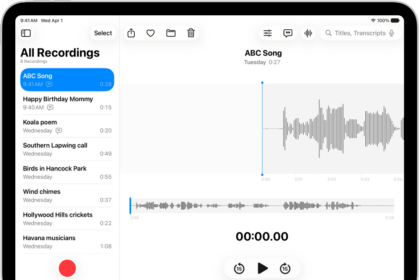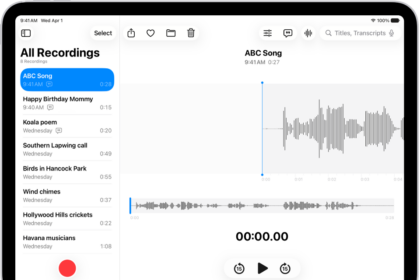
You can use the Voice Memos app on your iPhone or iPad to record personal notes, classroom lectures, musical ideas, and more. Your audio recordings are available from any device with iCloud. I use Voice Memos often. If you use Voice Memos, you may have noticed that the Voice Memos app is taking up too much storage space on your iPhone or iPad, even though you deleted some of your recordings. When you delete a recording, by default, it won’t be immediately deleted. Instead, it is moved to a folder called Recently Deleted. In this article, I explain how you can completely delete your voice memos so that you can free up space on your iPhone or iPad.
How to delete a Voice Memos recording
- Open the Voice Memos app on your iPhone or iPad.
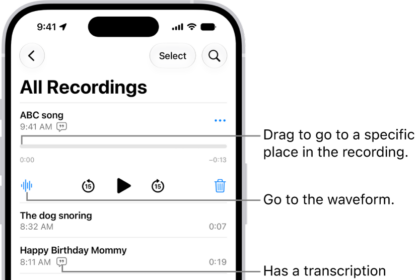
- Tap All Recordings.
- Find the recording you want to delete and tap it. Then, tap the Trash icon to delete it. Alternatively, you can swipe left on the memo, then tap the Trash button.
- You can also delete multiple recordings at once. Open your recordings list, then tap the Edit button in the top right.
- Now select the recordings you want to delete and tap the Trash icon.
How to clear voice memos storage
By following the steps above, you can delete your recordings. However, they are not really deleted yet. They will stay in the Recently Deleted folder for 30 days by default in case you change your mind. If you change your mind, you can restore your deleted recordings by going to this folder. To restore, open the Recently Deleted folder, tap the recording you want to restore, and tap Recover. Here is how you can completely delete your voice memos:
- In the Voice Memos app, tap Recently Deleted folder.
- Swipe left on a memo and tap Delete.
- Alternatively, tap the recording, then tap on Delete.
How to change how long deleted recordings are saved
My last note is that you can change how long you want deleted recordings to stay in Recently Deleted. As I stated above, the default is 30 days. To change this, on your iPhone or iPad, go to Settings, tap Apps, then select Voice Memos and tap on Clear Deleted. Select one of the options: Immediately, After 1 Day, After 7 Days, After 30 Days, Never. Obviously, if you select Immediately, you do not have to open Recently Deleted and delete again because once you delete a recording, it will be deleted permanently.