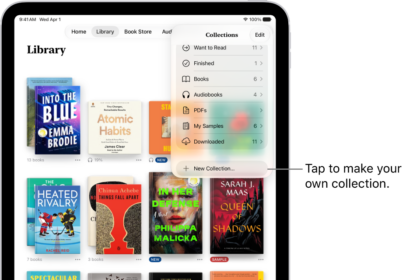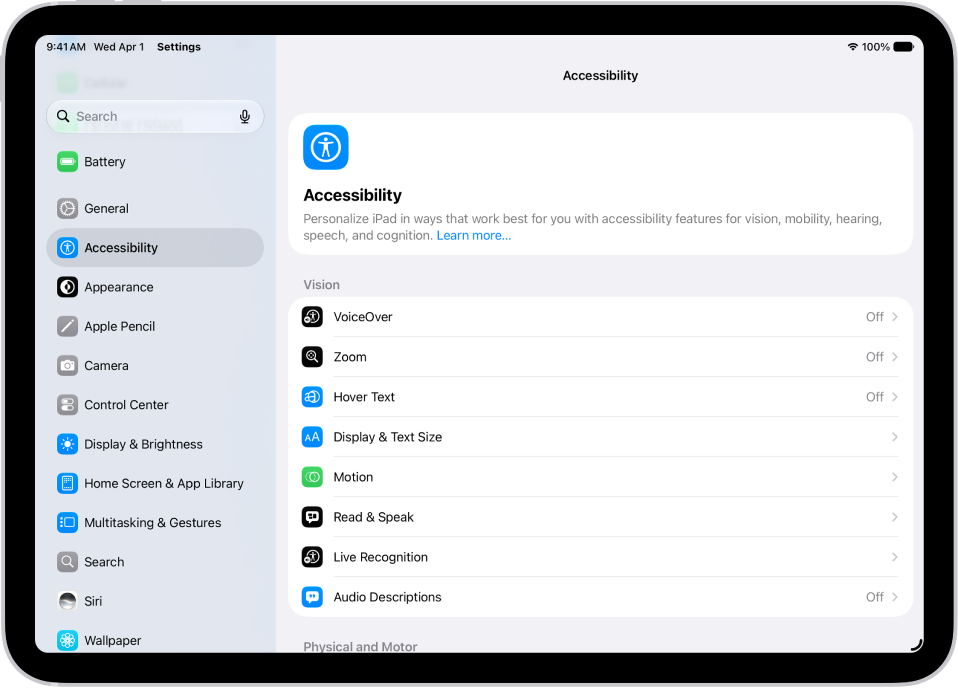
On iPad, you can remotely control your other Apple devices without adjusting any switch connections. With Platform Switching, you can navigate your iPhone, Apple TV 4K, or Mac using the same switch that controls your iPad, as long as they’re on the same Wi-Fi network and signed in with the same Apple Account.
Switch Control needs to be turned on for your iPad and for the others: iPhone, Apple TV 4K, or Mac. And you can remove control from your iPad on the connected device.
- Connect your devices to the same Wi-Fi network.
- Sign in with the same Apple Account on all your devices.
- Set up and turn on Switch Control on iPad. Then turn on Switch Control for the others: iPhone, Apple TV 4K, or Mac.
- Use the switch to open the Scanner menu.
- Choose Device, choose Use Other Device, and then choose Connect.
To remove control from your iPad, choose Devices on the connected device, then choose Disconnect.
See also