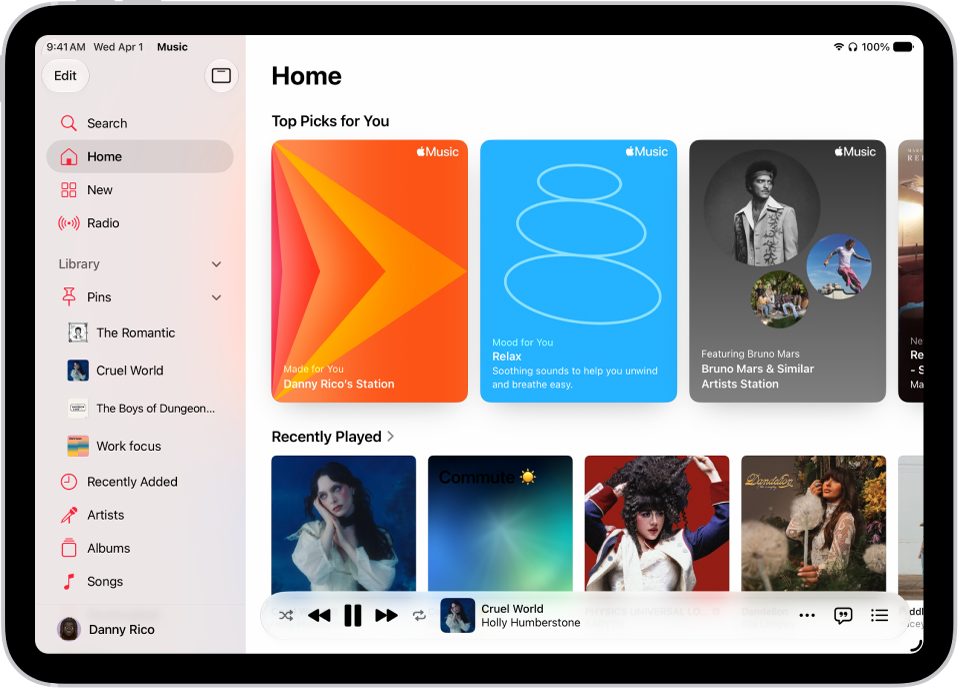
On iPad, after you subscribe to Apple Music, you can create an Apple Music profile that features your favorite playlists and what you’re currently listening to. You can share it with friends you invite or with other Apple Music subscribers.
You can choose which playlists to share, view profiles your friends created, and request to follow them to see what they’re listening to. You can edit or delete your profile, too, and a Family Sharing organizer can allow children ages 13 to 18 to create profiles.
Create a profile
- Start the Music app on your iPad.
- Tap the Show Sidebar button. Then tap your name at the bottom of the sidebar.
- Tap Set up Profile and then follow the onscreen instructions to create a profile.
After you finish setting up your profile, you can find friends whose music profile you’d like to follow or choose who you share music with (so you can show friends what you’re listening to).
Note: If you’re the organizer of a Family Sharing group, you can allow children ages 13 to 18 to create Apple Music profiles (or prevent them from doing so). Children under 13 can’t create Apple Music profiles. (Age restrictions vary by region.) See Block features or content with Screen Time on iPad.
Edit your profile
- Start the Music app on your iPad.
- Tap the Show Sidebar button. Then tap your name at the bottom of the sidebar.
- Tap Music Profile at the top of the screen, then tap Edit to make updates.
You can edit your profile to choose who you share music with or to choose music to share with your followers.
Delete your profile
If you delete your profile, your playlists and music stop appearing in searches, and followers can no longer see your music or profile.
Note: Deleting your profile leaves your Apple Music subscription, library, and playlists as they are, but you can no longer see what your friends are listening to.
- Start the Music app on your iPad.
- Tap the Show Sidebar button. Then tap your name at the bottom of the sidebar.
- Tap Music Profile at the top of the screen and tap Edit.
- Scroll to the bottom, then tap Delete Profile.
If you create your profile again within 90 days, your previous information and followers will be restored.
Note: It might take several minutes after you delete your profile before it’s no longer visible to your followers or in searches.
See also