- You can create a new iCloud email address while setting up an Apple account or after you’ve already registered one.
- Apple allows you to set up an iCloud email address on a Mac computer, iPhone, or iPad.
- With so many email clients out there, it’s hard to figure out which is best for you. If you’re committed to the Apple brand and aren’t into companies who sell your data to third parties or advertisers, creating an iCloud email address may be your best bet.
About iCloud Mail address
Creating an iCloud email address is free. The account is connected to your Apple account and is included within the 5 GB of free data you’re allotted. Your iCloud email is designed for personal use, with all the same capabilities as other email clients. Sending limits to safeguard your account from spamming while you’re granted access to the account using the Apple Mail app or visiting the iCloud website.
In the same way that your various Apple devices are linked through your Apple account, your iCloud email address comes one part of the Apple software suite, including the Apple App Store, iMessage, FaceTime, iTunes, and Apple Podcasts. You can also attach payment and shipping information to your iCloud email address so that you can get updates on product purchases, including apps, music, movies, books, and Apple devices.
But merely having an Apple account doesn’t mean you have an iCloud email address. You’ll need to create it, whether after or during the process of setting up a new Apple account. If you’re setting up your Apple account and want to create an iCloud email then, all you need to do is make sure the email you register with ends in “@icloud.com,” and it will create that account for you alongside your Apple account.
When you create a primary iCloud email address, you can choose from suggestions based on your Apple Account and name. You can also edit the suggested address to whatever you’d like, as long as it’s more than three characters and currently available.
Note: You can’t rename your primary iCloud Mail email address later. If you change your mind, you can add an email alias instead.
Here’s how to create an iCloud email with an existing Apple account.
Create a primary iCloud Mail address on your iPhone or iPad
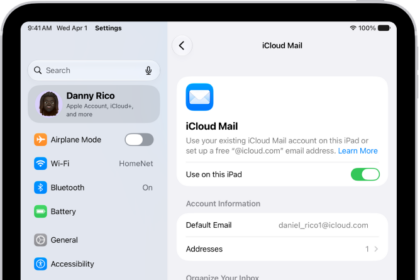
- Open the Settings app on your iPhone or iPad.
- Tap [your name] at the top of the screen.
- Tap iCloud.
- Tap iCloud Mail (or Mail), then follow the onscreen instructions.
- If you don’t see onscreen instructions after turning on iCloud Mail on your iPhone or iPad, you already have a primary iCloud email address.
Create a primary iCloud Mail address on your Mac
- Click the Apple icon in the top-left corner of your Mac’s home screen.
- Click System Settings.
- Click your name at the top of the sidebar.
- If you don’t see your name, click “Sign in,” enter your Apple Account email address or phone number, then enter your password.
- Click iCloud.
- Click Mail (or iCloud Mail), then do one of the following:
- macOS 13.3 or later: Turn on Sync this Mac.
- macOS 13 to 13.2: Click Turn On.
- Follow the onscreen instructions to create an iCloud Mail address.
- If you don’t see onscreen instructions after turning on iCloud Mail on your Mac, you already have a primary iCloud email address.
Create a primary iCloud Mail address on iCloud.com
- Go to icloud.com/mail.
- Sign in to your Apple Account (if necessary).
- Click Create Email Address, then follow the onscreen instructions to create an iCloud Mail address.
- If you see an inbox instead of Create Email Address, you already have a primary iCloud Mail address.
After you set up your @icloud.com email address, you can use it to sign in to iCloud.com and your devices in addition to your Apple Account.
Set up iCloud Mail on all your devices
After you create a primary iCloud Mail address, you can use iCloud Mail on iCloud.com and on your iPhone, iPad, and Mac.
Note: Make sure you’re signed in to the same Apple Account on each device. If you’re not signed in to your Apple Account on a device, or the device has iCloud Mail turned off, you won’t be able to send or receive email from your iCloud Mail address on the device. If you have devices that have iCloud Drive turned off, your Mail settings won’t stay up to date on the device.
Set up iCloud Mail on your iPhone or iPad
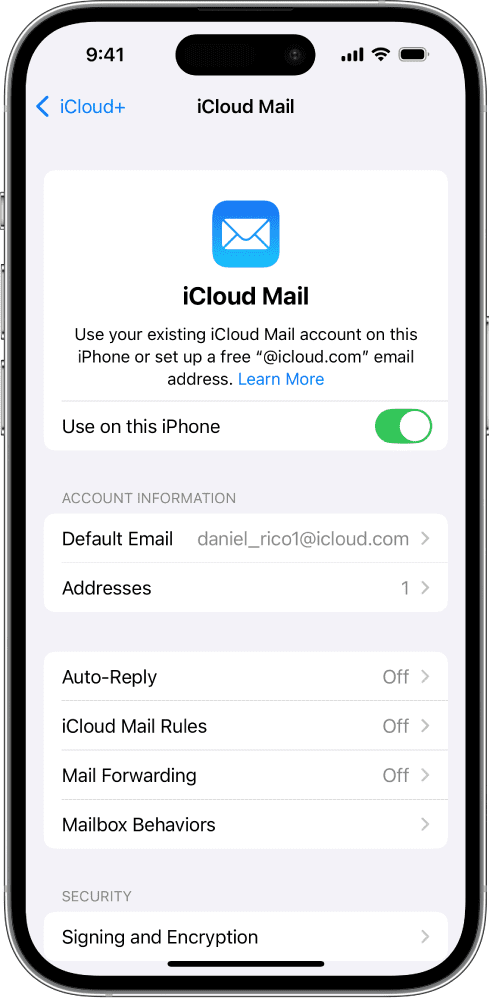
- Open the Settings app on your iPhone or iPad.
- Tap [your name] at the top of the screen.
- Tap iCloud.
- Tap Mail.
- Turn on “Use on this [device].”

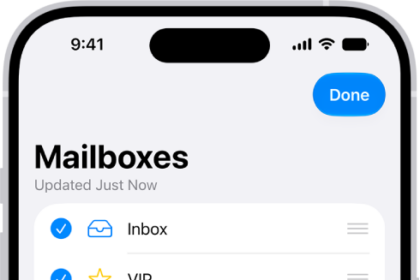
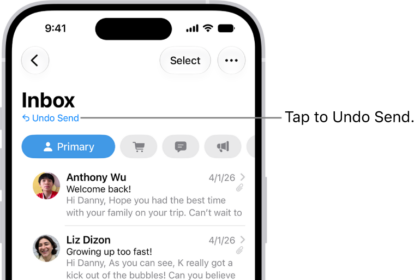
To view your iCloud Mail, open the Mail app. Tap a mailbox or folder in the iCloud section.
Set up iCloud Mail on your Mac
- Click the Apple icon in the top-left corner of your Mac’s home screen.
- Click System Settings.
- Click your name at the top of the sidebar.
- If you don’t see your name, click “Sign in,” enter your Apple Account email address or phone number, then enter your password.
- Click iCloud.
- Click Mail (or iCloud Mail), then do one of the following:
- macOS 13.3 or later: Turn on Sync this Mac.
- macOS 13 to 13.2: Click Turn On.
To view your iCloud Mail, open the Mail app. Click a mailbox or folder in the iCloud section.
Use iCloud Mail on iCloud.com
You can access your iCloud Mail from a web browser on a phone, tablet, or computer.
- Go to icloud.com/mail.
- Sign in to your Apple Account.