This article explains how you can create an Apple account on the web using the Apple account site.
You can create an Apple account on your Mac, iPhone, iPad, or iPod touch and your Apple account will let you use and access all Apple services.
However, you can still set up an Apple account without owning an Apple device. The only need is a web browser. Also, note that you can sign up for an Apple account without a payment method. This Apple account will give you access to Pages, Numbers, and Keynote for iCloud.
Your new Apple account will be your current email address. Sorry but you cannot create an @icloud email address. For the @icloud email address, you need to create an Apple account on a Mac, an iOS or iPadOS device.
Follow the steps below:
Step 1: On your PC computer, Android device, or non-Apple tablet; open your Browser (Chrome, Safari, Firefox etc).
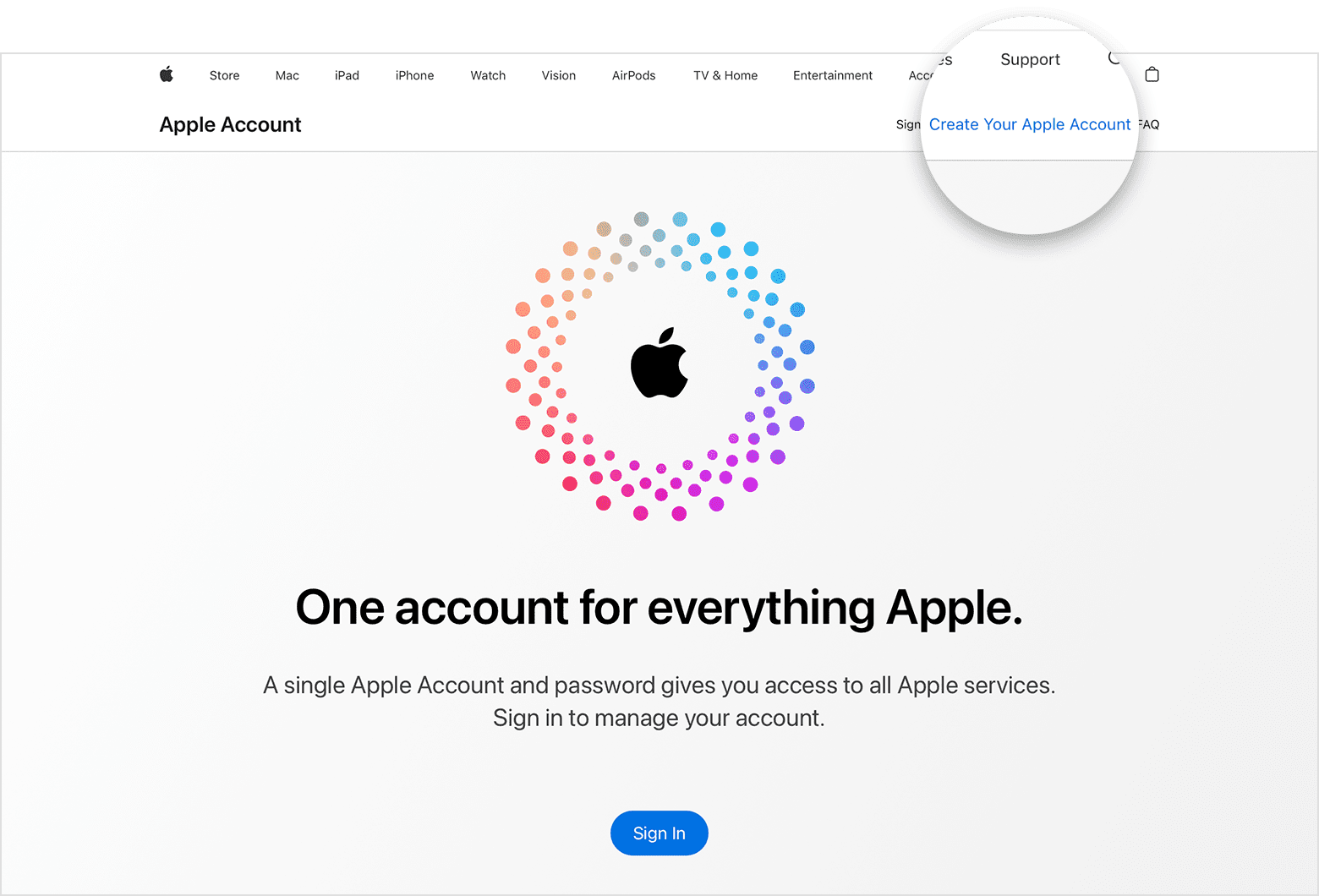
Step 2: Go to account.apple.com.
Step 3: Tap or click the “Create Your Apple account” link.
Step 4: In the sign-up form, enter your name and password. Please enter all the information that is required by Apple.
- Your name, Country/Region, birthday and phone number in the specified fields.
- Enter your current email. This primary email address will be what you use to sign in to your Apple Account. Please enter a valid email. Apple will send a verification code to ensure that his email address belongs to you. Without this code, an Apple account cannot be created. You can change your Apple account email address.
- Password. Apple account passwords are required to be at least 8 characters. Do not use easily guessed password such as 12345678. A strong password will prevent you from Apple account scams. You can change your Apple account password later.
- Check the boxes to subscribe to Apple Updates if you’d like. This keeps you up to date on the latest news, software, products, and services from Apple.
Step 5: Enter the captcha and click Continue.
Step 6: When you click Continue, a popup will ask you to enter a verification code that Apple just sent to the address you entered in the form. Check your email and enter the code. Please note that you have 3 hours to enter this code. The code will expire three hours after it was sent.
And click Continue.
Step 7: And you are done. Congratulations! Your Apple account is ready for use.
You have now an Apple account. You will be redirected to a page. This page lets you manage your Apple account.
If you want to use Pages, Numbers or Keynote, go to icloud.com and sign in with your newly created Apple account. This will let you create and open these type of documents. iCloud Drive will store your documents. This is similar to Google drive.
Since you do not have an Apple device (iPad, iPhone or Mac), your Apple account cannot be used to access Apple services like the App Store, Apple Music, iMessage, FaceTime, and other Apple services.
The next step is to start using your new account. If you are unhappy with your Apple account and if you have various concerns, you can delete your Apple account.