Why disable LTE on iPhone?
Sometimes you’ll hit an area with spotty LTE coverage and your iPhone will bounce between 3G, LTE or even EDGE. That can kill your battery and you’ll want to disable LTE on your iPhone to avoid that.
Or maybe you just want to turn off your data to avoid any overages, or because you feel better when not constantly connected while on the go. Whatever your personal reason, here’s how to disable LTE on your iPhone.
How to Turn Off (or Turn On) LTE on iPhone
- Open the Settings app on your iPhone and tap on “Cellular”
-
Tap “Cellular Data Options” (in newest versions of iOS, older do not have the sub menu)
-
Tap on “Enable LTE” and choose “OFF” (or alternatively, you can set ‘Data Only’ to stabilize some voice calls, or “Voice & Data” as the default)
-
Wait a moment for the iPhone cellular connection to cycle on and off again and 3G / 4G should now be on as default with LTE off, as visible in the status bar of the iPhone
-
Exit Settings and enjoy your slower cell connection
Note that some carriers show “Voice & Data” here instead if they allow you to actually change and set the data speed manually at 3G, LTE, or 2G. That is not the case with all cell providers or cell plans, and when that manual control is absent, disabling LTE will instead cause the iPhone to use either a 3G or 2G connection, whichever is available.
Do note that LTE is dramatically faster than 3G / 4G, and in some areas, 3G is so slow or oversubscribed that it’s practically unusable to transmit any data beyond a block of text. If you’re doing this because you’re hitting your cell plan limit and want to self impose some data throttling, another option would be to simply disable data completely and instead rely only on Wi-Fi while the iPhone is up against the cellular data plan limitation.
I’m using AT&T with an unlimited data plan, which does not offer the data speed selection directly, but instead will switch to the 3G (4G as AT&T calls it) if LTE has been specifically turned off. I’ve heard from some users that other AT&T plans do give a manual feature that is enabled through a carrier settings update, but that is not the case on my device.
For the vast majority of iPhone users, just keep LTE on, the performance is so superior to the other networks that turning it off, even if it may save some battery life, is not worth the speed reduction. If your interest in this is to extend how long an iPhone lasts on a single charge, perhaps a better approach for most users is to use Low Power Mode but keep LTE enabled anyway.
What does LTE stand for anyway?
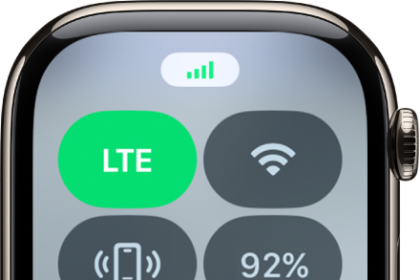
LTE stands for Long Term Evolution, and it represents the high speed wireless communications technology that many modern cell phones and cellular devices use for high speed mobile communication. LTE is not iPhone specific, it is used by many modern cell phones for high speed data transfer. You’ll often see the “LTE” symbol in the corner of an iPhone, and other cell phone and mobile devices too. When you see the LTE symbol on your device, that means you’re connected to an LTE network, as opposed to 2G EDGE, 3G, etc.