On iPhone, you can export your passwords for websites and accounts to a CSV file, and then import them into another password manager. But not every password goes with you. You can’t export Wi-Fi passwords, passwords you shared with a group you didn’t create, or Sign in with Apple account passwords. The exported file isn’t encrypted, either, so after you import the passwords into another password manager, it’s best to delete the file you exported.
WARNING: Your exported passwords are not encrypted and are visible to anyone who can access the file. After you import the passwords into another password manager, delete the file you exported.
- Start the Settings app on your iPhone.
- Tap Apps, then tap Safari.
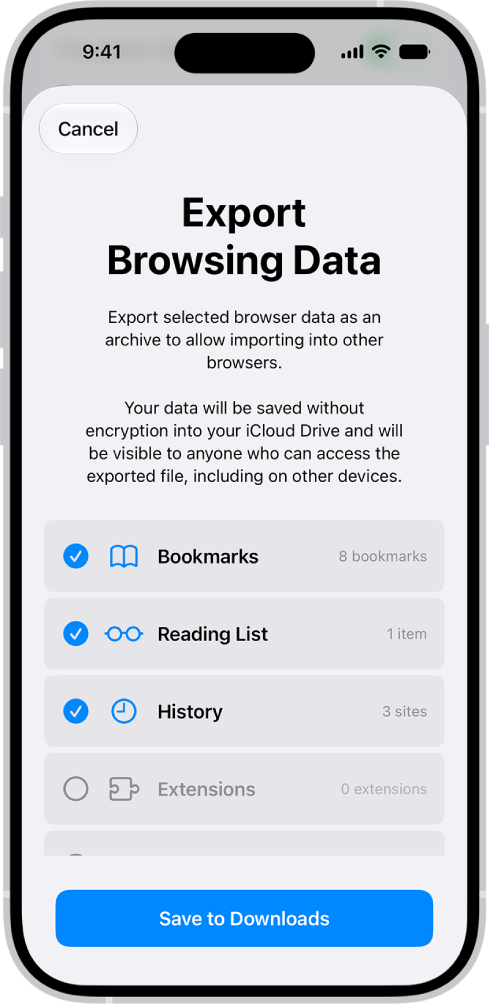
- Below History and Website Data, tap Export.
- Select Passwords.
- Deselect the other choices.
- Tap Save to Downloads.
- Tap Done.
Note: Wi-Fi passwords, passwords you shared with a group (unless you created the group), and Sign in with Apple account passwords can’t be exported.