How to fill out and sign PDF forms in Preview on iPad

You can fill out and sign PDF forms in Preview on iPad, enter information in form fields, and add a signature or text box.

By Kevin Shaw - Editor
1 Min Read

You can fill out and sign PDF forms in the Preview app on your iPad. You just enter information in a blue field, or select contact information in the bar above the onscreen keyboard, then add a signature or a text box. You can create a signature with an Apple Pencil or draw with your finger.
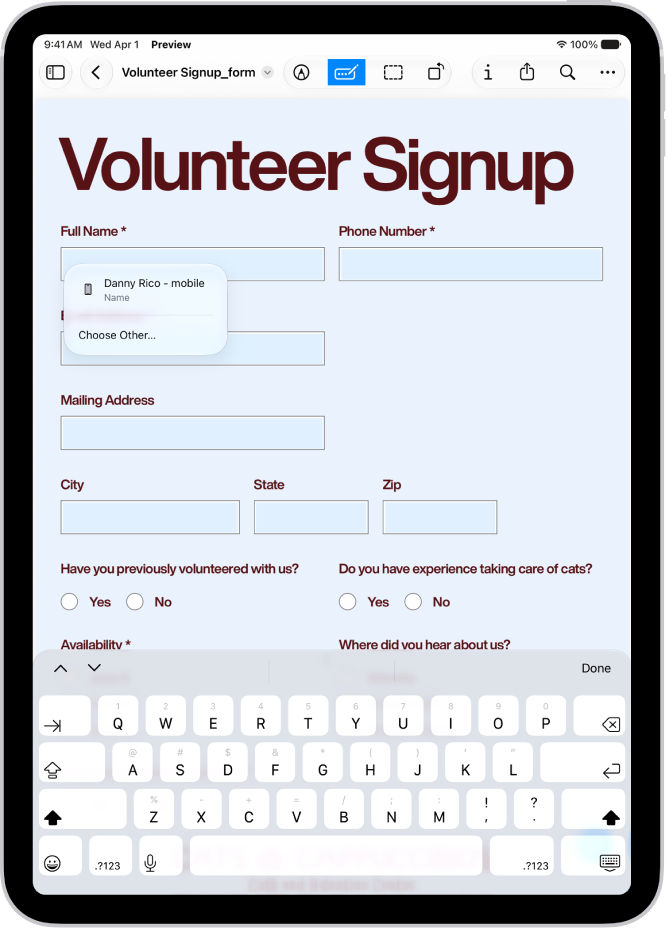
A screen showing a PDF form in the Preview app with fillable fields highlighted. At the bottom of the screen are the Add Annotation, Markup, AutoFill, Crop, Info, Share, and Search buttons. The AutoFill button is selected.

  1. Start the Preview app on your iPad.
  2. Open a PDF form.
  3. Tap the Form Fill button.
  4. Tap a blue field and then enter information (or select contact information in the bar above the onscreen keyboard).
  5. Tap the Add button to add a signature or a text box.

    Tip: You can use an Apple Pencil (with a compatible iPad) or draw with your finger to create a signature. See Apple Pencil compatibility with iPad models.

See also

TAGGED:
Editor
Follow:
Kevin Shaw is a seasoned tech journalist based in Los Angeles with a penchant for all things Apple. He started writing about Apple products in 2007 and it's been a love affair ever since. He has spent over a decade testing and writing about iPhones, iPads, Macs, and other Apple products. In his spare time, he likes nothing more than catching up with the latest news and sports podcasts on the beach.
Leave a Comment