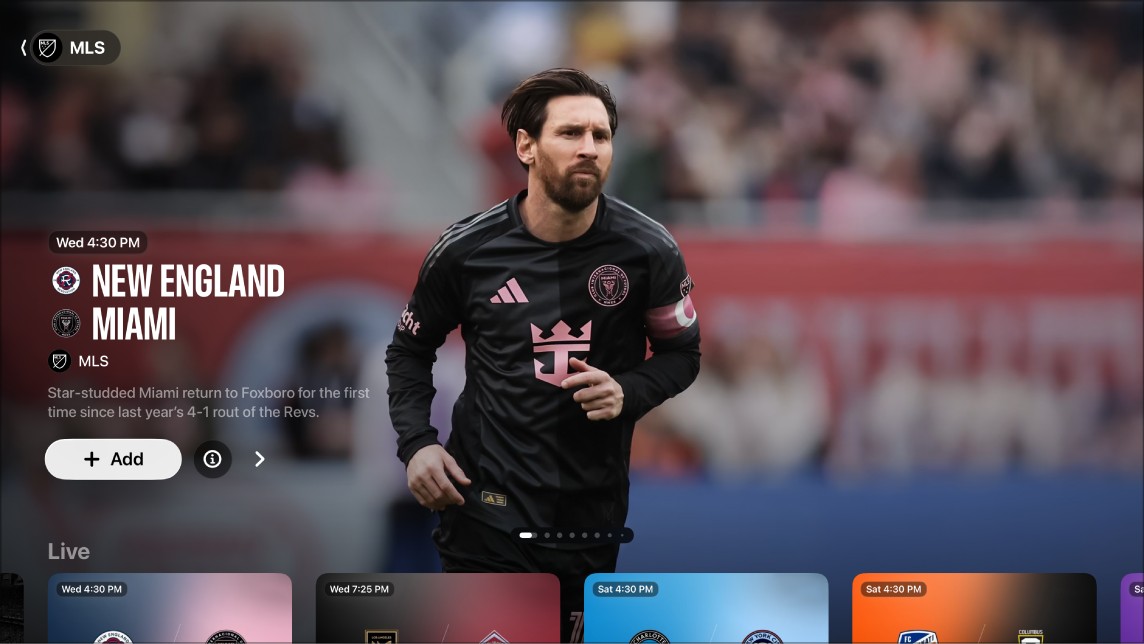
With My Sports, you can follow your favorite teams on Apple TV 4K and get notifications when they’re about to play. Their games show up in the Continue Watching row, too. If My Sports is already set up in the News or Apple Sports app on your iPhone or iPad, your teams appear automatically.
Follow your favorite teams with My Sports
With My Sports turned on, you’ll get notifications when your favorite teams are about to play, see their games in the Continue Watching row, and follow them on Apple TV 4K.
Your teams show up automatically in the Apple TV app on Apple TV 4K if you’ve already set up My Sports on an iPhone or iPad in the News or Apple Sports app.
- Go to the Apple TV app on Apple TV 4K.
- Open the sidebar, select Home, then navigate down and select Sports.
- Navigate down to the last row and select Follow Your Teams.
If you already follow teams, this item is called Manage My Sports.
- Select Turn On (if this is your first time setting up My Sports).
- Scroll to a sports category in the list (MLS, Formula 1, MLB or NBA, for example), go to your team on the right, and select it.
Your team now displays a star. You can add as many teams to My Sports as you want.
- To remove a team, select it in My Sports and then select Remove.
Sign in on your iPhone, iPad, and Mac with the same Apple Account, and the teams you follow show up in the News app and Apple TV app across all your devices. That way, you won’t miss a second of action, even away from your Apple TV 4K.
Note: There’s no way to pick teams to follow on a Mac. To pick them, use your Apple TV 4K, or the Apple TV app or News app on your iPhone or iPad.
Listen to live local radio (if available) during Friday Night Baseball games or Sunday Night Soccer matches
- While you’re watching a game, show playback controls.
- Swipe up on the clickpad or touch surface. Then select the Audio Options button.
- Choose an audio track option from the pop-up menu:
- TV: Play the audio commentary from the TV broadcast.
- Local Radio, [away team, language]: Listen to the away team’s local radio broadcast while watching the game.
- Local Radio, [home team, language]: Listen to the home team’s radio broadcast while watching the match or game.
- To close the pop-up menu, press the Back button or the Menu button on your remote.
Turn off sports scores notifications
To change other settings, check out our article, Adjust other Apple TV app settings.
Subscription required for Apple TV, which in some countries and regions may include some or all of the following: Friday Night Baseball, Major League Soccer (MLS), and Formula 1®. Not all features and content are available in all countries or regions, or on all streaming devices. Apple TV subscription does not include third-party branded subscription services or content available for rental or purchase in the Apple TV app.