





Summary
- Use Spotlight Search or Siri to locate hidden apps on iPhone
- Unhide apps by restoring hidden Home Screen pages
- Unhide apps from the Hidden folder in your App Library
Sometimes you may not be able to find an app on your iPhone. Do not worry; the fix for this is very simple. Just follow the steps we give in this article to learn how to unhide apps on iPhone. (This works on iPad, too.)
How to uncover apps hidden from the home screen on iPhone
You have several options for finding apps hidden from your iPhone’s home screen: use Spotlight Search, check folders, reset your Home Screen layout, use Siri, unhide apps from a Hidden Folder, and unhide the hidden home screen page.
#1. Use Spotlight search to find hidden apps on iPhone
The fastest way to find a hidden app on iPhone is to use Spotlight Search. Here is how:
- Swipe down from the middle of the Home screen. Or in iOS 16 and later, tap the Search field at the bottom of your Home Screen to start a search.
- Type in the name of the app you are looking for and see whether its icon appears in the results below.
- If the app you are looking for appears, tap the icon to open it. You can also long-press the app icon until there is a click and a small menu appears; keep holding and drag the icon. Your Home screen will reappear, and you can drag it anywhere on your iPhone screen.
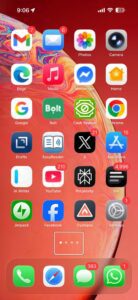
I find Spotlight Search by far the easiest method to find hidden apps on iPhone and for just about everything else.
#2. Take a hidden app out of a folder
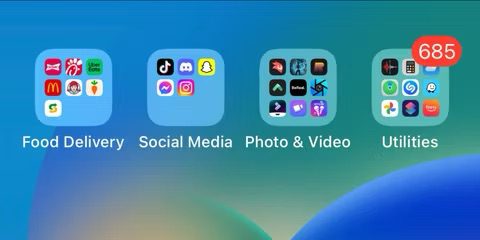
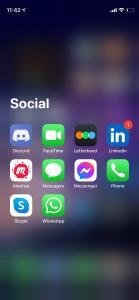
Open every folder on your Home Screen and take a closer look — your missing app might be hiding in plain sight. Keep in mind, folders can have multiple pages, so be sure to swipe right inside the folder to see everything.

If there’s an app you use often but it’s buried in a folder, tap and hold it, then slowly drag it out to your Home Screen for quicker access.
#3. Use Siri to find Hidden App on iPhone
You can use Siri to find hidden apps on iPhone. Just activate Siri and say “Open [name of app],” and Siri will directly open the app for you.
While Siri can instantly bring you to the app, it won’t exactly locate the app for you. After you’ve closed the app again, you’ll still need to use other methods to be able to find it.
If you can find the app using Siri, then where is it? The app might be in your App Library, it could be on a hidden page, or it could be in the Hidden folder.
#4. Check your App Library to bring back Hidden Apps
It’s possible you removed the app from the home screen. When an app is removed from your Home Screen, you can still find it in your App Library. Thus, it is a good idea to check your App Library, find the app in question and then drag it to your Home Screen.
Here’s how to unhide apps on iPhone through your App Library and add it to your home screen:
- Go to the Home Screen, then swipe left past all your Home Screen pages to get to App Library.
- Tap the search field at the top of the screen, then enter the name of the app. Or scroll up and down to browse the alphabetical list.
- Once you have found the app you want to unhide, press and drag it to your Home Screen.
#5. Unhide home screen Page
When you hide or remove a page from your Home Screen, the apps on that page still appear in the App Library. You can use Search to find apps on a hidden Home Screen page.
To unhide Home Screen pages:
- Long-press an empty area on your Home Screen.
- Tap Edit, then tap Edit Pages. Or, tap the dots near the bottom of your screen.
- Tap any unchecked circles to unhide a hidden page. Do you see the app you are looking for now?
#6. Check the Hidden folder in your App Library
You can hide apps on your iPhone. If an app is hidden, it won’t appear on your Home Screen or App Library and it can’t be found with Search.
To check your Hidden folder for apps:
- Swipe left past all your Home Screen pages to get to the App Library.
- Scroll down to find the Hidden folder, then tap the Hidden icon.
- Use Face ID, Touch ID, or your passcode to unlock the Hidden folder.
- If you see the app you want to unhide, touch and hold it’s icon, then tap Don’t Require Face ID. The app returns to your App Library.
To view a list of all your hidden apps, go to Settings > Apps > Hidden Apps, then use Face ID, Touch ID, or your passcode.
#7. Reset your Home Screen layout
You can restore the default Home Screen layout to unhide all apps on iPhone. Doing this will not erase your content or data. However, your app folders will be deleted (not their contents), and all pre-loaded iOS apps, will be placed back in their original positions from when you first purchased the device. Also, the apps you installed will be placed in alphabetical order. You may want to take a Home Screen screenshot if you want before proceeding so you do not forget the arrangement of your apps and folders. If you wish to continue, follow these steps on your iPhone:
- Go to Settings > General > Transfer or Reset iPhone.
- Tap Reset.
- Tap Reset Home Screen Layout. Then follow the onscreen instructions.
After this reset, you will see the app you are looking for is in the Home Screen again.







)