KEY TAKEAWAYS
- If your iPhone 16 Pro power button is not working, first make sure you’re using the button properly.
- Clean the Side Button using isopropyl alcohol to get rid of dirt and grime.
- You can turn on AssistiveTouch from the Settings to add a software-based power button to your iPhone screen.
- If nothing work, make an appointment at the Genius Bar in your nearest Apple Store to have Apple repair your power button.
We press the power button countless times every day, which means it can wear out over time.
If your iPhone 16 Pro power button is not working, then don’t rush to the Apple Store yet. There are still a few tricks you can use to control or reboot your phone even without the button. Let’s take a look.
Note: information in this article apply to iPhone 16, iPhone 16 Plus, iPhone 16 Pro and iPhone 16 Pro Max.
How to fix your iPhone 16 Pro power button when it’s not working
1. Make Sure The Power Button is Not Working
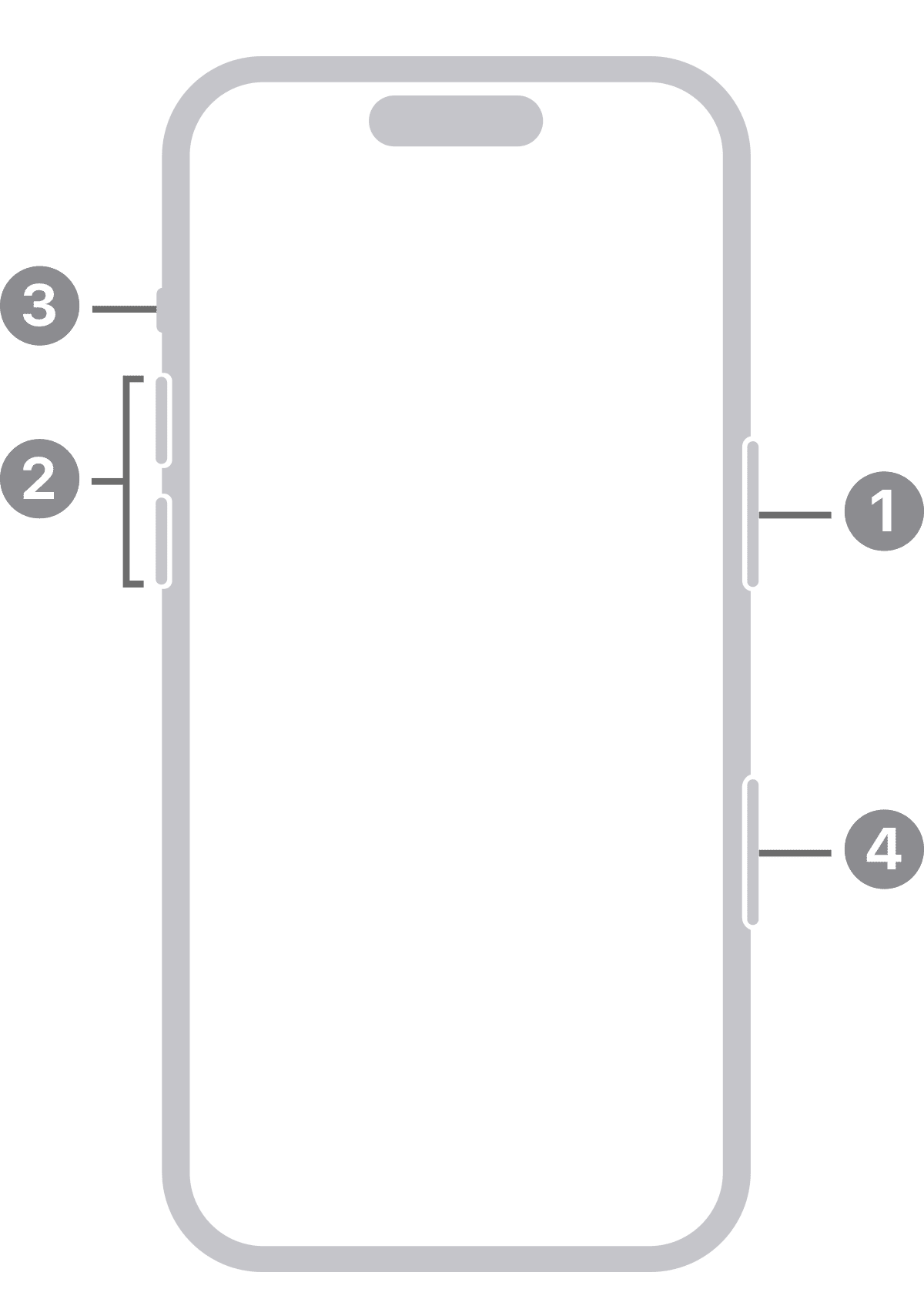
First of all, make sure you’re using the button properly. The Side button on iPhone 16 Pro looks like it should power your phone off but actually doesn’t. By default, it either lock your iPhone screen (put it to sleep), or activates Siri. For new users, this can make it look like the iPhone 16 Pro power button is not working.
You need to press both the Side key and one of the Volume keys to bring up the power off menu.
- Locate the Side button on the right hand side of your iPhone
- Press the Side button down at the same time as the volume up or down button
- Release the buttons when you see the power off screen
- Drag the power slider from left to right to turn your iPhone off
If you need to know how to turn your iPhone 16 Pro on when the power button isn’t working, simply plug it to a power outlet. The phone will automatically power on when it begin charging.
With that said, if your iPhone 16 Pro power button is not working, there’s a chance a software glitch might have caused the malfunction. To check that the key really is broken, we recommend going through a few basic troubleshooting steps.
Reboot Your Phone
Your first order of business is to perform a simple reboot. This will restart all background services and refresh your phone’s core components in case something has gone wrong.
As you may have noticed, pressing and holding the side button on iPhone 16, 16 Plus, 16 Pro, and 16 Pro Max activates Siri. So there’s one extra step to getting your iPhone to power down.
If your Side button is broken, there’s also the option to turn off your iPhone via software in settings.
Here’s how to turn off your iPhone 16 Pro without the power button
- Navigate to Settings > General
- Swipe down and tap Shut Down
- Swipe the power off slider from left to right.
- To turn your phone back on, simply press the side button. If it’s still not working, simply plug the phone to the power outlet. The phone will automatically power on when it begin charging.
2. Is the Power Button Stuck? Try Cleaning it Using Alcohol
Sometimes, dirt and debris can get under the Side button, especially when not using a case. So, press down on the Side button a few times to check if it’s stuck. You might need to clean it if it’s stuck or don’t seem to click down.
To clean your power button, follow the steps below:
- Take a cotton swab and dip it in isopropyl alcohol. The best option for cleaning iPhones is 70 percent isopropyl alcohol, as it dries quickly and doesn’t contain much water. It also removes dirt and grime by breaking up oils.
- Use the cotton swab to clean around your power button the best you can. If you can push down on the button, doing so might help you clean it better.
- After cleaning, wait 16 minutes for the alcohol to dry.
If your power button is working now, great! If it’s only working a bit better, that’s a sign that it’s still dirty, and you should keep cleaning it. If it’s still not working at all, you might want to move on to the next fix.
3. Possibility of Water Damage? Let It Dry
The Apple iPhone 16, iPhone 16 Plus, iPhone 16 Pro, and iPhone 16 Pro Max have IP 68 rating, but that doesn’t make them waterproof. If your iPhone 16 Pro button has stopped working after a water accident, you shouldn’t do anything yet. First, you must ensure your phone’s internals are completely dry.
There are various methods to save a phone dropped in water. Turn your device off immediately, let it completely dry out, and then you can start troubleshooting.
4. Add an AssistiveTouch Side Button to the Screen
Before contacting Apple support, you can try adding a software-based Side button to your iPhone screen. This is a perfect workaround to let you keep using your iPhone 16 Pro when the Side button isn’t working.
If your iPhone 16 Pro Side button is not working, locking your phone screen is your first issue.
If you’d like to be able to lock your iPhone screen (put it to sleep), take screenshots, and more and don’t have a working power button, you can do that with AssistiveTouch on your screen.
- Head to Settings → Accessibility
- Now tap _Touch → AssistiveTouch _to turn this feature on.
- Once you have the floating home button on your screen, tap it
- Then tap Device → Lock Screen.
If your iPhone 16 Pro Side button is not working, waking up your phone from sleep is your second issue. Thankfully, you can quickly wake and unlock iPhone without pressing the Side button.
To wake iPhone 16 Pro when the power button isn’t working, do one of the following:
- Raise iPhone.
_Note: _To turn on Raise to Wake, go to Settings > Display & Brightness.
- Tap the screen.
5. Get Professional Help
In most scenarios, you should be able to find a solution in at least one of the steps discussed. In particular, in the case of dead Side button, a virtual replacement through AssistiveTouch should do the trick. Your last resort, of course, is to visit an Apple Store and get professional help. As long as there’s no water damage and your phone is under warranty, it hopefully won’t cost you anything.
Use Your iPhone 16 Pro When The Power Button is isn’t Working
Although we rely heavily on the power button, it is possible to continue using your iPhone 16 Pro even when it stop working. There are ways to wake or power down your phone simply by using other methods.