- To fix an iPhone that won’t charge after iOS 27 update, first try force restarting your iPhone.
- Also ensure that your charger is properly connected and inspect your cable and adapter for any damage.
- Remove any debris from the charging port using a soft brush or wooden toothpick.
- If nothing work, take your iPhone to Apple for hardware repair.
Is your iPhone not charging after iOS 27 update? Worried it might be the end for your treasured device? Run through our checklist of troubleshooting tips to get to the bottom of the issue.
What to do if your iPhone won’t charge after iOS 27 update
If your iPhone won’t charge after updating to iOS 27, follow these steps and try again after each:
Verify that your iPhone is not charging
Start by making sure your iPhone is not charging. Connect your phone however you usually do to charge it — wirelessly, plugged into an AC adapter, plugged into a computer’s USB port — and check the phone’s display. If the battery is already dead, leave it to charge for about two hours and then check on it.
force restart your iPhone
Since your iPhone stopped charging after iOS 27 update, it’s totally safe to say that a software bug interfered with your device’s ability to charge. Since it’s your iPhone software that says ‘Yes’ or ‘No’ to charging when the device is plugged to power, it’s not beyond the realm of possibility that force restarting your device could solve the issue. This is actually the first troubleshooting step an Apple technician would do in the Apple Store, and it’s pretty easy to do at home. Here’s how:
- Press and quickly release the volume up button.
- Press and quickly release the volume down button.
- Press and hold the side button until the Apple logo appears.
Let your iPhone charge for another half hour.
If that doesn’t work, don’t worry! Move on to the next step for the hardware fixes.
Check your charging cable and USB adapter
If your power outlet is delivering power and your connection looks good, turn your attention instead to your charging cable and USB adapter. Check your charging cable and USB adapter for signs of damage, like breakage or bent prongs. You should also check for firm connections between your charging cable, USB wall adapter, and wall outlet or AC power cable.
If you see visible signs of wear, it might be time for new charging accessories.
Just because a cable doesn’t exhibit any sign of wear, doesn’t mean it’s not to blame. If something has gone wrong inside the cable because it’s old or sustained damage through pinching, it could affect the cable’s ability to carry a charge. It’s always worth replacing the cable to eliminate one possible cause. If your iPhone suddenly springs back to life after swapping the cable, you’ve identified the reason why your iPhone won’t charge — a faulty cable.
It’s also possible for the charging adapter to fail, so inspect that as well. The best way to find out whether your charging adapter has failed is to try another one. Be sure to try a couple of them because adapters can be very picky.
If your iPhone won’t charge with the wall adapter, try plugging it into a USB port on your computer. If it won’t charge in the computer, try plugging it into the wall — or try plugging it into the USB port on a smart TV. If you have a spare wireless charger around the house, you could try charging using that too. If your iPhone charges with one adapter and not the other, then your charger is to blame. Consider replacing it with a new one.
Clean the charging port on your iPhone
Dust, lint, and other debris can quickly accumulate inside your iPhone’s charging port. If the contacts inside the charging port are blocked off by these materials, your iPhone won’t charge at all since it cannot complete the necessary circuit.
Grab a flashlight and carefully inspect the charging port. If you see anything, carefully remove it — gently — with a toothpick or any other non-metallic, pointed object that will fit in the port. If you have a can of compressed air, briefly blast the port with that as well.
Try to charge the phone again. If it still doesn’t work, move on to the next troubleshooting step.
iPhone won’t charge wirelessly after iOS 27 update?
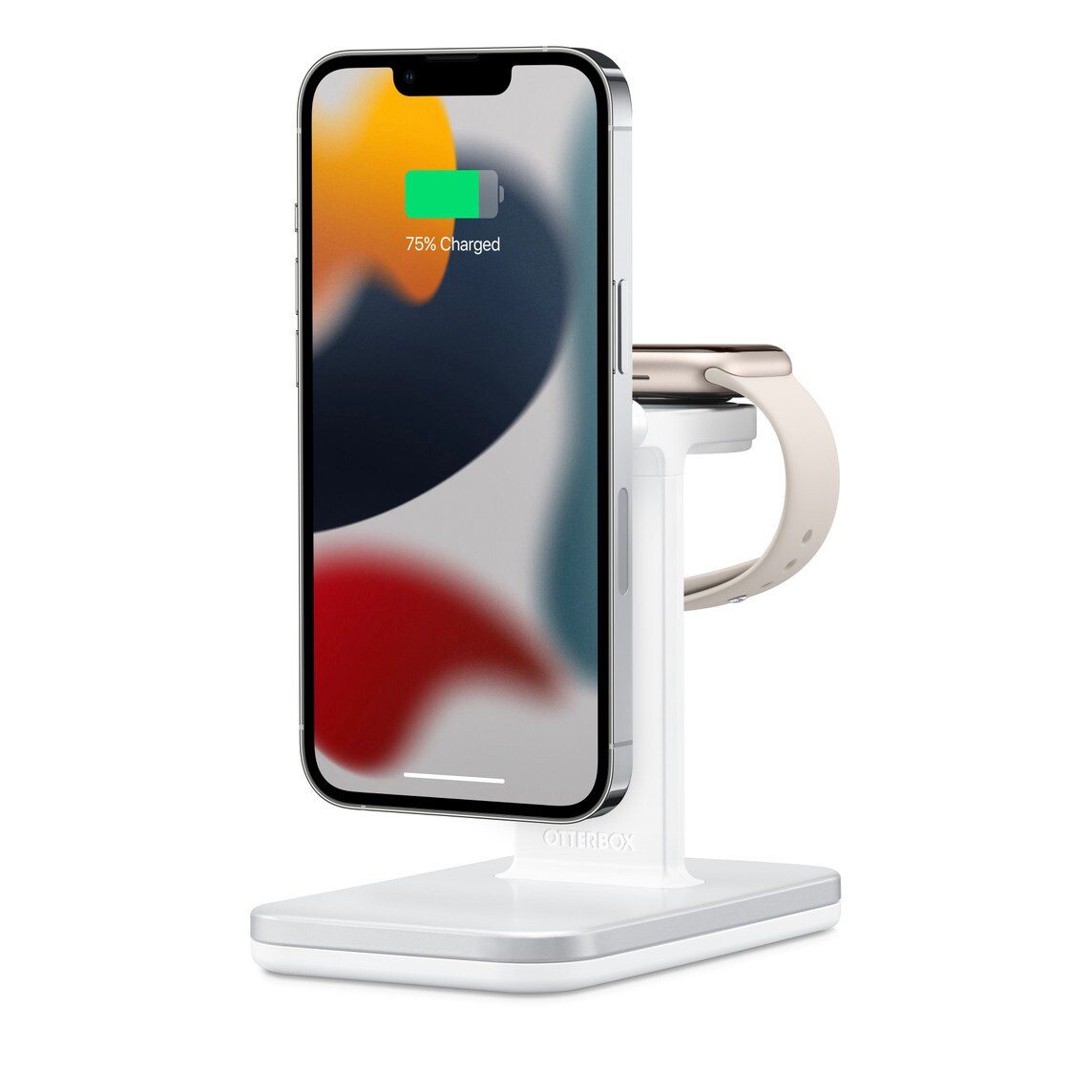
Physical connections are prone to all sorts of problems like debris and damaged connectors. Wireless chargers may seem like a better alternative, but they are not immune to problems. If your iPhone won’t charge wirelessly after iOS 27 update, the first thing to do is to check that your Qi wireless charger is plugged in properly, particularly if it doesn’t have a LED indicator.
Just like wired charging, your Qi wireless charger requires a cable and USB adapter to work. You should try using different cable and adapter to rule them out as the cause of your problem. If you’re using a phone case with your iPhone, consider removing it to test the connection.
If you’re still having problem, consider testing your iPhone using a standard charging cable. If nothing works there may be a problem with the charging circuit inside of your iPhone, which will require a more drastic fix.
Visit the Apple Store
If none of these troubleshooting steps gets your phone back up and running, it’s pretty likely that there’s something wrong with the iPhone itself. You should take your phone, charging cable, and charging adapter to an Apple Store or Apple Authorized Service Provider for evaluation. You can also contact Apple Support for help.
iPhone Charging Again!
I trust your iPhone has sprung back to life and your device is on its way to charging fully. I’m curious to know your experiences fixing the iPhone charging problem after iOS 27 update, and I’m here in case you need further help.