Yesterday, I tried to update my apps after installing iOS 27 on one of my iPhones but App Store couldn’t update my apps. Although the update information for the app shows in the App Store, when the update button is tapped, the app does not get updated and the app update still shows in the App Store. There are many reasons for the problem, it is highly likely that, if you are having this issue, you are having a connection problem. But the good news is that it is usually easy to fix.
If you can’t update apps after iOS 27 update, it is obvious that you need to make sure that your iPhone has a Wi-Fi connection or a cellular-data connection.
In this article, i give a list of things you can try if you have an issue when you update apps from the App Store on your iPhone running iOS 27. The solution that worked for me is solution #7.
How to fix iPhone apps that won’t update after iOS 27 update
Please try the solutions below. Make sure to check your iPhone after each step to see if you can update your apps.
Before we start make sure that you have an active Wi-Fi or mobile data connection. You can easily check this:
- On your iPhone, open Safari or any other browser.
- Type geekschalk.com and tap go.
- Does the web site load? If not, you may be having a connection problem.
1. Toggle Airplane mode on and off
Turn on Airplane Mode by going to Settings > Airplane mode and wait about a minute and turn back off. Now check whether you can update apps.
2. Restart the App Store app
Sometimes, all it takes to get an update working again is to restart the App Store app. Here is how you can do that:
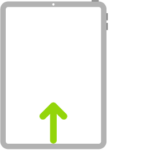
- Swipe up from the bottom of your screen. This will open the App Switcher.
- Locate the App Store app preview and swipe up on it to close it.
- Reopen the App Store app.
3. Restart your iPhone
Simply restart your iPhone. If you’re apps won’t download due to a temporary glitch, this will fix your issue. Here is how you can restart your iPhone:
- iPhone 11, iPhone 12, iPhone 13, iPhone 14, iPhone 15, iPhone 16, or iPhone 17: Press and hold the side and the volume up (or down) buttons together until you see the power off slider. Then drag the slider. Wait about a minute. And then press and hold the side button until the Apple logo appears.
- iPhone SE (2nd generation) and iPhone SE (3rd generation). You can restart these devices by pressing and holding the on/off (sleep/wake side) button until you see the power off slider and then slide the power off slider. Wait about a minute. Then turn your device back on by pressing and holding on/off button until you see the Apple logo.
4. Log out and Back in to App Store
Here is how you can do this:
- Launch the Settings app.
- Tap your name located at the top of your screen.
- Scroll down and select Media & Purchases.
- Tap Sign Out and then confirm.
- Now Sign back in.
5. Update your iPhone
Updating your iPhone to the latest iOS 27 version may fix this. You can do so wirelessly:
- Open Settings.
- Choose General.
- Tap Software Update.
- If an update is available, tap Update Now.
This is important because iOS must be updated periodically. You may be having this issue because of a bug in the iOS 27 software. And an update may include your fix.
6. Switch to Google DNS
if you are still unable to update apps, try changing your iPhone’s DNS (domain name system) servers. Here is how:
- Go to Settings.
- Tap Wi-Fi.
- Find your Wi-Fi connection, then tap the (i) button next to it.
- Tap Configure DNS.
- Tap Manual.
- Tap the DNS field.
- Delete the current numbers there and enter the new Google DNS numbers: 8.8.8.8.
- Tap Wi-Fi to go back. The changes you made will be saved.
7. VPN
This is what fixed my issue. I had already installed a few VPN (virtual private network) apps. One of them was Opera VPN. I simply turned this app on and then I successfully updated my apps. To turn off VPN, go to Settings > VPN.
8. Force restart
Force restart your iPhone. This may fix the problem. Here is how you can force restart your iPhone:
- Press and release the volume up button.
- Press and release the volume down button.
- Press and hold the side button until you see the Apple logo.
9. Try a different Internet connection
Go to another place and use a different Wi-Fi connection (e.g., school lab, library or your friend).
10. Make sure the Date & Time settings are correct
- Open Settings.
- Choose General.
- Tap Date & Time.
- Turn on Set Automatically. Also make sure that your time zone is correct, if it is not, fix it.
If your time settings are correct, and turning on Set Automatically does not fix the issue, try this: turn off Set Automatically and change your settings to a future date and time and try again. If you get the error message, turn on Set Automatically.
11. Restart your router
Restarting your router may fix your problem. Here’s how you can do this:
- Disconnect your router from its power source.
- Wait about a minute.
- Reconnect.
12. Power cycle
Complete these steps:
- Shut down your iPhone.
- Unplug the power cord from your modem and router.
- Plugin your modem and wait until the modem turns on completely.
- Plugin your router and wait until your router turns on completely.
- Now power your iPhone back on and try updating the apps.
13. Check Apple system status
You may be unable to download apps on the App Store on iOS 27 because the App Store is temporarily unavailable in your country or region. Make sure that the App Store services are up are running. You can check the status of the App Store service by going to the Apple System Status site.
14. Check available storage on iPhone
Apps update can not happen if your iPhone doesn’t have enough free storage space. Here is how to check the available storage space on devices running iOS 27:
- Go to Settings.
- Tap General.
- Tap iPhone Storage and check the available storage space.
If there is no or little space, free up storage on the iPhone and try to update the app again.
15. Uninstall and reinstall the app
If nothing else has worked, you might need to delete the app and reinstall it from the App Store.
If it’s a paid app, don’t worry — you won’t need to pay for it a second time. The App Store keeps track of every app you’ve ever installed, and allows you to reinstall them with a tap.
When you reinstall the app, you’ll automatically get the latest version, which includes the update.
16. Factory reset your iPhone
If all else fails, it might be to time reset your iPhone to its factory default settings. This will erase all the data on your phone, but will almost certainly fix any software bugs you’re running into.
For more details on how to factory reset your iPhone — and how to make sure that you don’t lose data that you need — check out our article on how to safely perform a factory reset.
These solutions will likely fix your problem. As I stated above, this error typically points to an Internet connectivity problem. This connection problem is preventing your iPhone from reaching the Apple servers. Following the steps above will help you resolve this.