In iOS 26 and iPadOS 26, you can make your app icons all clear. Which, admittedly, I think is neat and in this article I will show you how to do that.
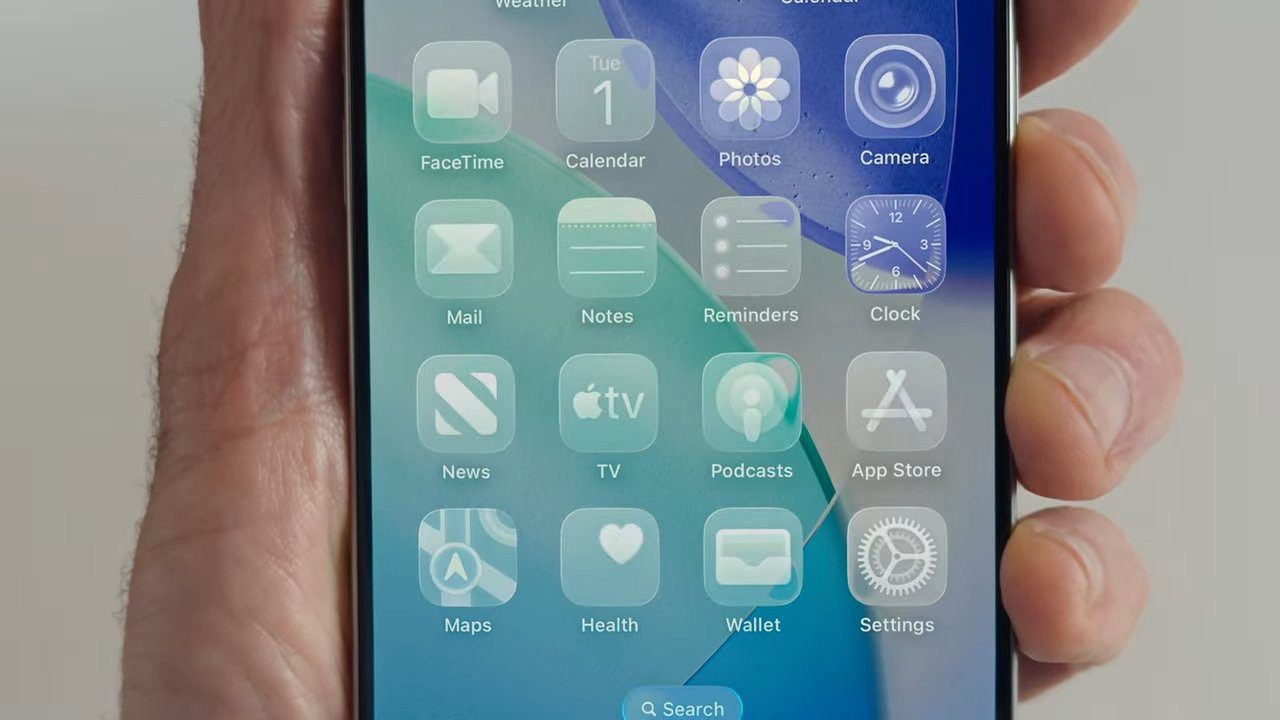
iOS 26 clear icons takes advantage of Apple’s new Liquid Glass UI theme to create icons that are highly translucent, prioritizing showing your background wallpaper image.
Clear icons are essentially monochrome, with the color from the background shining through. But you can further choose between Clear Light and Clear Dark, to suit your preference. As you might expect, Clear Light opts for brighter look whereas Clear Dark puts a near-black layer between the icon and the wallpaper. You can pick “Auto” to switch between Light and Dark based on the current system Appearance setting.
How to make your iPhone icons clear in iOS 26
- Go to the Home Screen.
- Touch and hold the Home Screen background until the icons begin to jiggle.
- Tap Edit at the top of the screen, then choose Customize.
- Tap Clear.
- Choose the preferred variant:
- Light
- Dark
- Auto
- If you want to remove the app names and make the icons bigar, tap on the tiny buttons at the top right corner of the menu.
- Once you have customized your apps, tap anywhere outside of the menu, and you are all set!
And that’s how you can activate the new clear app icons feature in iOS 26 and iPadOS 26.
See also: How to change the background on iMessage on iPhone in iOS 26