On iPad, you can import passwords that you’ve exported to a CSV file from another password manager. You just choose the CSV or ZIP file to import, and for security, you delete the file you imported from afterward. You can also export passwords to another password manager.
WARNING: Your imported passwords might not be encrypted and could be visible to anyone who can access the file.
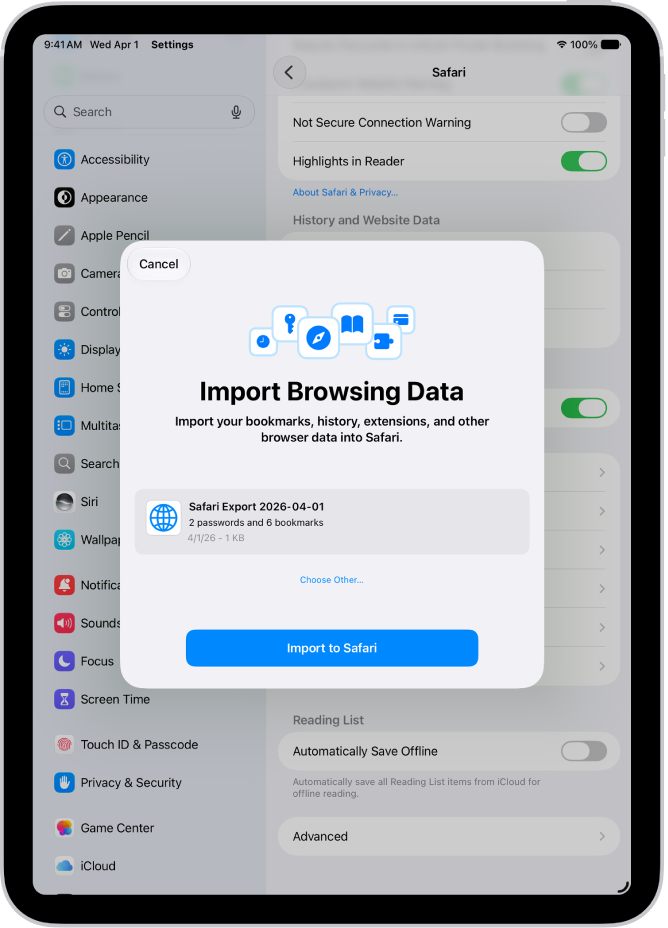
- Start the Settings app on your iPad.
- Tap Apps, then tap Safari.
- Below History and Website Data, tap Import.
- Tap Choose File. Then choose the CSV file (or ZIP file) you exported from your other password manager.
- Tap Import to Safari.
- Tap Done.
WARNING: For security, delete the file you imported from.
See also