How to download a PDF from Safari to your iPad

You can download a PDF from Safari to your iPad, save it in Files to read later, and share it with others.

By Chris Smith - Senior Editor
0 Min Read

You can save a PDF from Safari to your iPad to read later or share with others. In the Safari app, you just go to the PDF and save it to Files, then enter a name for the file and save it.

  1. Go to the Safari app on your iPad.
  2. Go to the PDF, then tap the Share button.
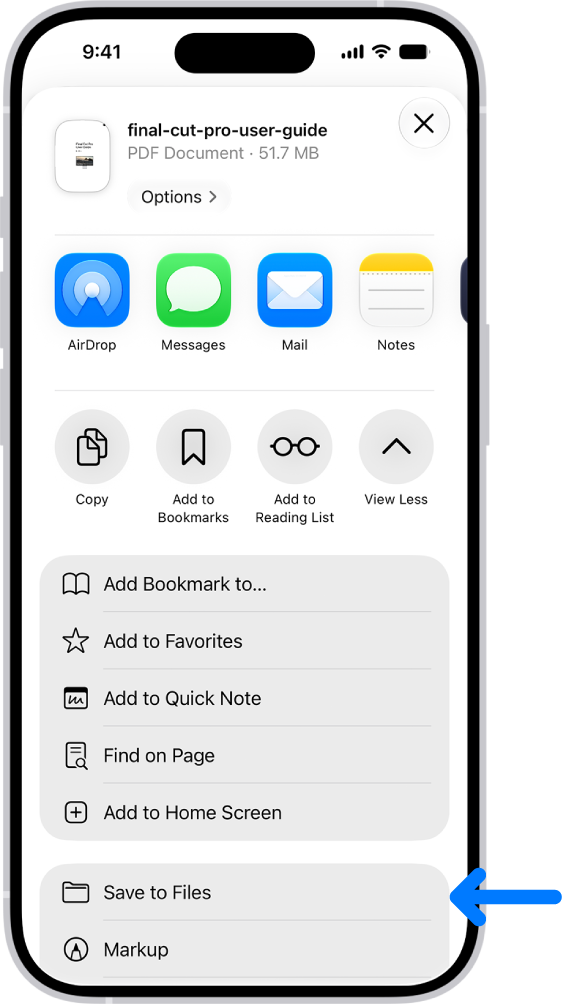
  3. Tap View More, then tap Save to Files.
  4. Enter a name for the file, then tap Save.

To choose where your PDFs are saved, check out our guide, Choose where to save downloads.
TAGGED:
Senior Editor
Follow:
Chris Smith is a senior editor at GeeksChalk based in Canada. He likes to think of himself as a jack of all trades (and a master of at least a few), though he mainly focuses on iPhones and Macs. Often covering both at the same time. When not surrounded by various Apple devices while putting them through their paces, Chris can be found streaming the latest movies or series, gaming on his PS5, or getting fresh air on a hike in the beautiful wilderness of British Columbia.
Leave a Comment