On iPad, you can use Live Text in Preview to copy or translate text within an image, make a call, open a website, or start an email. You can also look up the meaning of text, search the web for it, or save a phone number or email address to Contacts.
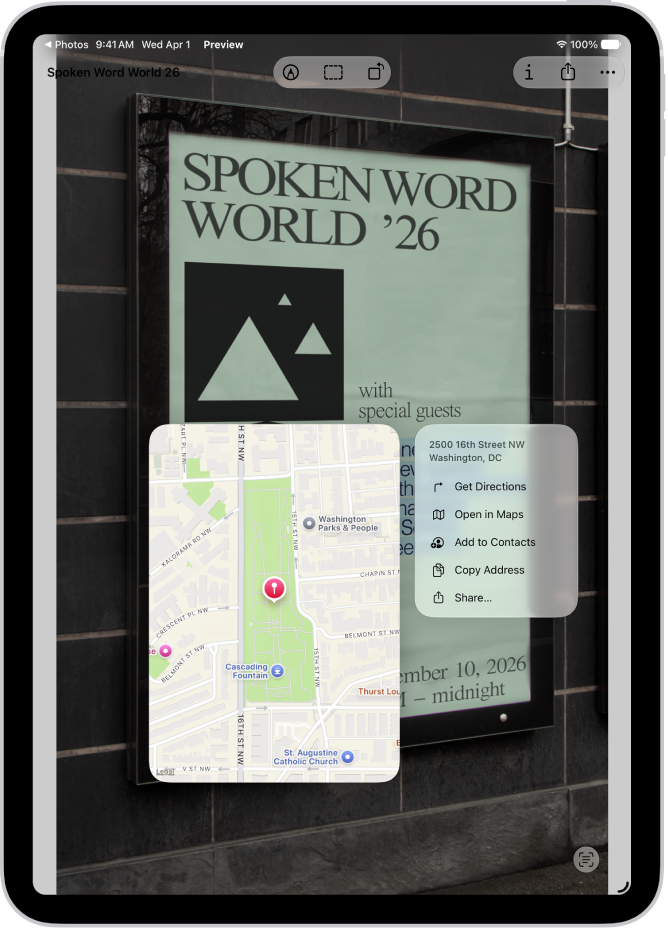
- Start the Preview app on your iPad.
- Open an image that shows text. Select the text. See Select, cut, copy, and paste text.
- Do any of the following:
- Copy text: Tap Copy. You can then paste the text into another document or app.
- Look up the meaning of text: Tap Look Up.
- Translate text: Tap Translate and choose a language.
Note: Translation isn’t available in all languages and may not be available in some countries or regions.
- Search the web for the text: Tap the Forward button and tap Search Web.
- Call or text a phone number: Tap Call or Message.
- Save a phone number or email address: Tap the Forward button and then tap Add to Contacts.
- Send an email or message to an email address: Tap Email or Message.
- Go to a website: Tap Open Link.
See also