iOS 26 lets you turn your standard photos into 3D images with eye-catching depth effects. Apple calls these Spatial Scenes. This guide explains how to use Spatial Scenes on iOS 26, step-by-step.
What is spatial scene in iOS 26?
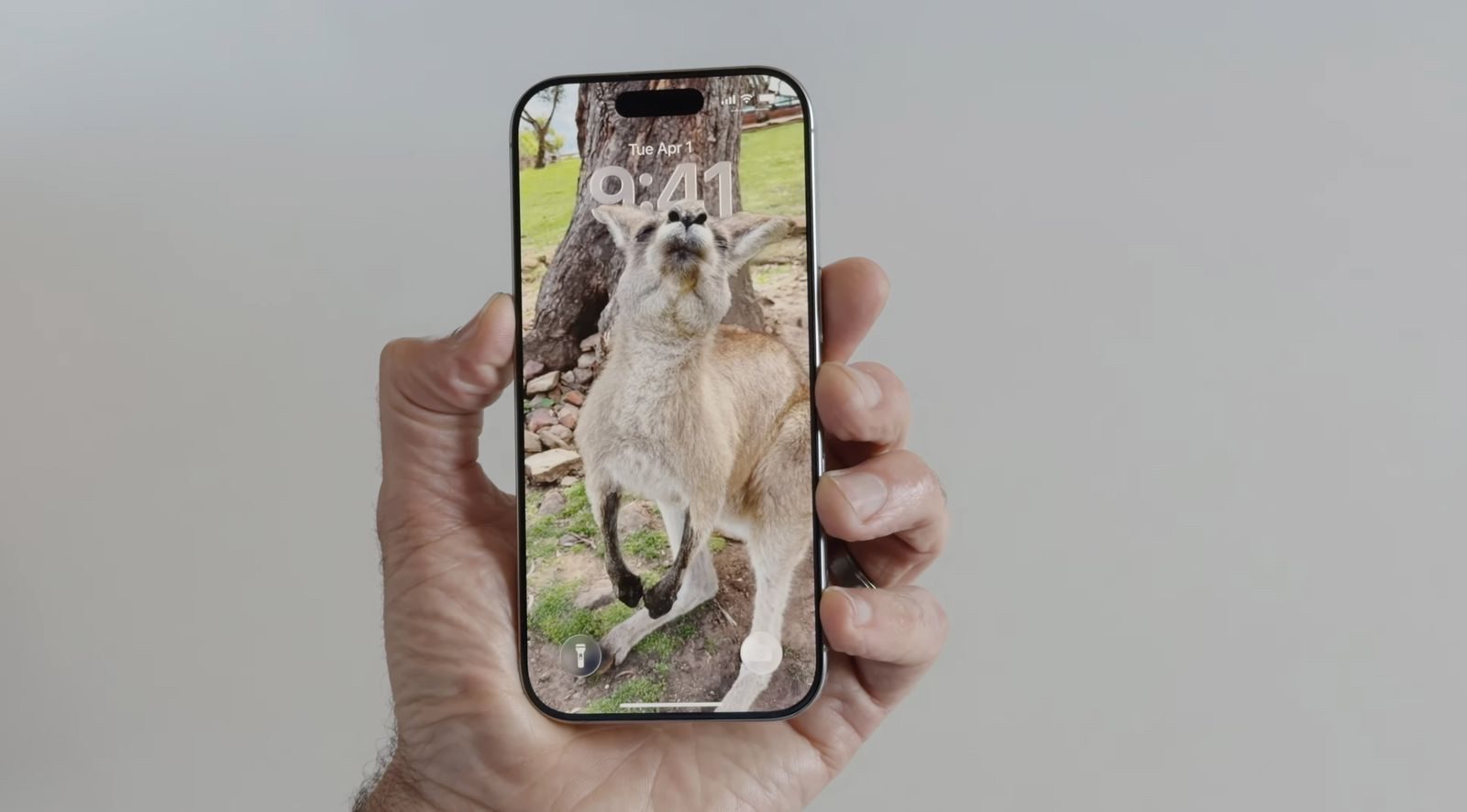
Spatial Scene is an iOS 26 feature that give photos in your Photos app and pictures on your lock screen wallpaper a 3D effect when you tilt your iPhone side to side. The feature add a degree of interactivity to your favorite images because they respond to the way you hold your iPhone. When enabled, spatial scenes add depth to elements in your wallpaper — and pictures — making them appear like they are popping out at you. As you move your iPhone around you, those elements will move, too.
I’m pretty fond of iOS 26 Spatial Scenes feature. Sure, they’re nothing groundbreaking and won’t forever change the way you use your iPhone, but they’re a neat little addition that can bring a smile to your face if you use the right images. The feature might sound a little pointless if you just read about it, but try it out for yourself and you’ll see why it can be so satisfying. The good news is that you don’t need one of the new iPhone 17 models either — Spatial Scenes work on the iPhone 12 or later, no special lenses or sensors required.
Spatial Scenes in the Photos App
Spatial Scenes in Photos app turns regular photos into dynamic, 3D-like images that respond to your movements. So, instead of staying flat and static, your photo shifts and bends slightly as you tilt your iPhone. The best part? Spatial Scenes retrofits depth into existing pictures in your photo library.
Spatial Scenes works by intelligently separating subjects from backgrounds in your photos. When you move your iPhone, the foreground elements stay relatively stable while background elements shift slightly. This creates a parallax effect that mimics how your eyes naturally perceive depth.
The feature works using generative AI that analyzes your photos to identify different elements and create depth maps. Importantly, it doesn’t require Apple Intelligence to function, meaning Spatial Scenes works on iPhone 12 and newer models.
Unlike spatial photos captured using iPhone 16 models, Spatial Scenes works with virtually any existing photo that has a clear subject.
How to turn your iPhone photo into a spatial scene in iOS 26
- Launch the Photos app.
- Browse through your camera roll and find a picture you want to edit.
- Tap the small hexagon icon in the upper right corner.
- Hold your iPhone in front of you.
- Slowly tilt or move it side to side.
- Watch as the subject pops from the background while the background subtly shifts.
The movement doesn’t need to be dramatic — small tilts and shifts are enough to reveal the added depth.
Lock Screen Spatial Scenes
It’s not just the Photos app where Spatial Scenes can be experienced. Your iPhone’s Lock Screen wallpaper can have that same engaging depth whenever you glance at the screen.
When you’re browsing Lock Screen wallpaper options, iOS automatically suggests photos from your library that are compatible with the feature. And if you manually select a Lock Screen photo that supports Spatial Scenes, you’ll see a toggle on the customization screen that lets you enable or disable the effect.
How to create Lock Screen Spatial Scene in iOS 26
To create Lock Screen Spatial Scene in iOS 26, first ensure that your iPhone is locked, long press your screen, then tap Plus in the bottom-right corner. Your device might have already created some 3D wallpapers for you, and you can find them in the Spatial Scenes section. Similarly, any wallpaper option with "3D" underneath it will work as a Spatial Scene.
To create your own, tap Photos in the top-left, then pick an image. It’s best to opt for one with a clear depth of field and well-defined foreground and background elements. Once you’ve chosen, tap the hexagonal landscape icon (it’s just to the left of the … button). Your iPhone will say "Generating Spatial Scene." Once that’s done, your 3D wallpaper will be ready — try moving your iPhone to see the effect in action.
Finally, tap Add in the top-right corner, choose if you want to use it on both your Lock Screen and your Home Screen (by selecting "Set as Wallpaper Pair") or just one, then swipe up to leave the wallpaper selection screen.
With that, you’ll have your own Spatial Scene every time you look upon your Lock Screen. Try experimenting with different images to see what works best, and soon you could have your own 3D background to enjoy.