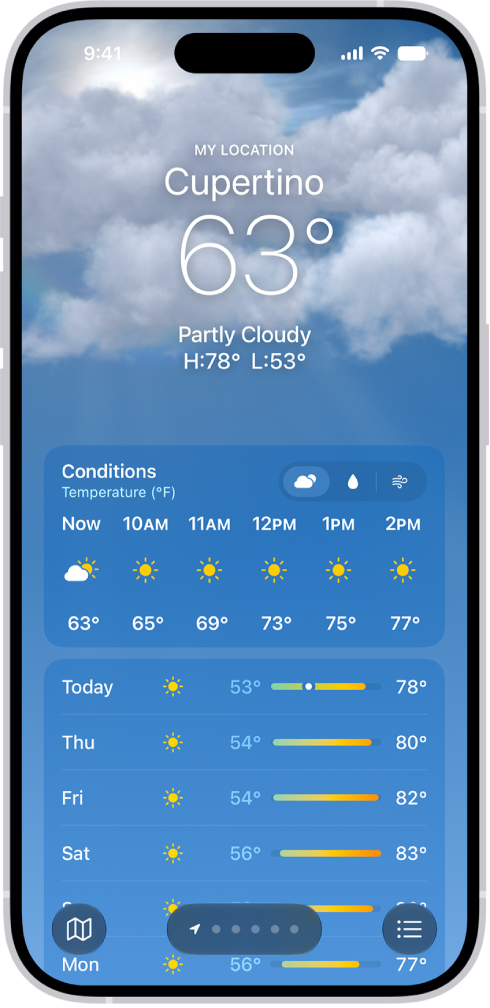
On iPhone, you can receive notifications when precipitation or certain severe weather events are forecasted in your current location. You can also receive notifications for locations you saved in your list.
For the most accurate notifications for your current location, turn on Precise Location for the Weather app and set its location access to Always. You can even get weather notifications for a suggested location.
Here’s how to manage weather notifications on iPhone.
Note: Weather notifications aren’t available in all countries or regions.
Turn on Precise Location
Turning on Precise Location gives you more accurate notifications for your current location.
- Open the Settings app on your iPhone.
- Tap Privacy & Security and then tap Location Services.
- Tap Weather, then tap Always.
- Turn on Precise Location.
Get weather notifications
- Open the Weather app on your iPhone.
- Tap the Location List button to display your list.
- Tap the More button, then tap Notifications.
If prompted, allow notifications from the Weather app.
If prompted, below Current Location, tap Go to Settings, then change location access to Always.
- Do any of the following:
- Get notified about the weather at your current location: Below Current Location, turn on Severe Weather and Next-Hour Precipitation.
- Get notified about weather in other locations: Below Your Locations, tap a location, then turn on Severe Weather and Next-Hour Precipitation.
- Tap the Done button.
Get weather notifications for a suggested location
- Open the Settings app on your iPhone.
- Tap Privacy & Security, tap Location Services, and tap System Services.
- Tap Significant Locations & Routes. Then turn on Significant Locations & Routes.
- Tap the Back button four times to return to Settings.
- Tap Apps, then tap Weather.
- Tap Location and select Always.
- Tap the Back button. Turn on Suggested Locations (below Locations).
- Open the Weather app.
- Tap the Location List button, tap the More button, and tap Notifications.
- Below Suggested Locations, turn on notifications for Severe Weather.
With Smart Rotate and Widget Suggestions turned on in a widget stack, Weather widgets can also display conditions at locations significant to you.