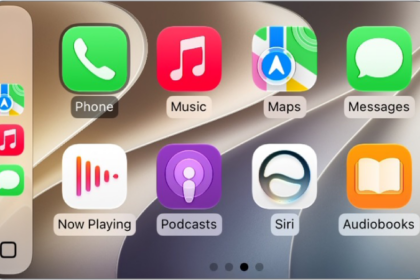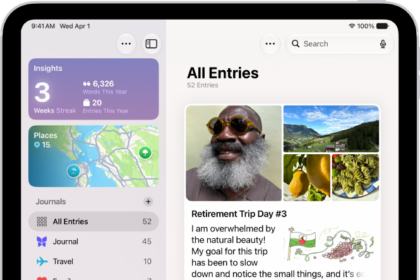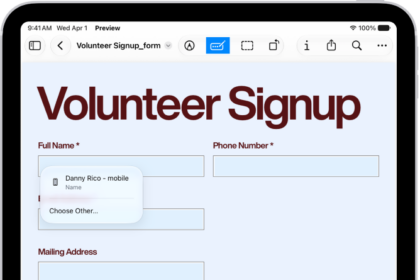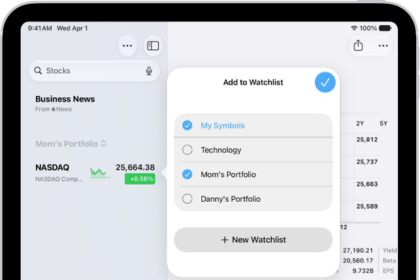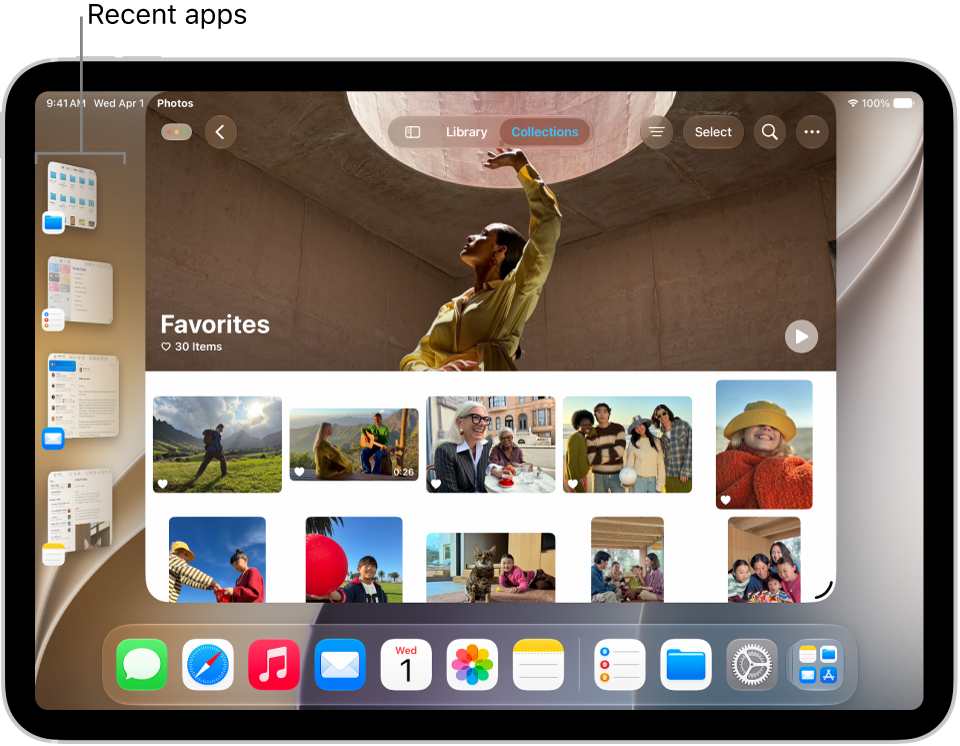
If your iPad (compatible models) is connected to an external display, you can work across both screens, moving apps and windows between the screens and arranging them in a way that works best for you. You can also open an app right on the display you want to use it on.
Note: Using an external display with iPad requires a compatible iPad model and a compatible cable or adapter. See Connect iPad to a display with a cable.
Do any of the following to move apps between displays:
- Drag the window: Use your cursor to drag from the top of the app window to move it from one display to another.
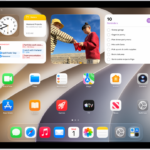
- Open on a specific display: Tap the app icon in the Dock or App Library on the display you want to use it on.
- Use window controls: Touch and hold the Multitasking menu, then tap Move to Display or Move to iPad.
See also