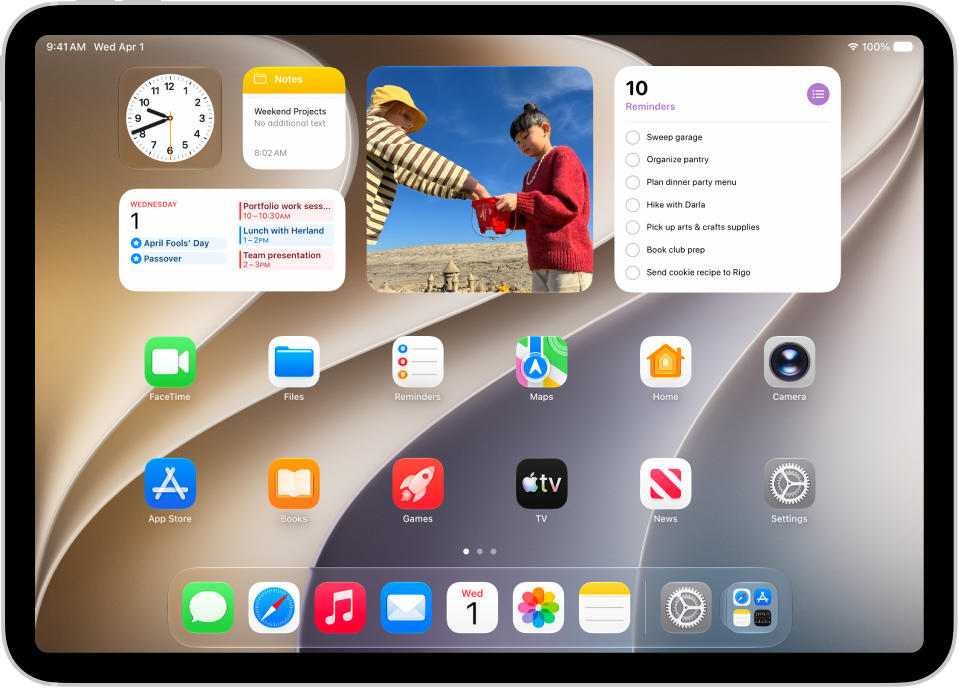
When VoiceOver is on, you need to use special gestures to unlock iPad, go to the Home Screen, open Control Center, switch apps, and more.
How you unlock depends on your model, whether it has a Home button, Touch ID in the top button, or Face ID. You can also enter your passcode silently using handwriting mode, use the Dock, switch to another app, or use the App Switcher.
Here’s how to operate iPad when VoiceOver is on.
Unlock iPad
- On an iPad with a Home button: Press the Home button using the finger you registered with Touch ID.
- On an iPad with Touch ID: Rest your finger on the top button using the finger you registered with Touch ID.
- On an iPad with Face ID: Wake iPad and glance at it, then drag up from the bottom edge of the screen until you hear two rising tones (if Face ID is enabled).
If prompted, enter your passcode. To avoid having your passcode spoken as you enter it, enter your passcode silently using handwriting mode or type onscreen braille.
Go to the Home Screen
- Drag one finger up from the bottom edge of the screen until you hear two rising tones, then lift your finger.
- On an iPad with a Home button, press the Home button.
Use the Dock
Slide one finger up from the bottom edge until you hear two rising tones, then swipe down.
Switch to another app
Swipe right or left with four fingers to cycle through the open apps.
Alternatively, you can use the App Switcher.
- To open the App Switcher, do one of the following:
- Drag one finger up from the bottom edge of the screen until you hear three tones, then lift your finger.
- Double-click the Home button (on an iPad with a Home button).
- To browse the open apps, swipe left or right until the app you want is selected.
- Double-tap to open the app.
Open Control Center
- Drag one finger down from the top edge of the screen until you hear two rising tones.
- Tap any item in the status bar, then swipe up with three fingers.
To dismiss Control Center, do a two-finger scrub (move two fingers back and forth three times quickly, making a “z”).
View notifications
- Drag one finger down from the top edge of the screen until you hear three rising tones.
- Tap any item in the status bar, then swipe down with three fingers.
To dismiss the notifications screen, do a two-finger scrub (move two fingers back and forth three times quickly, making a “z”).
Speak status bar information
- Tap the status bar at the top of the screen.
- Swipe left or right to hear the time, battery state, Wi-Fi signal strength, and more.
Rearrange apps on your Home Screen
To rearrange apps on your Home Screen, do one of the following:
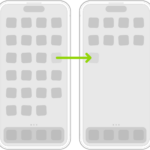
- Drag and drop: Tap an icon on the Home Screen, then double-tap and hold your finger on the screen until you hear three rising tones. The item’s relative location is described as you drag. Lift your finger when the icon is in its new location. Drag an icon to the edge of the screen to move it to another Home Screen.
- Move actions: Tap an app, then swipe down to hear available actions. When you hear “Edit Mode,” double-tap to start arranging apps. Find the app you want to move, then swipe down to the Move action and double-tap. Move the VoiceOver cursor to the new destination for the app, then choose from the available actions: Cancel Move, Create New Folder, Add to Folder, Move Before, or Move After.
When you’re finished, tap Done, then double-tap.
Search from the Home Screen
- Tap anywhere on the Home Screen outside the status bar.
- Swipe down with three fingers.
See also