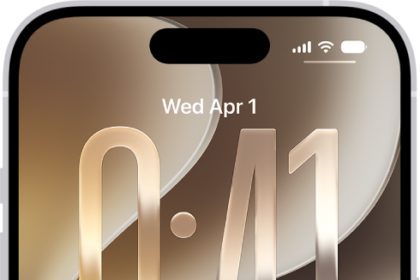
Sometimes all you need to do when you receive a message is give a quick reply. The ability to reply from the iPhone’s Lock Screen makes it possible to send off a reply without taking the time to unlock your iPhone, find your messaging app, select the message and then reply.
You can reply to messages from the Lock Screen on both iPhone and iPad. You can reply to messages using Messages, WhatsApp, Slack and more.
Although you will probably reply from the Lock Screen most often when you receive a new message, you may still want to reply to a message whose notification has already disappeared from the Lock Screen. In order to view your notifications in the Notification Center, swipe up from the center of the Lock Screen. If necessary, tap on a stack of messages to open all of the notifications that have come in using a particular app.
How to reply messages from the Lock Screen on iPhone
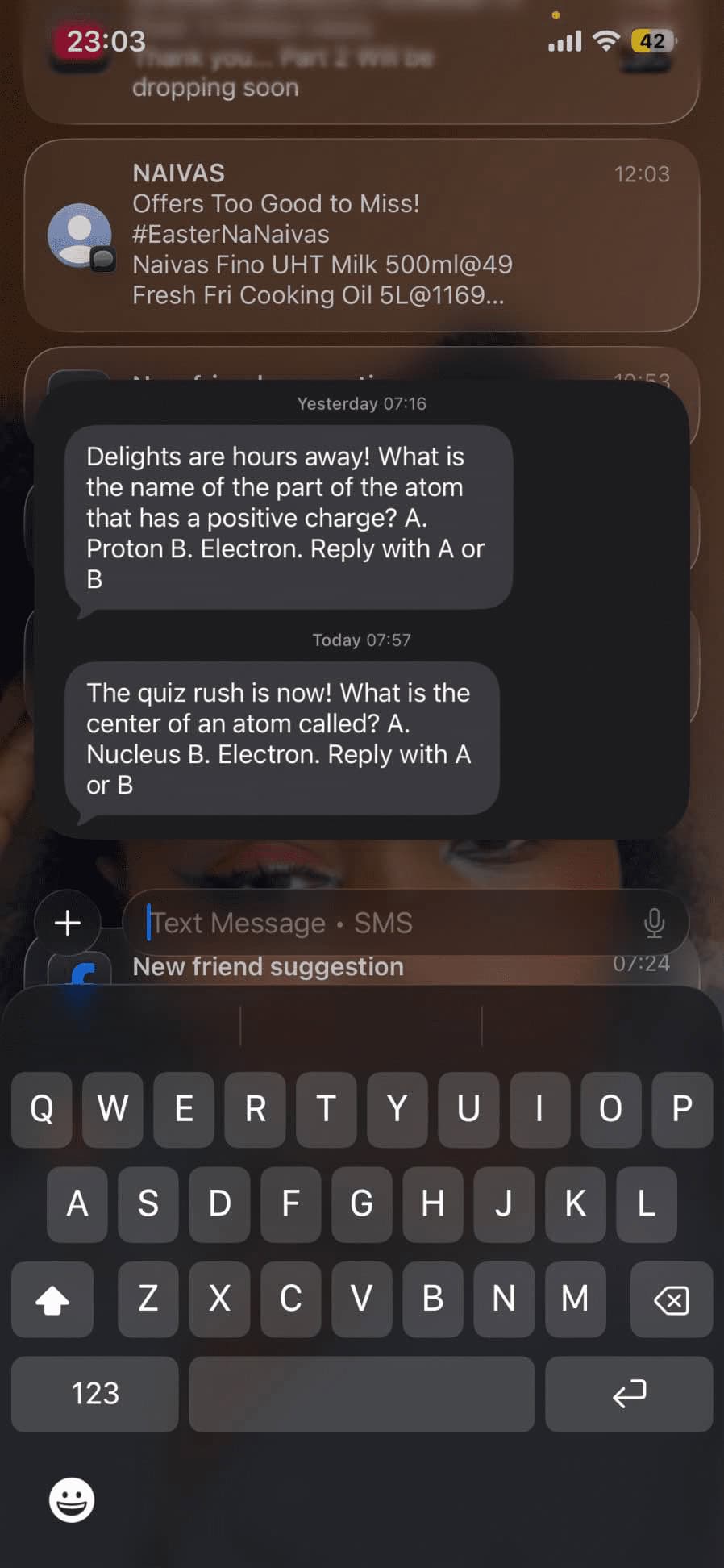
When you receive a notification on your iPhone Lock Screen, you can reply to it by doing the following:
- Touch and hold on the notification until a text box and keyboard appear. Or depending on your device, you might need to swipe left over the notification and tap View.
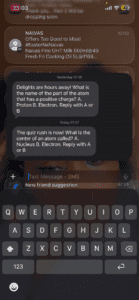
- Type your reply.
- Tap the Send button.
Other notification options
When you swipe left on a notification on the Lock Screen, you will see an Options button and a Clear button.
The Clear button, as you might expect, will clear the message from the Lock Screen.
If you tap on the Options button, you will see the following options in the menu that appears:
- Mute for 1 Hour: This will mute notifications from the app for one hour. Your notifications can still be found in the Notification Center.
- Mute for Today: This will mute notifications from the app for the rest of the day; they will still appear in the Notification Center.
- View Settings: There are many different notification settings you can change for each app. You can also access the settings by going to Settings > Notifications.
- Turn Off All “Messages” Notifications: This will turn off notifications for the “Messages” app.
If you have muted notifications and wish to turn them back on again, you can find a notification in the Notification Center and swipe left on it, tap on Options, then tap Unmute.
If you can’t reply from the Lock Screen
If you can’t reply to a message from the Lock Screen, you may need to check your settings. You will need to allow Reply with Message.
For iPhone with Face ID:
- Go to Settings > Face ID & Passcode.
- Enter your Passcode.
- Scroll down to the Allow Access When Locked section.
- Toggle the switch next to Reply with Message.
For iPhone with Touch ID (iPhone SE, iPhone 8 or earlier):
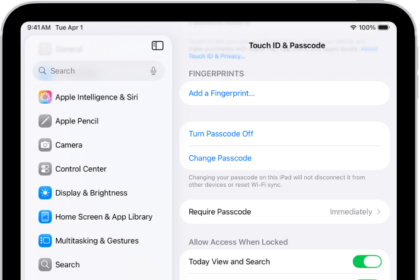
- Go to Settings > Touch ID & Passcode.
- Enter your Passcode.
- Scroll down to Allow Access When Locked and toggle on Reply with Message.