If you’re having problems and Apple TV 4K still doesn’t respond after restarting, you can try resetting it to its factory settings. When you reset Apple TV 4K, all data is erased, including your accounts and configuration.
You can also reset your Apple TV 4K and update its software at the same time, which updates it to the latest tvOS version. Resetting and restoring it can take some time, though.
Here’s how to reset your Apple TV 4K — and how to update its software in the same step.
Reset Apple TV 4K
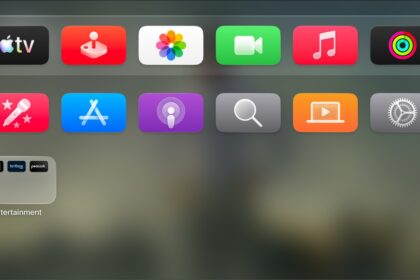
- Go to Settings on Apple TV 4K.
- Go to System > Reset, then select Reset.
Resetting Apple TV 4K and restoring it to factory settings can take some time. If Apple TV 4K still doesn’t respond, contact Apple TV Support.
Reset Apple TV 4K and update software
- Go to Settings on Apple TV 4K.
- Go to System > Reset and select Reset and Update.
Selecting this option restores your Apple TV 4K to factory settings, erases all settings and information, and updates to the latest tvOS version.
To recover faster, you can set up your Apple TV 4K with your iPhone or iPad.
Not all features and content are available in all countries or regions or on all Apple TV hardware models.
See also