- You can restore lost contacts on an iPhone from a recent backup using the iCloud website.
- Your existing local contacts on your iPhone will be backed up and replaced with the ones from iCloud.
- To restore contacts without losing data, merge your iCloud contacts with the ones on your phone.
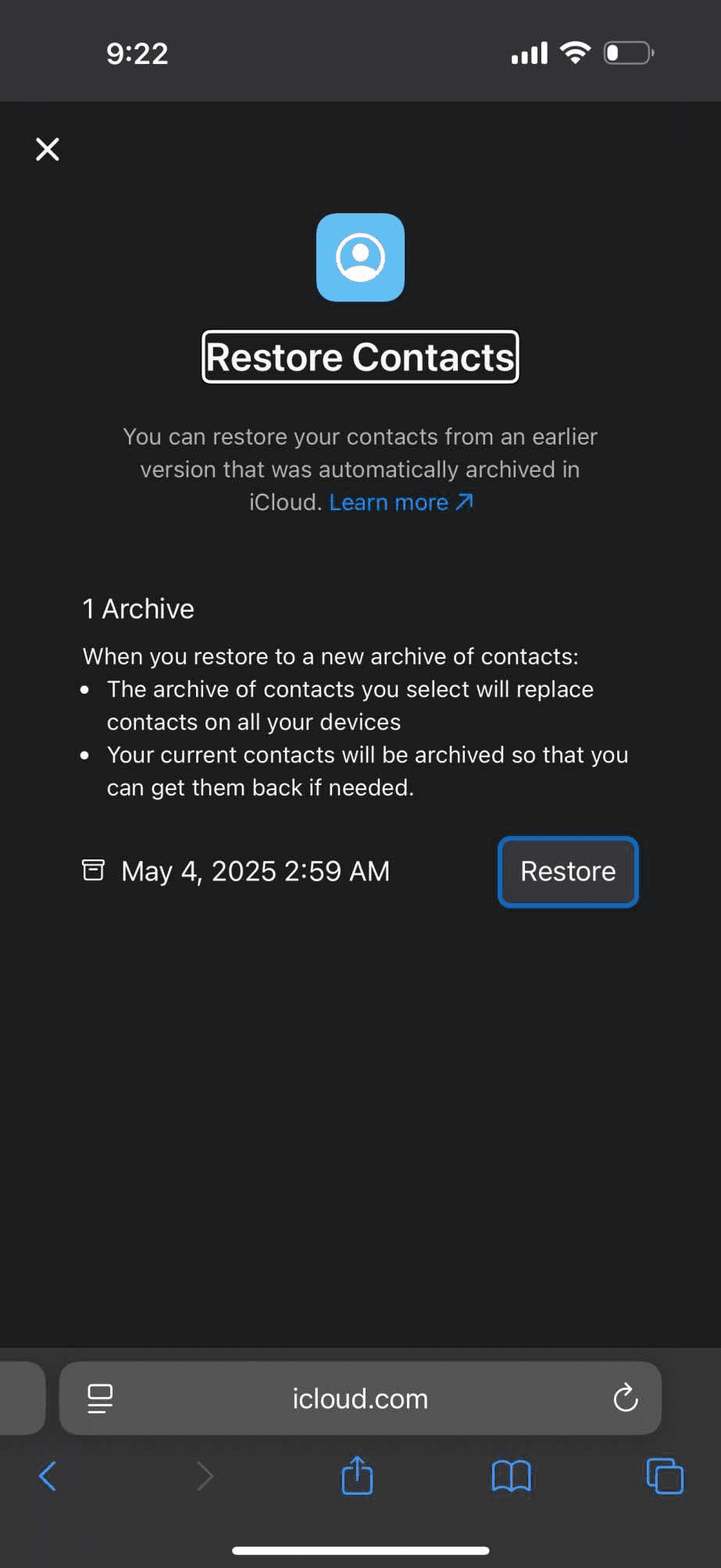
Do you need to recover your contacts from an iCloud account on your iPhone? Whether you accidentally delete some contacts or lose your entire address book through a catastrophic mishap, all is not lost. You can easily tap into iCloud and restore your contacts from an earlier version that was automatically archived. For example, you might want to restore an earlier version of your contacts to recover some that were accidentally deleted.
When you restore an earlier version, your current version is first archived in iCloud, so if you change your mind, you can go back to it.
How to restore lost iPhone contacts from iCloud backup
To restore lost contacts from iCloud to your iPhone, follow these simple steps:
- Go to icloud.com, then sign in to your Apple Account (if necessary).
- Tap or click on your profile Image.
- Tap or click Data Recovery.
- Select Restore Contacts.
- Available versions are listed by the date and time they were archived.
Tip: If you recently deleted a contact either from iCloud.com or your device that you now want to restore, it may take up to 24 hours for the archive to appear. - To the right of the version you want to restore, click Restore.
- There may be more versions than can be displayed. Scroll to see them all.
Note: Wait until iCloud finishes restoring your contacts before you change them. During the restore process, any changes you make aren’t saved.
The restored contacts and contact lists appear on all your devices that have Contacts turned on in iCloud settings.
Merge iCloud Contacts on iPhone
If you want to keep both your existing contacts and restore the ones from a recent backup, you can simply merge the contacts on iCloud with the one on your iPhone.
Follow the steps below to merge contacts from iCloud to iPhone:
- Open the Settings app.
- Tap Your Name at the top of the screen.
- Select iCloud.
- Tap See All.
- Toggle Contacts to the On position.
Tip: If Contacts is already on, turn it off and back on. Make sure you select “Keep on my iPhone” in the pop-up so your contacts are not erased – and then toggle on again. - When asked if you want to Merge or Cancel, select Merge.
Once the merge is complete, you should see the contact from iCloud appear in your contacts list on your iPhone, along with your existing contacts.