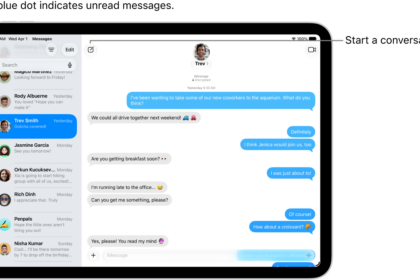
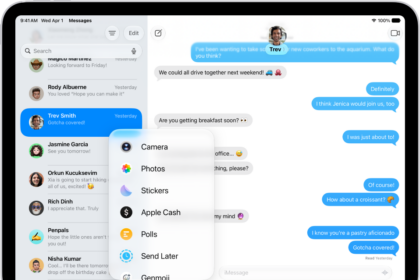
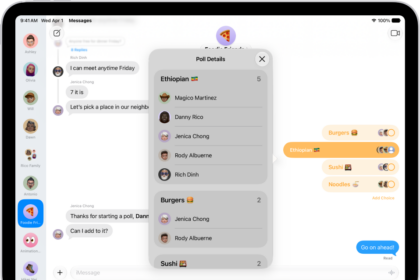
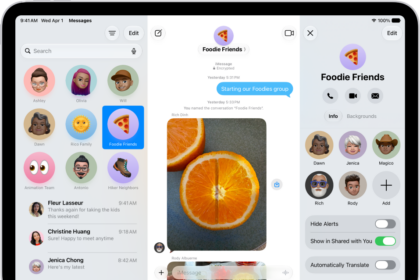
On iPad, you can reduce the number of unwanted text messages you receive when you screen and filter messages from unknown senders and turn off business alerts.
Messages from unknown senders are filtered into another folder, so they can’t text you directly, and you don’t get notified. You can also set up additional spam filtering for unknown SMS, MMS, and RCS messages, and review the messages that were filtered. Filters cover promotions and transactions, too.
Screen and filter messages from unknown senders
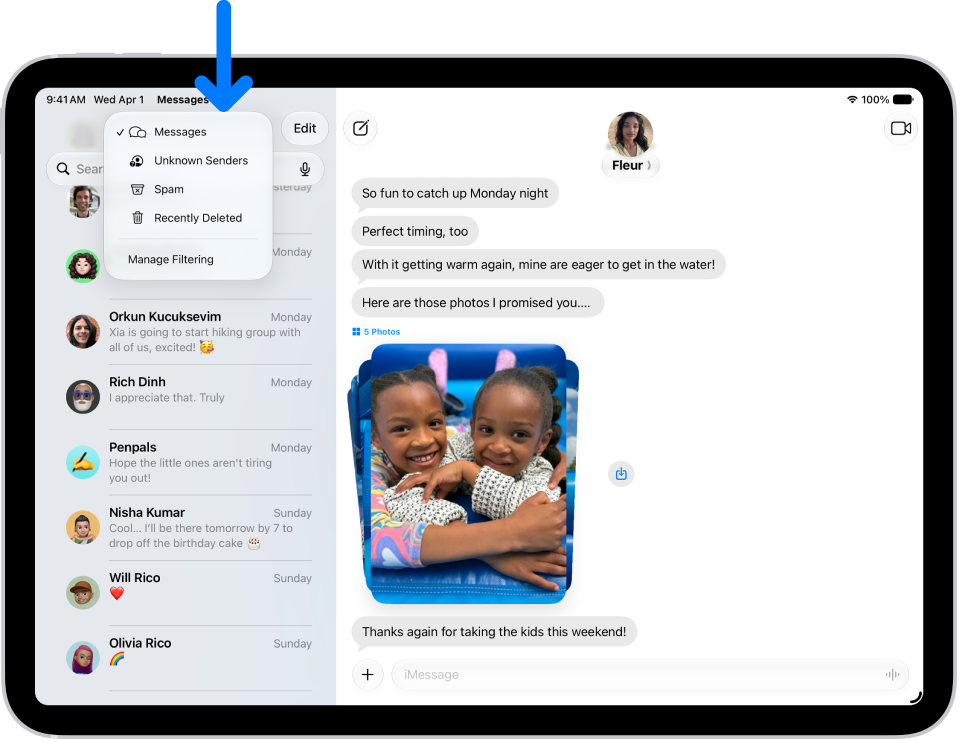
To keep unknown senders from texting you directly, you can filter their messages into another folder, and you aren’t notified about them unless you want to be.
- Go to the Messages app on your iPad.
- Tap the Filter button at the top right of the conversation list. Tap Manage Filtering.
- Turn on Screen Unknown Senders.
- To get notifications from some unknown senders—for example, for time-sensitive texts, like verification codes—tap Allow Notifications. Then turn on the categories you want to allow. (Options vary by country and region.)
Unknown SMS, MMS, and RCS messages can get additional spam filtering and screening, too.
Note: Filters cover promotions and transactions, or anything your third-party message filtering extension on iPhone offers. Any sender you’ve replied to three times or more isn’t affected by text message filtering, so try blocking or reporting those senders instead.
Review messages from unknown senders and mark them as known
Messages filtered to the Unknown Senders folder are there to review at any time. When you decide a sender is legitimate, mark them as known or add them to Contacts, and their messages move into your conversation list, where you can open links and view any blurred images they’ve sent.
- Open the Messages app on your iPad.
- Tap the Filter button at the top right of the conversation list and then tap Unknown Senders.
- Do any of the following:
- Tap the message from the sender whose messages you want to see in your conversation list, then tap Mark as Known.
- Tap the sender’s email address or phone number at the top of the conversation, then tap Create New Contact.
Until you add a sender as a contact or mark them as known, any future messages from them keep going to Unknown Senders.
Turn off business alerts
You can turn off the alerts and updates some businesses send on your orders and other transactions.
- Open the Settings app on your iPad.
- Tap Apps, then tap Messages.
- To turn off Apple Messages for Business, tap Business Messages. Turn Business Updates off.
You can also report spam messages as you receive them.
Quick tip: To prevent unwanted messages, there’s another option: allow messages only from your contacts with Screen Time.
For control over how the notifications appear and more, set your notification options.
To pause notifications from Messages, turn on Do Not Disturb or another Focus.
See also