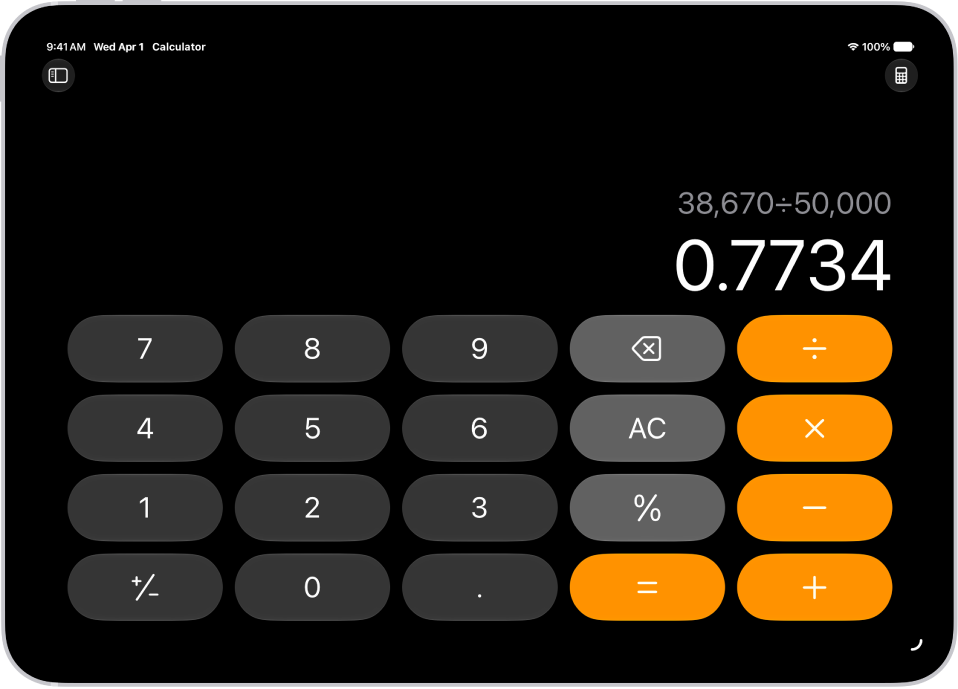
On iPad, keep track of previous calculations in the basic or scientific calculators, and copy results from them to use in Calculator or other apps. In the Calculator app, your history lets you reload a calculation where you left off earlier, copy the answer, or delete one calculation or all of them.
- Go to the Calculator app on your iPad.
- Tap the Change Mode button and choose Basic or Scientific.
- Do one of the following:
- In full-screen view: Tap the History button.
- In smaller windows: Tap the Clock button.
- Do any of the following:
- Reload the calculation: Tap the listing. The calculation appears where you left off earlier.
- Copy the answer: Touch and hold the listing and tap Copy Expression or Copy Result.
- Delete the calculation: Swipe left, then tap the Delete button.
- Delete all previous calculations: Tap Edit, tap Clear All, and then tap Clear History.
- Delete multiple calculations: Tap Edit and tap the calculations. Tap Delete.
See also