HomePod mini and HomePod are smart speakers with the intelligence of Siri. You can play your favorite music and podcasts, get help with everyday questions or tasks, and control your smart home accessories, all with just your voice.
HomePod uses AirPlay to connect wirelessly to compatible devices like iPhone and iPad, and you can make it part of your home theater system or set it up as a stereo pair with another HomePod.
Here’s how to set up your HomePod for the first time, and how to connect it to a captive portal Wi-Fi network.
Before you begin
- Start the Settings app on your iPhone or iPad.
- Check the following:
- Wi-Fi: Make sure your iPhone or iPad is connected to the Wi-Fi network you plan to use for HomePod.
- Bluetooth®: Make sure Bluetooth is turned on.
- Software updates: Tap General, tap Software Update, and install any available updates.
Set up HomePod for the first time
- Plug in HomePod.
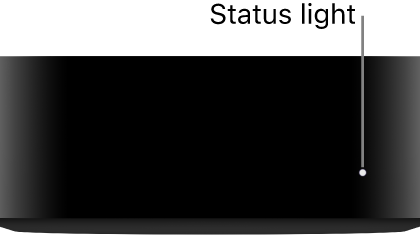
The spinning white light indicates HomePod is turning on.

- Wait until HomePod displays a slow pulsing white light on top, which indicates HomePod is ready for setup.
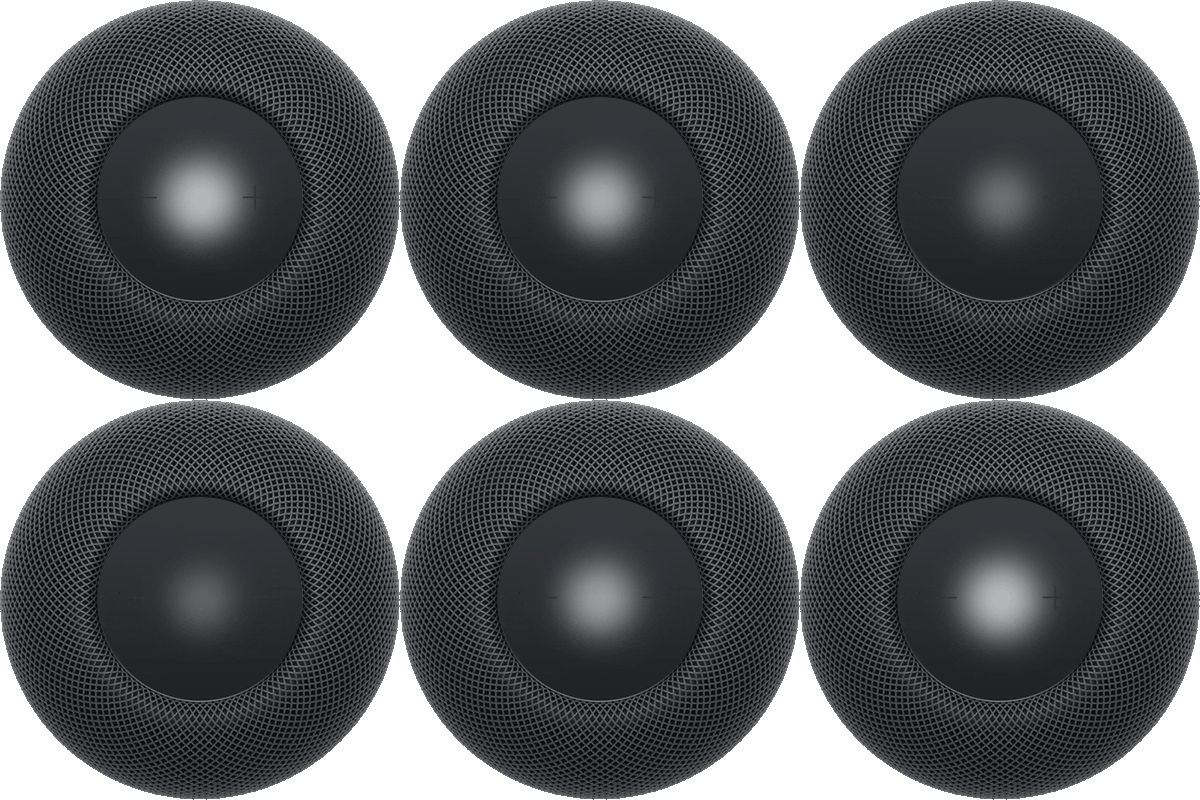
- Hold your unlocked iPhone or iPad within a few inches of HomePod until the setup screen appears.
- Tap Set Up and follow the onscreen instructions.
If the setup screen doesn’t appear automatically
- Start the Home app on your iPhone or iPad.
- Tap the Add button and tap Add Accessory. Then tap More options.
- Tap HomePod in the Nearby Accessories list.
- Tap Set Up and follow the onscreen instructions.
For enhanced security and network performance, you may be asked to enable two-factor authentication for your Apple Account or set your Wi-Fi network to use WPA/WPA2/WPA3 security, if you haven’t already done so.
Connect HomePod to a captive portal Wi-Fi network
Some Wi-Fi networks, including ones at hotels and schools, may ask you to sign in through a web interface known as a captive portal.
To use HomePod on a captive portal Wi-Fi network, try any of the following:
- Set up HomePod on a captive portal Wi-Fi network: Connect your iPhone or iPad to the captive portal network and follow the instructions in Set up HomePod for the first time, above. When a captive portal screen appears on your device, follow the onscreen instructions to log in.
- Move HomePod to a captive portal Wi-Fi network: Connect your iPhone or iPad to the captive portal network, go to the Home app, then tap the HomePod icon. Scroll down and tap “Move HomePod to [Wi-Fi network],” then follow the onscreen instructions.
- Reconnect to a captive portal Wi-Fi network: Connect your iPhone or iPad to the captive portal network, go to the Home app, then tap the HomePod icon. Scroll down and tap “Reconnect HomePod to [Wi-Fi network],” then follow the onscreen instructions.
Note: When it’s connected to a captive portal Wi-Fi network, HomePod won’t work in a stereo pair or home theater configuration.
When you set up your first HomePod, your iPhone or iPad copies its Apple Account, Wi-Fi settings, Siri preferences, Analytics preferences, Location Services preferences, and Apple Music subscription to HomePod. For any additional HomePod devices, Location Services is then configured as a Home setting. If you haven’t set up Siri already, you’ll do that, too, and once HomePod is up and running, you can change its name, its room assignment, and other settings in the Home app.
This guide is for HomePod software version 27 or later.
See also