On iPad, you can set your home, work, or school address for one-tap access to real-time traffic updates, directions, and notifications, making your travel more efficient.
The address you set can be different from the one on your contact card in the Contacts app. If an address changes, you can update its details, or remove a set address altogether.
Here’s how to set your home, work, or school address in Maps on iPad.
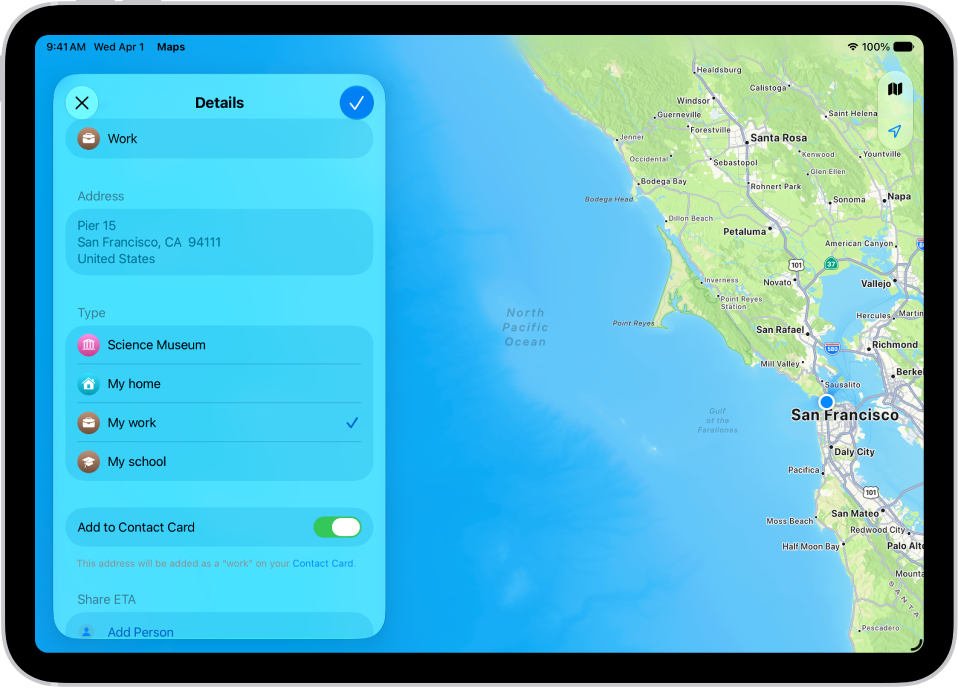
Set your home, work, or school address
You can set a home or work address that’s different from the home or work address on your contact card in the Contacts app.
- Go to the Maps app on your iPad.
- Below Places, tap the Add button (you may need to swipe left).
- Tap the search field and then enter the address you’re looking for.
- Tap the address. Then assign it to a type: My home, My work, or My school.
- Tap the Done button.
Note: Changing your home, work, or school address once you’ve been asked to sync Maps to My Card may mean you have to update it in Contacts, too. Read our guide, Add or edit your contact info and photo.
Change a set address
If your home, work, or school address changes, you can update its details.
- Open the Maps app on your iPad.
- Below Places, touch and hold the address you want to change.
- Tap Edit Details and then do any of the following:
- Rename the pin: Enter a new name in the Label field.
- Assign the address to your home, work, or school: Choose an option below Type.
- Move the location of the pin: Tap Refine Location on the Map. Drag the map.
- Tap the Done button.
Remove a set address
- Open the Maps app on your iPad.
- Below Places, touch and hold the address you want to remove.
- Tap Unpin.
See also