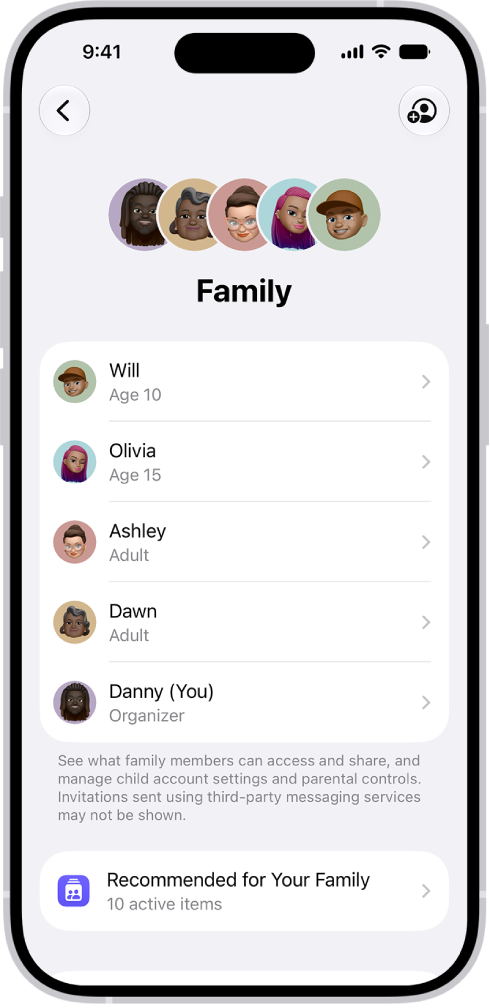
On iPhone, when you’re in a Family Sharing group, you can share Apple subscriptions and eligible App Store subscriptions with other family members. If your Family Sharing group has purchase sharing turned on, any subscriptions shared with the group are billed directly to the organizer’s default payment method.
The family organizer can also require that children in the family group request approval for eligible purchases or free downloads.
Here’s how to share Apple and App Store subscriptions with family members on iPhone.
Note: Not all services are available in all countries or regions, and some selections are subject to content restrictions set in Screen Time. Age restrictions for Ask to Buy vary by country or region. In the United States, the family organizer can turn on Ask to Buy for any family member under age 18; for children under age 13, it’s on by default.
Share Apple subscriptions
- Open Settings and then tap Family.
- Tap Subscriptions and then do one of the following:
- Tap a subscription you want to share, then follow the onscreen instructions.
- Tap Manage Subscriptions, then tap a subscription.
- Apple Arcade: All members of your family can download and play Apple Arcade games from the App Store. Each player gets a personalized account—your progress is carried over between devices.
- Apple Fitness+: All members of your family can access workouts in the Fitness app on their iPhone or iPad.
- Apple Music: With a family subscription, each family member gets their own music library and personal recommendations.
- Apple News+: All members of your family can read Apple News+ publications for no additional charge.
- Apple TV: Each family member can watch on their iPhone, iPad, iPod touch, Mac, Apple TV 4K, and supported smart TVs and streaming devices, using their own Apple Account and password.
- iCloud+: When you share iCloud+, all family members have access to iCloud+ features and storage. For storage, you only share the space—your photos and documents stay private and everyone keeps using their own accounts.
Share App Store subscriptions
Which eligible App Store subscriptions you share with family members is your call.
- Open the Settings app on your iPhone.
- Tap Family and tap Subscriptions. Then tap Manage Subscriptions.
- Do either of the following:
- Share all new subscriptions: Turn on Share with Family. When you purchase a new subscription that’s eligible for sharing, it’s shared with your Family Sharing members by default.
- Change the settings of a specific subscription: Tap a subscription and turn Share with Family on or off.
If you don’t see Share with Family, the subscription isn’t eligible for sharing.