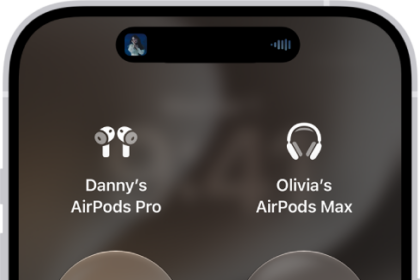
You don’t always have to switch AirPods between Apple devices yourself. When you’re signed in to the same Apple Account on your Apple devices, supported AirPods connect to whichever device you’re listening to.
Say you’re listening to music on your Mac with AirPods and you start playing a podcast on your iPhone. Your AirPods switch to iPhone automatically, and they also switch to iPhone when you make a call. You can also manually switch AirPods to another device, or keep them from switching automatically.
Manually switch AirPods to another device
- Wear your AirPods near the device you want to switch to.
- Do one of the following:
- iPhone or iPad: Tap the AirPods icon on the Now Playing screen, the Lock Screen, or in Control Center. Then select your AirPods.
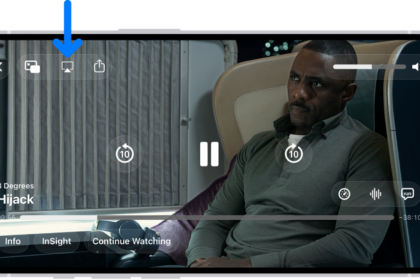
- Apple Watch: Press the side button to open Control Center, tap the AirPlay icon on the right (you may need to scroll down), and select your AirPods.
- Mac: Click the Bluetooth status menu in the menu bar and select your AirPods.
- Apple TV 4K or Apple TV HD: When you see the name of your AirPods appear on your Apple TV device, press the TV Control Center button on the Siri Remote.
Switch back to your iPhone or iPad
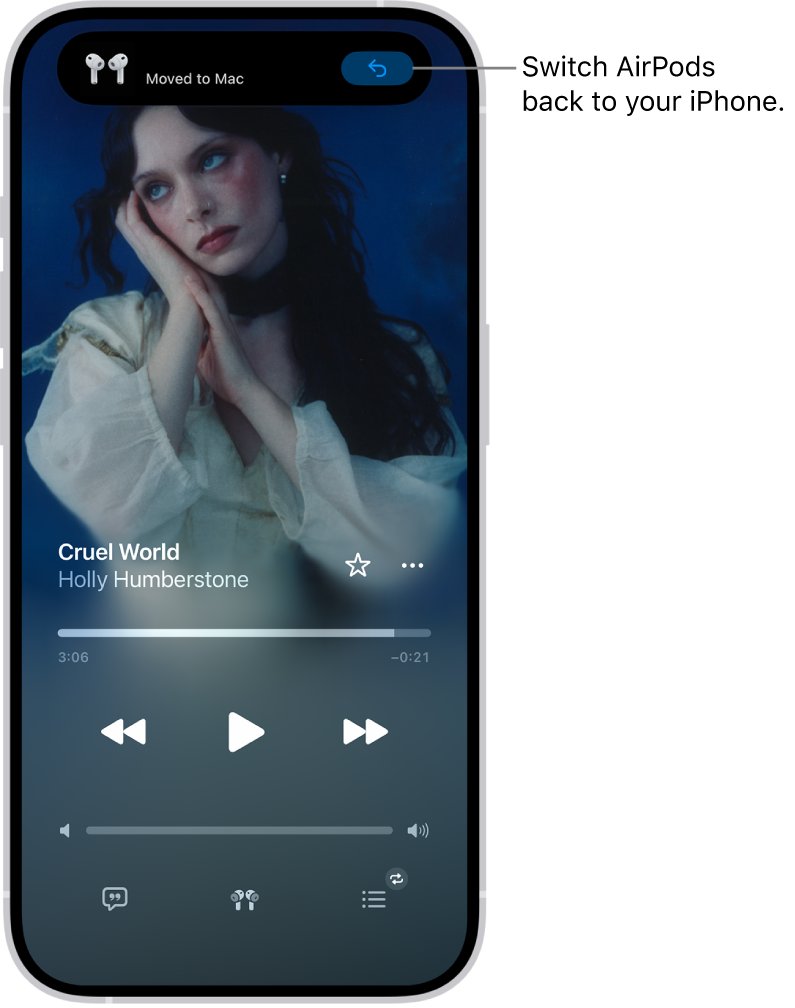
When your AirPods switch to another device while you’re listening to audio on your iPhone or iPad, it’s easy to switch back.
Tap the Return Headphone Connection button in the “Moved to” notice at the top of the screen.
Prevent AirPods from automatically switching to your iPhone, iPad, or Mac
- Wear your AirPods, and make sure they’re connected to your device.
- Do one of the following:
- iPhone or iPad: Go to the Settings app and then tap the name of your AirPods near the top of the screen. Tap Connect to This [device] (if you don’t see that option, first tap Audio & Routing) and then tap When Last Connected to This [device].
- Mac: Go to the System Settings app and click the name of your AirPods in the sidebar (you may need to scroll down). Below Connect to This Mac, choose When Last Connected to This Mac (if you don’t see that option, first click Audio & Routing).
In some situations, you receive a notification about your AirPods on the screen of your Mac. Click the Connect button to confirm that you want your AirPods to switch to—or stay with—your Mac.
Prevent AirPods from automatically switching to other playback devices
If a phone conversation in the car needs to stay private, for example, audio can stay in your AirPods even when your iPhone connects to playback devices like cars or speakers.
- Open the Settings app on your iPhone or iPad.
- Tap General, tap AirPlay & Continuity, and then turn on Keep Audio with Headphones.
In some situations, a banner appears at the top of your iPhone screen asking if you want to switch audio to a different device. When Keep Audio with Headphones is turned on, click the AirPlay button to manually transfer the audio to the other playback device. When Keep Audio with Headphones is turned off, click the Back button to move the audio back to AirPods.
This guide is for iOS 27, iPadOS 27, macOS 27, tvOS 27, watchOS 27, or later.
See also