There are multiple ways to turn your iPhone on and off. You can use the buttons on the side of your iPhone, or you can use the controls in Settings and Control Center. And if it doesn’t turn on, you might need to charge the battery.
Turn on iPhone
Press and hold the side button until the Apple logo appears.
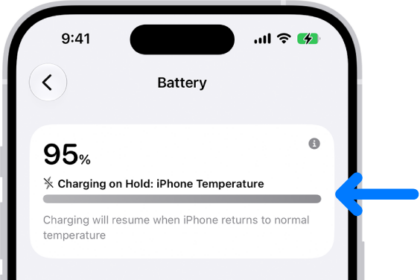
If your iPhone doesn’t turn on, you might need to charge the battery.
Turn off iPhone
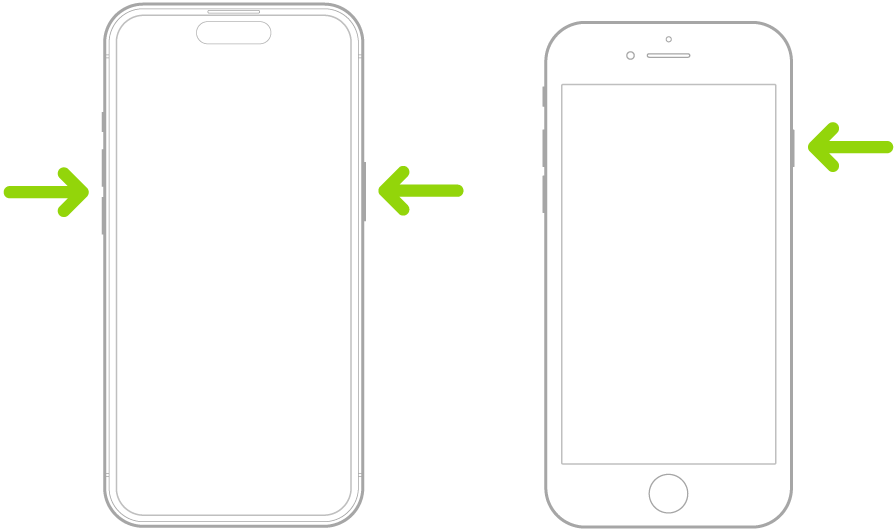
- iPhone with Face ID: Simultaneously press and hold the side button and either volume button until the sliders appear, then drag the Power Off slider.
- iPhone with the Home button: Press and hold the side button, then drag the Power Off slider.
Turn off iPhone in Control Center
- Open Control Center.
- Touch and hold the Power button in the top-right corner of your screen.
- Drag the slider to turn off iPhone.
Turn off iPhone in Settings
- Open the Settings app on your iPhone.
- Tap General and scroll down. Tap Shut Down.
- Drag the slider to turn off iPhone.
When your iPhone isn’t working as expected, restarting it by turning it off and back on may help. And if that doesn’t fix the issue, try forcing it to restart.