With the "Location Services" option on your iPhone, you can allow and disallow apps from using your phone’s GPS location. You can manage this on a per-app basis as well as system-wide. We’ll show you how.
With your permission, Location Services on your iPhone allows apps and websites (including Maps, Camera, Weather, and other apps) to use information from cellular, Wi-Fi, Global Positioning System (GPS)networks, and Bluetooth to determine your location.
Apps that can show your location on the screen, including Maps, show your current location using a blue marker. In Maps, if your location can’t be determined precisely, you’ll see a blue circle around the marker. The size of the circle shows how precisely your location can be determined — the smaller the circle, the greater the precision. When Location Services is active for an app, a black or white arrow icon appears in the status bar or in Control Center.
Here’s how to control the location services on your iPhone®
How to turn location services on or off
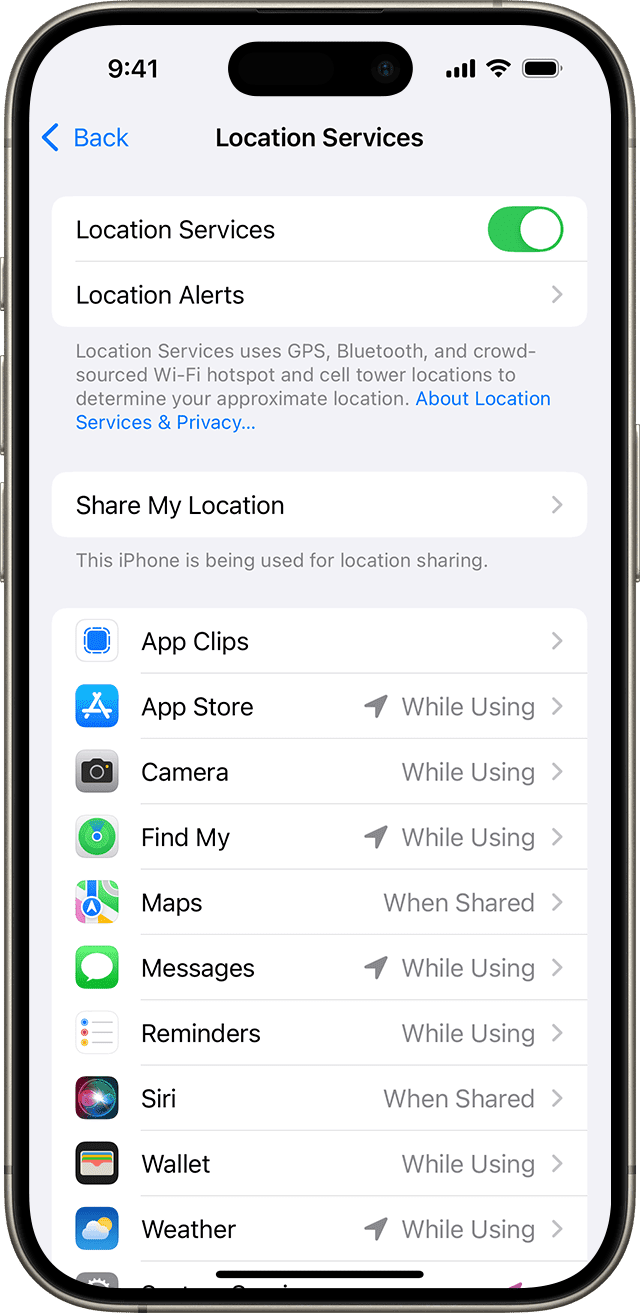
- On your iPhone, go to Settings > Privacy & Security > Location Services.
- Turn Location Services on or off.
What happens if you turn off Location Services on an iPhone?
All apps on your iPhone, including Maps, will stop using your location. No one is notified if you turn off Location Services, but some features may not work as expected without access to your location.
Is it safe to turn off location services?
While turning location services off won’t damage your phone in any way, you can restrict services and functionality. Apps like Google Maps and Strava rely on location data to be able to show you where you are and track where you’ve been. Similarly, Uber won’t be able to determine your location to pick you up. Your camera will work, but it won’t save location data to your photos, so you won’t be able to see on the map where any shots were taken.
It’ll also disable Apple’s Find My services, so make sure to leave it on if you like the safety of a partner or friend being able to see your location as you’re out and about.
However, if you lose your iPhone when location services are disabled and try and track it using iCloud, using the Lost mode will remotely activate location services, if your phone has power and is connected to a wireless service.
How to turn location services on or off for specific apps
- On your iPhone, go to Settings > Privacy & Security > Location Services.
- Make sure that Location Services is on.
- Scroll down to see a list of all the apps that can use location data.
- Tap on an app name and select an option:
- Never: The app will not be able to track your location at all.
- Ask Next Time Or When I Share: This allows you to choose Always While Using App, Allow Once, or Don’t Allow.
- While Using the App: The app will be able to use your location data only while the app is open on your screen. When the app’s closed, it won’t be able to track your location in the background.
- Always: Allows access to your location even when the app is in the background.
Which iPhone apps should have access to my location?
It’s up to you whether you want your apps to be able to track you all the time, some of the time, or never. For me, a selective approach is best. I let apps like Google Home track my location all the time as the app connects with my smart home products: When I leave the house, my security cameras automatically turn on and my heating settings change. But for almost everything else, including Uber, Instagram, Booking.com and even my phone’s camera, I only let apps track my location while I’m using them.
Remember that you can always go back and change the settings, so don’t worry if you revoke access to an app only to find later that you need it — it’s simply a case of going back into your settings and changing the permissions.
How to adjust location services accuracy
- On your iPhone, go to Settings > Privacy & Security, then select Location Services.
- Select an app, then turn Precise Location on or off.
What happens if you turn off Precise Location on iPhone?
When you turn off precise location on your iPhone, apps will only use your approximate location rather than your exact location.
- To share only your approximate location—which may be sufficient for an app that doesn’t need your exact location—you can turn Precise Location off.
- To allow an app to use your specific location, leave Precise Location turned on.
How to share your location
You can share your Live Location — which lets friends and family follow your ongoing location in real-time — in either Find My or Messages. To share Live Location, both you and the person that you’re sharing with need an iPhone with iOS 15 or later.
Follow these steps to start sharing your ongoing location using Find My:
- Open the Find My app on your iPhone.
- Tap the Me tab and turn on Share My Location.
- Tap the People tab, tap the Add button, then tap Share My Location to add a friend and start sharing your location. If you’re part of a Family Group, you’ll already see your family members.
- Choose to share your location for an hour, until end of the day, or indefinitely.
Here’s how to start sharing your ongoing location using Messages:
- Open the Messages app on your iPhone.
- Tap the Plus button to share your Live Location right in the conversation. The person or people in that conversation can tap on your location message to find you on a map and get directions to your ongoing location.
- You can also tap the name of the person or group at the top of the conversation. Then tap Share My Location (or tap Request Location to request that they share with you).
- Choose to share your location for an hour, until end of the day, or indefinitely.
How to stop sharing your location with a specific person
Find My:
- In Find My, select the People tab.
- Choose the person that you want to stop sharing your location with.
- Scroll down and tap Stop Sharing My Location.
Messages:
- In Messages, open a conversation with the person or group that you’ve shared your location with.
- Tap the name of the person or group at the top of the conversation.
- Tap Stop Sharing.
How to reset location settings on your iPhone
If you would like to reset all of your location settings to the factory default, follow these steps:
- On your iPhone, go to Settings > General > Transfer or Reset iPhone.
- Tap Reset, then tap Reset Location & Privacy.
- Follow the onscreen instructions.
When your location and privacy settings are reset, apps will stop using your Location Services information until you grant them permission.