You shouldn’t have to turn off your iPad very often. If you’re not going to use it for a few hours, it’s not worth the hassle (and minuscule battery life savings) to shut it down.
But, if you know you’re not going to use your iPad for a couple of days, or on a very long international flight, and you want to save every last ounce of battery life, shutting it down can be an effective option.
Also, if you suspect some bug has made your iPad unresponsive or slow, the first troubleshooting step should be that old IT standby: turn it off and on again.
Turning off an iPad should be easy, and we’ll show you how to do it step-by-step.
How to Turn off an iPad (models with the Home button)
It’s simple to turn off an iPad that has a Home button.
- Press and hold the Power button at the top of your iPad for around 3 seconds, until you see a ‘slide to power off’ message appear.
- Slide the power icon to the right to power off your iPad.
- The screen should go black and display a small progress wheel. After a few seconds, your device will power down.
- To turn the iPad back on press and hold the Top button again. Learn what to do if your iPad won’t turn on.

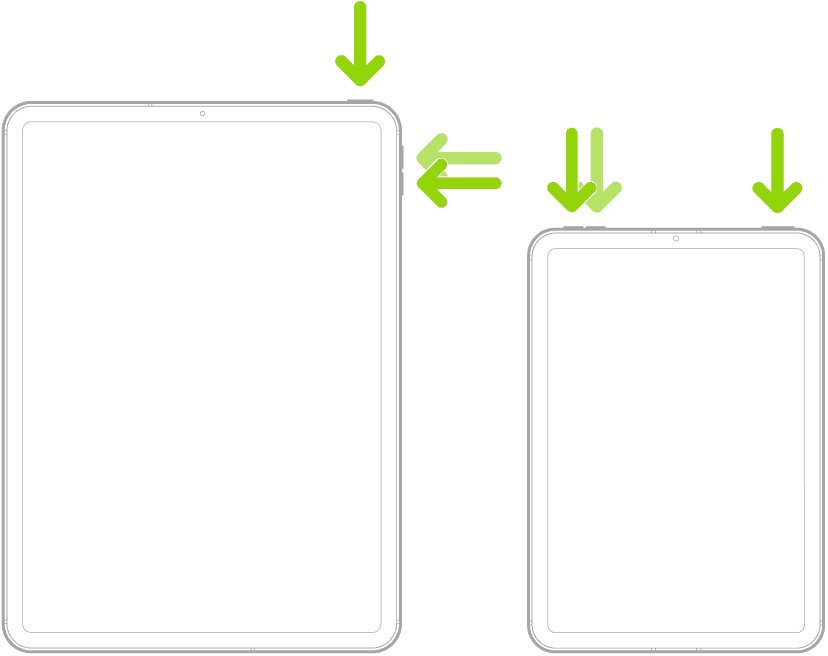
How to Turn off iPad (models with Face ID or with Touch ID in the top button)
If your iPad doesn’t have the Home button, do the following:
- Simultaneously press and hold the top button and either volume button.
- Your iPad should now show you the power off slider. Simply swipe the slider to turn off your iPad.
If you are finding you are taking screen shots try these steps:
- Press the up volume key.
- Press the down volume key.
- Now press and hold the Top button.
- Your iPad will show the power off slider, swipe this to turn off your iPad.
To turn on your iPad, press and hold the top button until the Apple logo appears.
See also: How To Fix an iPad Pro That Won’t Turn On
How to turn off any iPad model
Go to Settings > General > Shut Down, then drag the slider.
How to force-restart an unresponsive iPad
While the above tutorial explains how to turn off any iPad, the device needs to be responsive to activate the shutdown menu. But what happens if your device is completely unresponsive and still needs to be shut down properly? You’ll need to perform what’s known as a ‘hard reset’ or a force restart.
- To force restart iPad models with the Home button, hold down both the top button and home button. When the Apple logo appears, release both buttons.

- To force restart iPad models with Face ID or with Touch ID in the top button, press and quickly release volume up, then press and quickly release volume down. Finally, press and hold the top (power) button until you see the Apple logo on the screen.