While you might be eager to explore new iOS 26 features, mastering the basics of your iPhone Air is equally important. Even simple tasks like powering down your device might feel different from previous models, especially if you’re upgrading from an older iPhone.
Whether you need to conserve battery life, troubleshoot an issue, or simply restart your iPhone Air, Apple has made the process straightforward with multiple shutdown methods. For those new to the latest generation of iPhones, these methods are designed to be more intuitive and accessible than ever, even if they feel unfamiliar at first. In this article we’ll show you how to shut down an iPhone air, step-by-step.

The Difference between Sleep Mode and Shutting Down
Normally, when you briefly press the side button on your iPhone Air, the screen on your device turns off, but the iPhone stays running. This is called sleep mode or lock mode. While it turns off the screen, it doesn’t completely power off the device.
In contrast, shutting down your iPhone starts a special software shutdown process where your iPhone begins to tidy up and prepare for power-off. Then, your iPhone turns off completely. We’re going to show you how to completely turn off an iPhone Air in the steps ahead.
How to turn off iPhone Air
You can shut down your iPhone Air using four different methods. These methods take just seconds to complete once you know how. Let’s explore the simplest ways to turn off your iPhone Air.
1. How to Shut Down an iPhone Air Using Physical Buttons
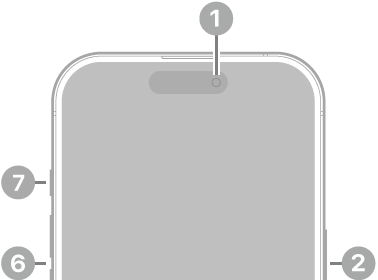
The quickest way to turn off your iPhone Air is using the physical buttons. Press and hold the side button and either volume button simultaneously until you see the power off slider appear on screen.
Simply drag the slider from left to right, and your iPhone 16 will begin its shutdown process.
2. How to Shut Down an iPhone Air Using the Settings App
If you prefer using the touchscreen, you can also turn off your iPhone Air through Settings. Navigate to Settings, tap General, scroll down to find Shut Down, then drag the power off slider to complete the process.
This method is particularly useful if your physical buttons aren’t working properly.
3. How to Shut Down an iPhone Air Through The Control Center
If you want to shut down your iPhone Air without holding any physical buttons. All you’ve to do is swipe down from the top right corner of the screen to open the Control Center and press and hold (then release) the power button for a second. Next, drag the familiar power slider to turn off your iPhone Air.
4. Shut down iPhone Air Using Siri
If you need to turn off your iPhone Air quickly at any time, the easiest way to do so is by using Siri. All you need to do is say, “Hey Siri, turn off my iPhone.” Siri should respond with a confirmation, asking, “Just to confirm, you want to power off this device?” Then, tapping on the turn-off button shuts down your iPhone Air right away.
How to Turn Your iPhone Air Back on Again
Now that your iPhone Air has been turned off, what next? If you’re troubleshooting, you can wait a few moments, and then turn it back on again. Waiting 10 seconds is a good rule of thumb when power-cycling gadgets in general.
If you wanted to save power, then you’re already set: Your iPhone won’t use any battery power while it’s powered off. (But batteries naturally and slowly drain over time, so if you put your iPhone in a drawer and come back to it in a year, its battery level will be a bit lower than you left it.)
To turn your iPhone Air back on, just press and hold the side button on your iPhone until the Apple logo appears. After a few moments, you’ll see the lock screen, and you’re back in action.
Manage your always-on display
Your iPhone Air comes with an Always-On display feature enabled by default. If you want to conserve battery without fully shutting down, you can turn this off by going to Settings, Display & Brightness and toggling off the Always On Display option. Good luck!