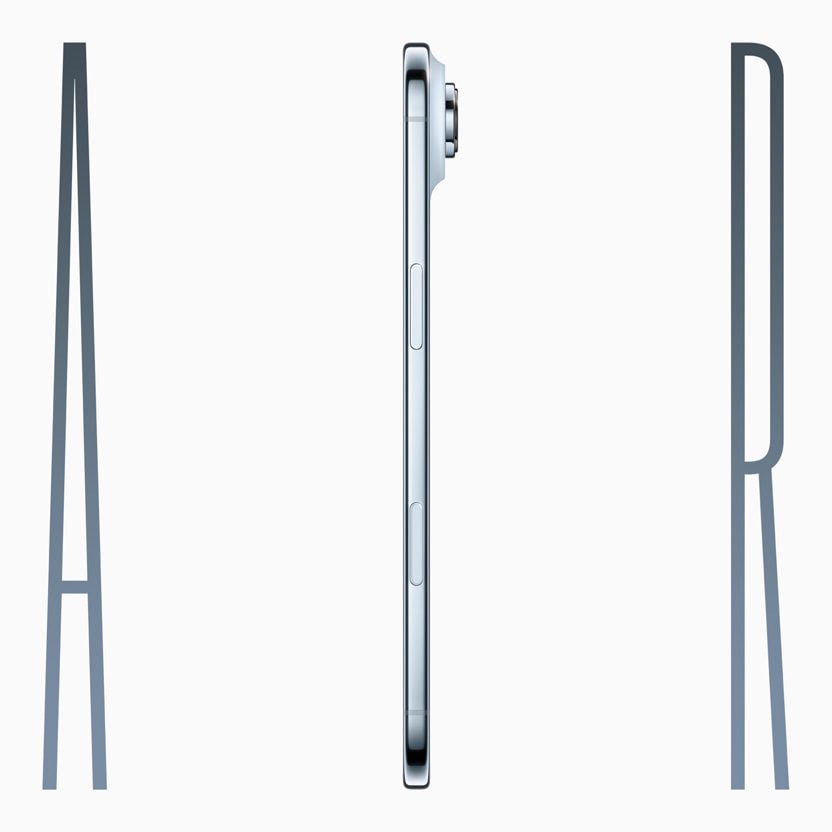
- If your iPhone Air battery is draining fast, a slew of factors can be responsible.
- Start by checking which apps drain your battery the fastest, control your screen brightness, and disable location services.
The iPhone Air is the thinnest iPhone Apple has released to date. There’s not a lot of room inside the iPhone Air for the battery, so battery life is bound to suffer. If your iPhone Air battery is draining too fast and you struggle to keep it alive throughout the day without frequently putting it on a charger, there are steps you can take to extend it’s battery life.
Some of the causes of battery drain on iPhone Air are easy to control, like features turned on by default that can be switched off. Others might require a lifestyle change as you switch up how you use your iPhone throughout the day, breaking habits and going without some minor perks. There aren’t many battery saving options that don’t disable key features on the iPhone, but in situations where every minute counts, it’s useful to have options.
You’ll need to balance battery drain with the feature set you want enabled, turning things on and off when you need to ensure your battery lasts all day.
Here are ten tips for diagnosing and extending your iPhone Air battery life:
Find what’s draining your iPhone Air battery
Some apps drain more of your iPhone Air battery than others, and it’s no surprise that the biggest offenders are those that track location, stream video or generate graphics (games, for example, especially fast-paced online ones). If it makes your phone heat up a bit, it’s probably running down your battery faster than casual use.
There’s a way to specifically check which apps are draining your battery the most. Head to Settings > Battery. Under App and System Activity section, youll see which apps are the worst culprits for taking the biggest percentage of your battery. Tap View All Battery Usage and scroll down to App and System Activity Usage to get an idea of how much the battery is used by app and system activity throughout the day.
You don’t have to uninstall or stop using an app just because it’s drawing a lot of power. In some cases, apps may perform better if they’re up to date. In other words, un-updated apps can be a drain on your battery. To make sure you’re up to date, start the App Store app and tap your account icon at the top right. If any apps need updating, tap Update All in the Available Updates section.
Control your brightness
A bright display can make your iPhone Air battery drain fast, so a good strategy is to keep the screen as dim as your eyes can handle. This one’s pretty easy: pull down from the top-right corner to bring up the Control Center and manually lower the brightness bar. Alternatively, you can find these controls in Settings > Display & Brightness or if you prefer to be verbose, you can ask Siri to reduce the brightness.
While you’re in the Display & Brightness sub-menu, disable the iPhone’s ability to automatically adjust screen brightness in response to ambient lighting, so you are always in charge. Simply turn off True Tone by swiping the button to the left. Still under Brightness section, tap Auto-Lock to set your phone to have a shorter time before locking itself. That way you won’t be draining battery if you put your phone down and paying attention to something else.
Turning on Dark mode in the Appearance section of this same screen can also extend the iPhone Air battery life.
Remove widgets from your lock screen
Those helpful widgets showing weather updates, calendar appointments, and sports scores look convenient, but they’re secretly sucking your iPhone Air battery.
Each widget forces its associated app to continuously run in the background, constantly fetching new data to keep the information current.
This non-stop background activity creates a substantial drain on your battery throughout the day. While individual widgets might have minimal impact, having multiple widgets can collectively take a significant toll on your battery life.
To remove widgets from your lock screen, press and hold on your lock screen until the customization view appears. Tap Customize and select the Lock Screen option.
Next, tap on the widget box, select the widget and press the minus (−) button to remove it.
Reduce motion effects
The iPhone Air uses animations when opening apps, activating Siri, and switching between screens. These visual effects require additional processing power and drain your battery throughout the day.
By simplifying these animations, you can reduce power consumption and extend your iPhone Air battery life.
To reduce motion effects on your iPhone Air, start by opening the Settings app. Tap on Accessibility, then select Motion. Then simply toggle on the Reduce Motion option.
This setting replaces the more elaborate transitions with simpler ones, putting less strain on your system resources without significantly changing how you use your iPhone.
Limit When and How Often Apps Can Access Location
Tracking your location drains battery, so limiting the apps that have access to your location and how often apps can access that data can save iPhone Air battery life. Triangulating your position actually takes multiple sensors, so it’s not an insignificant amount of battery saved — your iPhone uses GPS, Bluetooth, and crowdsourced Wi-Fi to narrow down where you are.
To see which apps track your location, tap Settings > Privacy & Security > Location Services and tap through to tweak each individually. But you can also turn off Location Services entirely with the toggle at the top of the screen.
It’s worth noting that Location Services are required for Apple’s Find My feature, so if you want to track down another object linked to your account, you’ll need Location Services turned on. Likewise, you’ll need it turned on if you ever lose the iPhone you’re using, so make sure to reactivate it later.
Disable keyboard haptic feedback
Keyboard haptic feedback provides a subtle vibration each time you press a key. This tactile response makes typing feel more satisfying, but according to Apple Support’s small disclaimer, it might affect the battery life of your iPhone Air.
Each tiny vibration requires power from the Taptic Engine, and considering how frequently we type on our phones, these small power draws add up quickly throughout the day.
To disable keyboard haptic feedback, open the Settings app on your iPhone Air. Tap on Sounds & Haptics, select Keyboard Feedback, and toggle off the Haptic option.
This feature is disabled by default, so you’ll only need to change this if you’ve previously turned it on.
Limit Background Activity
Most apps use background refresh to update even when they’re not open, and limited background activity and background refresh is a longtime favorite option for cutting down on battery usage.
You can turn off Background App Refresh on an iPhone Air all together or choose which apps can refresh in the background.
Go to Settings > General > Background App Refresh. From there, you can tap on the Background App Refresh off altogether or choose to have it activate only when connected to Wi-Fi, which doesn’t drain battery as much as downloading over cellular.
You can also choose to turn Background App Refresh on just for your most used apps by tapping on the toggle next to each app in the list.
If your 5G signal is bad, switch to 4G LTE
While carriers have built out their 5G networks over the years, some phone owners will struggle to get a strong signal in areas with poor coverage — or in places 5G struggles to reach, like within buildings and underground. Your iPhone Air burns a lot of battery trying to stay connected, so if you don’t have a great connection, it might be best to manually revert to 4G LTE.
To do so, head to Settings > Cellular, then tap on Cellular Data Options. If you don’t see Cellular Data Options, select the SIM or eSIM that you’re currently using. On the next screen, tap Voice & Data and select LTE. You’ll only use 4G LTE to connect to mobile networks, which should be more widely available among carriers.
You should also be aware that downloading data drains battery, too, so manually restricting that could extend your iPhone Air battery life. To do so, head to Settings > Cellular, then tap on Cellular Data Options. If you don’t see Cellular Data Options, tap on the SIM or eSIM that you’re currently using. On the next screen, tap Data Mode then tap Low Data Mode, which will pause automatic updates and background tasks.
Change Your Mail Settings
Along with turning off Background App Refresh, changing when and how often the Mail app checks for new emails can fix iPhone Air battery drain issue.
Go to Settings > Apps > Mail > Mail Accounts. Tap “Fetch New Data” at the bottom. You can turn off Push (which lets you know right away when a new email message is available) and adjust Fetch settings on a per account basis for accounts that don’t support Push (like Gmail accounts).
Adjusting the Fetch settings to have longer intervals before checking for new messages can help save battery life, as can turning off Fetch all together in favor of manual checks that will download new messages only when the Mail app is opened.
You can choose the following settings: Automatically, Manually, Hourly, Every 30 Minutes, and Every 15 Minutes.
Use Scheduled Summary
If you’re iPhone Air battery is draining quickly, you should make sure that any app that sends non-important notifications is relegated to the Scheduled Summary, which saves up notifications and sends them to you once or twice a day.
You can toggle on Scheduled Summary for apps in the Notifications section of the Settings app, where you can specify which apps should have their notifications include in Scheduled Summary and when you want them delivered.
Another option is turning off notifications entirely for apps that are sending you less than useful info like reminders to play games.
Conclusion
There are a lot of minor changes to make to cut down on battery use, but everything you do on your iPhone 17 Air is going to drain battery. It’s important to figure out what works for you, what features you don’t need, and where you can compromise to get the most out of your battery.
While there are many chronic problems that can routinely drain your iPhone Air battery, sometimes your phone might unexpectedly start draining quickly. You might notice that the iPhone Air is “running hot” — it’s warm to the touch and the battery drains in just the space of a few hours. If this is unusual behavior for your phone, restart your iPhone by turning it off, waiting a few minutes, and then turning it back on again. That can clear out a software glitch and it’ll return to normal.
Do you have any other tip to fix iPhone Air battery drain issue? Let us know in the comments below.