You can use the flashlight on iPhone to light your way in the dark or get a more detailed look at something.
You can turn it on or off in Control Center, with Siri, from the Lock Screen, or with the Action button.
Here’s how to turn the iPhone flashlight on or off.
Use Control Center to turn the flashlight on or off
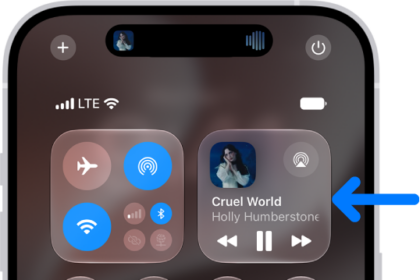
- Open Control Center.
- Tap the Flashlight button to turn the flashlight on; tap it again to turn it off.
Use Siri to turn the flashlight on or off
You can use Siri to turn the flashlight on or off.
Siri: Ask Siri something like, “Siri, turn on the flashlight.”
Turn on the flashlight from the Lock Screen
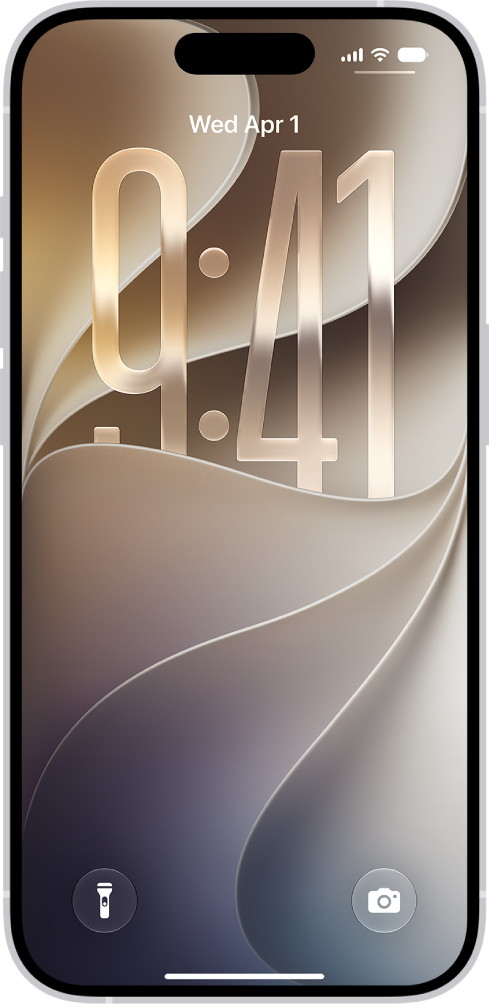
If your iPhone has the Flashlight button on the Lock Screen, you can press it to turn the flashlight on or off.
Turn the flashlight on or off with the Action button
You can customize the Action button, if your iPhone has one, to turn the flashlight on or off.
Change the brightness of the flashlight
Once the flashlight is on, an image of the flashlight appears on the screen. Dragging the Brightness button up or down on the flashlight image changes the brightness.